Operational efficiency
Reuse presentations, documents, and media on screens
An approved PowerPoint presentation, Word notice, Excel report, or PDF can become screen content without being rebuilt in a design tool. Teams can continue working in the applications they know, then use those files in Smartsign publishing alongside images, video, and other media.
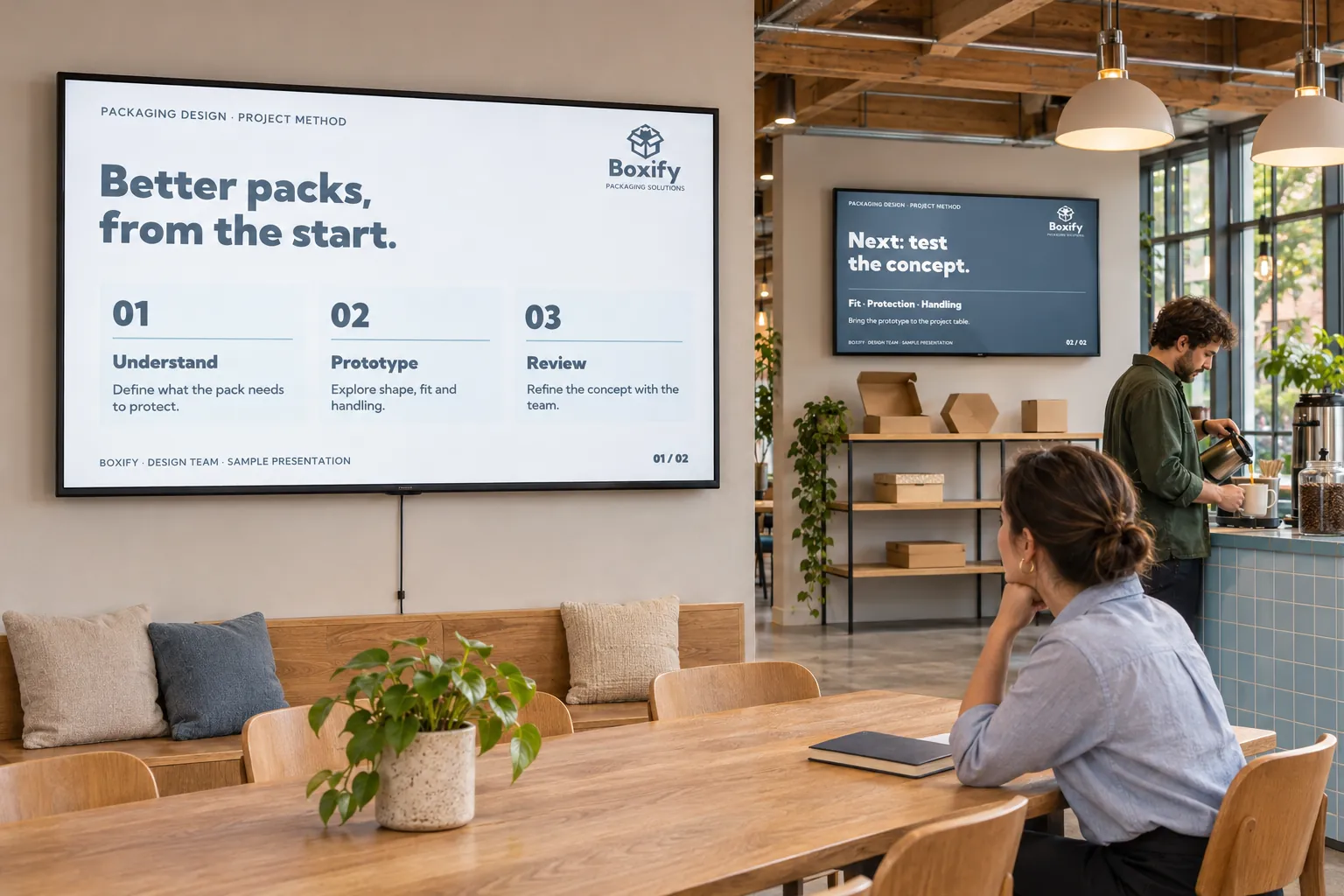
The main preparation is for the audience. A report designed for a desk may be too dense for a reception display, and an internal document may contain pages that should never appear in public. Choose material that people can read at viewing distance and that belongs on the intended screens.
Publish the files your team already maintains
The publisher adds a supported document to a booking playlist, chooses where and when it should appear, and reviews the result.
| Existing material | A screen use |
|---|---|
| PowerPoint presentation | Share an approved campaign or staff briefing as a sequence of slides. |
| Word document | Publish a service notice, newsletter, or information sheet. |
| Excel workbook | Show a readable selection of statistics or a schedule. |
| Reuse an approved poster, notice, or report. |
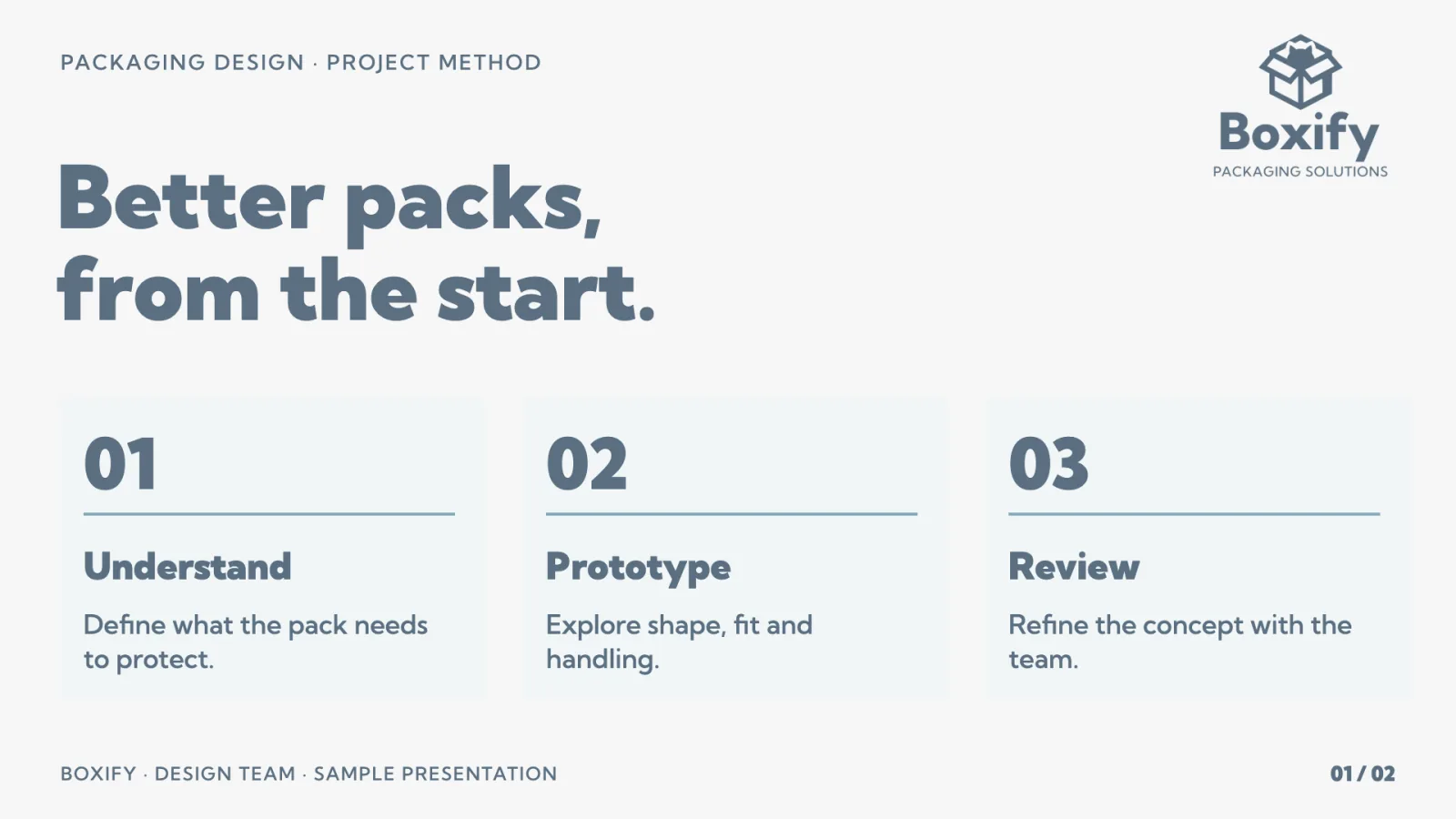
- Slide 1
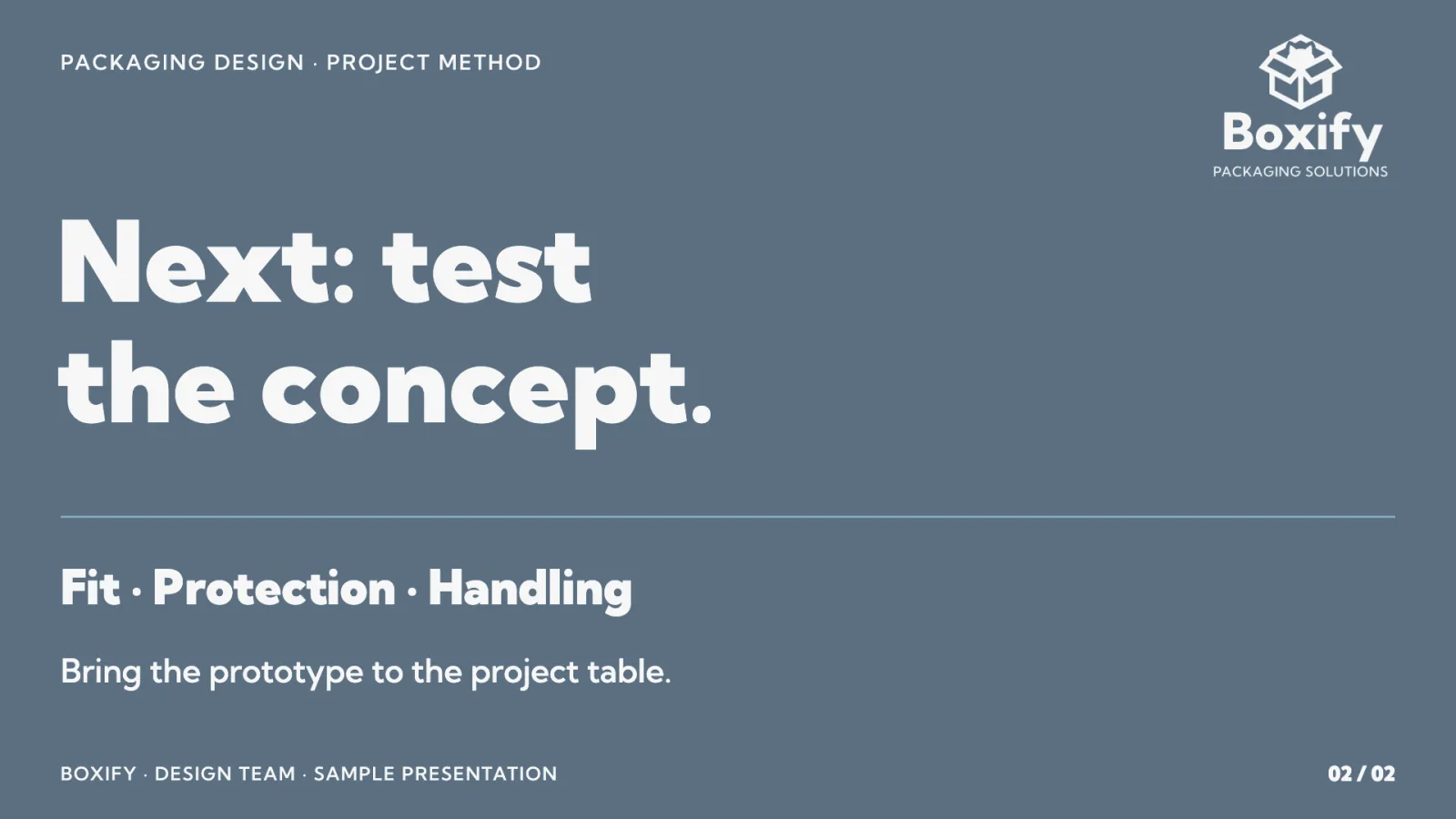
- Slide 2
Set how long pages or slides appear. In a booking, the Slides tab also lets you turn individual pages off; this tab is not available for Excel files. PowerPoint slide timings carry over where available. Document formats and behavior explains the supported types; Publish on channels provides the booking steps.
Documents appear as static pages. Interactive behavior, animations, transitions, and embedded video do not play within them; use a video when movement is part of the message. Preview the result and check the actual display for readability, suitable content, and correct playback.
Combine a document page with other content
A single report page or information sheet can sit beside text, branding, and other content in a template or smart-media design. A designer can select the page from the document without first exporting a separate image.
That document layer shows one chosen page. When viewers should see several pages in turn, publish the document itself in the booking instead. Documents in Template Creator explains the single-page option.
Keep the screen version current
Agree who maintains each source: communications may own presentations and posters, operations may own reports, and local staff may own service notices. Reuse the existing Media Library item in additional bookings so those bookings share the same content.
For files maintained in OneDrive or Google Drive, choose synchronization when adding them through the available provider source. A synchronized item stays linked to its source, allowing later file changes to update the media used in publishing. A one-time import does not establish that ongoing link. Check the provider guides for availability and setup requirements; Add media explains the source choices.
Update synchronized files in OneDrive or Google Drive. The media item's Synchronize action can request the latest source version when needed. For an ordinary uploaded file, replace the existing media file to keep bookings pointing to the updated item. Synchronized items use their source connection instead of Replace.
Check the updated library item and the screen result. Synchronization and delivery take time; an updated library item does not mean every screen has already received the change.
Reuse images, video, and hosted views too
Approved posters, photographs, and promotional videos can join documents in the schedule. Publish an image or video covers that workflow. Other supported sources, including URLs, streams, smart media, and permitted online or provider content, are available through Add media where enabled.
An existing dashboard or information page can be added as webpage media. Live mode uses the device browser; Snapshot shows a periodically refreshed static image. The page follows its own update, connectivity, and authentication conditions. Show dashboards and web pages with restricted access explains what to check on the intended player.
Browse the other use cases for ways to combine maintained content with screen designs.