Operational efficiency
Update news and activity lists without rebuilding playlists
An activity coordinator adds one event, changes the time of another, and removes an old notice. If each entry is a separate slide, a small information change becomes a playlist-editing task. Copies at different locations can drift apart while local staff wait for someone to update the screens.
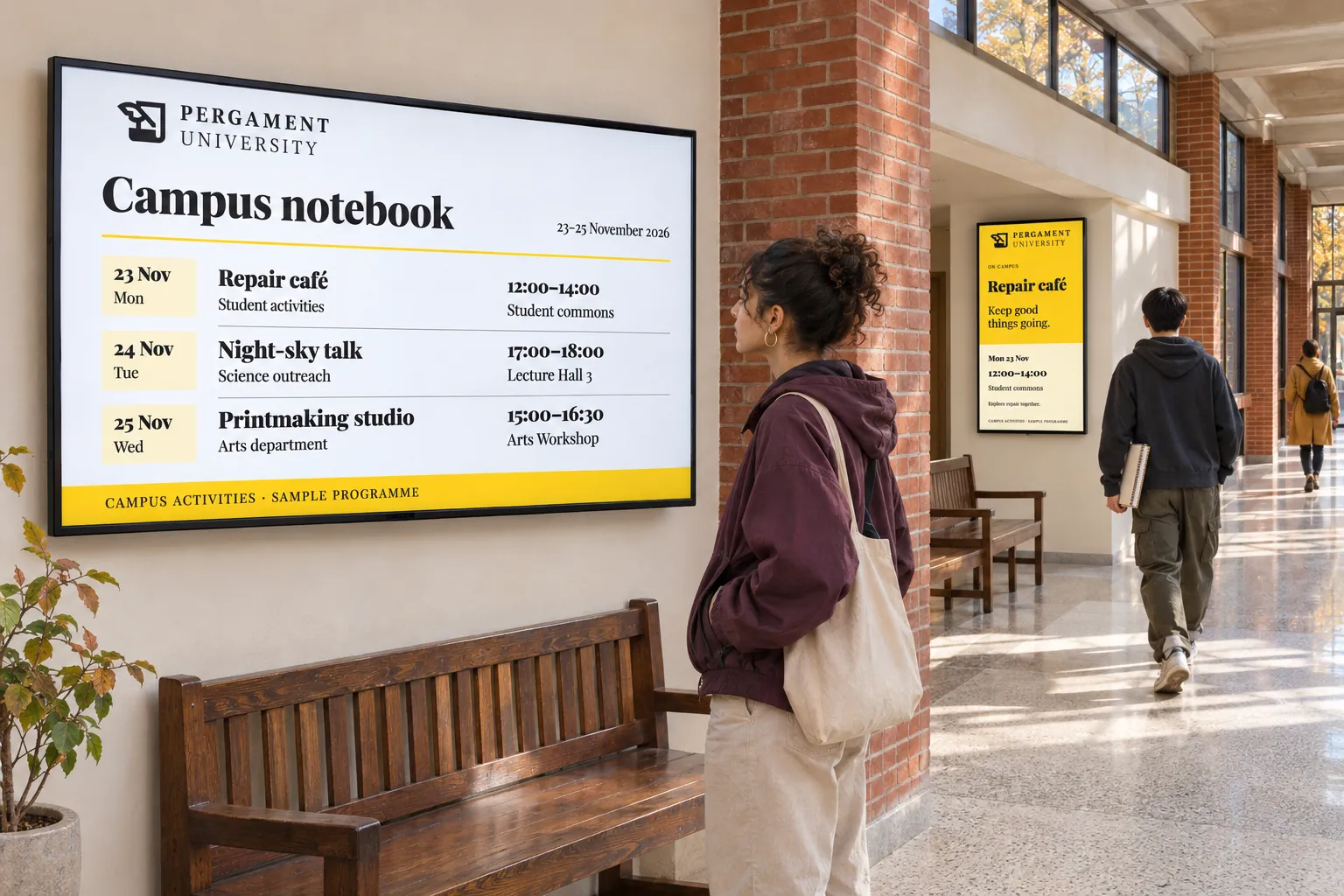
A feed gives the list its own place to live. Staff maintain entries, a reusable design controls how they appear, and a booking controls when the finished content plays. This suits news, activities, schedules, service messages, menus, campaign variations, and visitor or resident information that changes one entry at a time.
Connect the list to its presentation
A Smartsign feed holds the entries. It reaches screens through a short chain:
| Part | What it does |
|---|---|
| Feed | Holds the notices, activities, or service entries and supplies RSS output. |
| Template Data Source | Connects that RSS output to the design. |
| Template | Presents the fields in a design made for repeating entries. |
| Smart media | Turns the design and data into playable content. |
| Booking | Schedules that content on the intended channels and screens. |
The feed is not published directly. Once these parts are connected, however, adding or changing an entry does not require a new booking or a rebuilt playlist. How a feed reaches the screen explains the relationship; RSS covers connecting the source and publishing its content.
Let the activity owner maintain the entries
For a changing activity list, a local team maintains the feed while a designer prepares a compatible RSS template and its smart media. A publisher schedules the item on the relevant channel. The activity coordinator can then add, edit, schedule, or remove individual entries without changing the design.
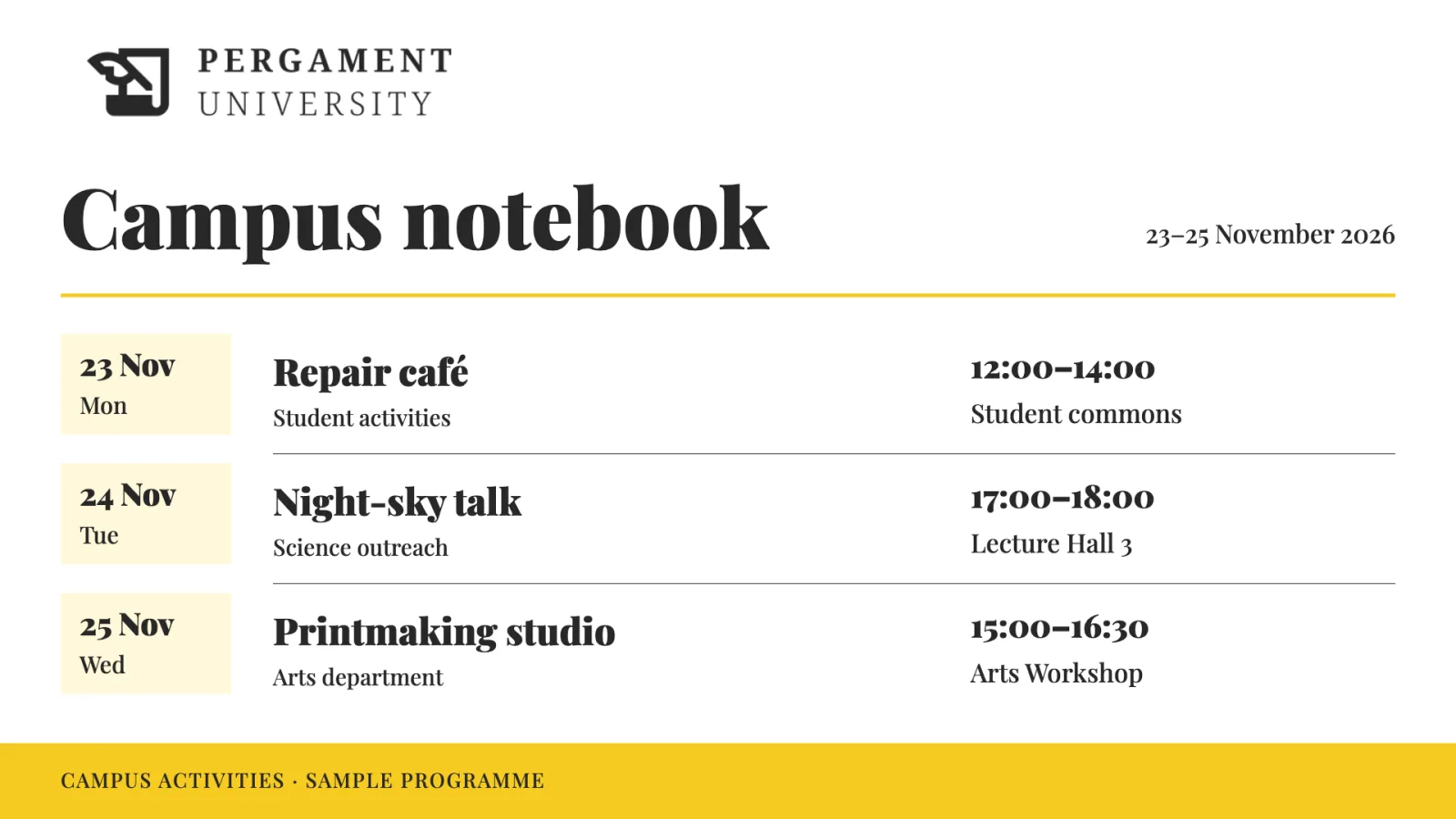
A scheduled entry is available only during its validity period. The booking schedule and screen schedule still determine when the resulting content can play. This separates the lifetime of an activity notice from the hours when the screen shows the list.
Give staff access to the feed, media, and channel they maintain. After setup, change an entry and check the intended screen to confirm that the feed, design, and booking work together. Test images or files too: RSS attachment handling varies between display setups. Publish feeds covers daily maintenance; Manage feeds covers feed setup and access.
Use the maintained list in more than one place
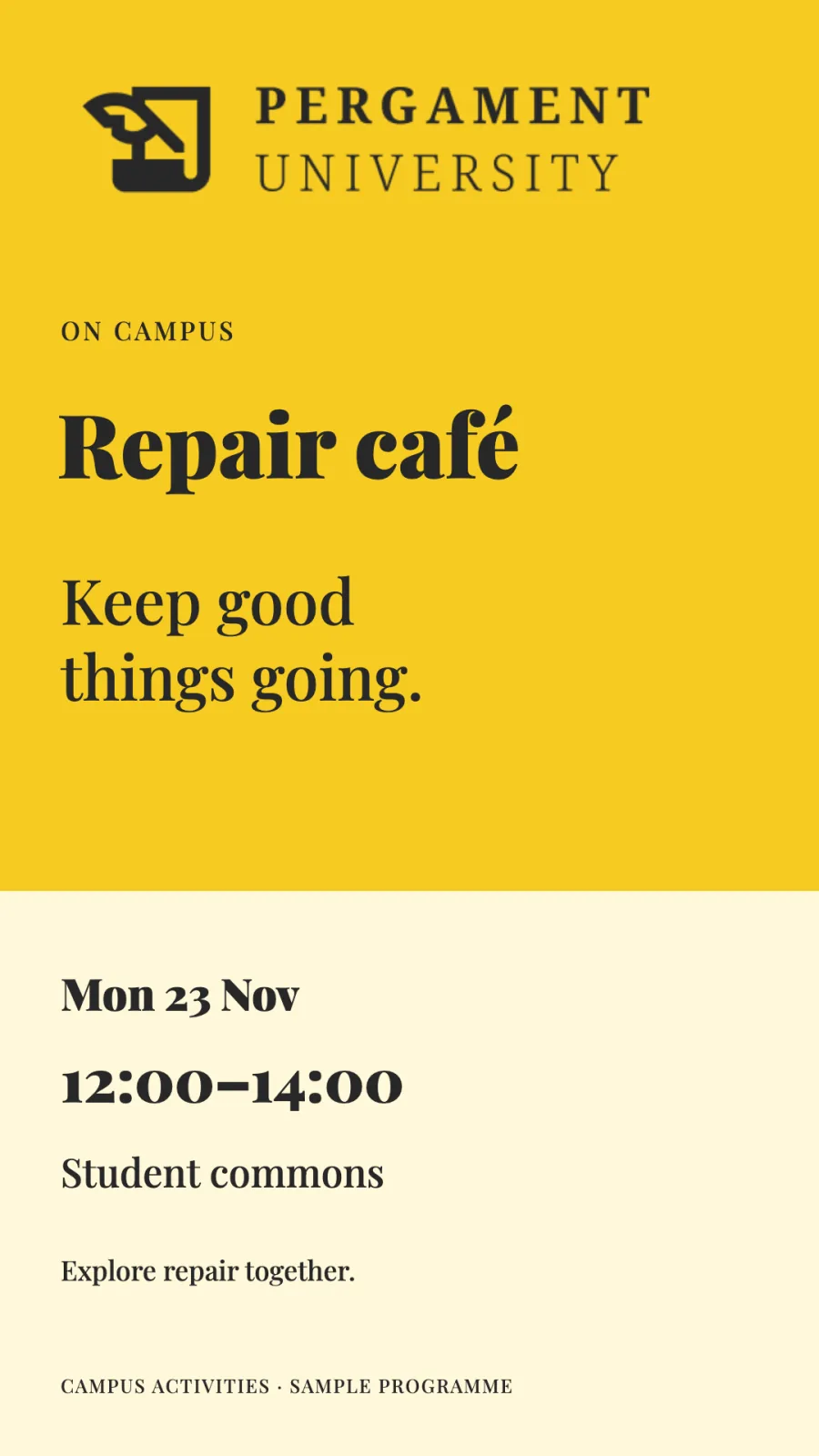
A campus can show one event feed at reception and on student-information screens. A public-service team can update opening notices and activities across displays. Workplace and facilities teams can use the same approach for employee news, service messages, or resident information.
Several templates or smart-media items can share a data source when they need the same information and connection settings. That allows different designs or screen locations to use one maintained list, where access and targeting permit it. The connection can be managed centrally; separate sources are appropriate when locations need different settings. Refreshes still depend on the source configuration and a working connection. See Reuse a connection across designs.
Avoid maintaining the same information twice
Before creating a feed, check whether the information already belongs to a booking, menu, or operational system. An external RSS source, structured connection, hosted webpage, or verified integration may let screens use it where it is already maintained. Room and event information and menu and promotional data explain those choices.
For one message whose text changes within a fixed layout, Quick edit may be simpler. Use a feed when maintaining the collection itself is the recurring task.