Operational efficiency
Create a one-off message or design
A special welcome slide for an event may never be needed again. Creating a reusable template for it adds something to name, store, and maintain without helping the next publishing task. A local campaign variation may need even less preparation if a suitable design already exists.
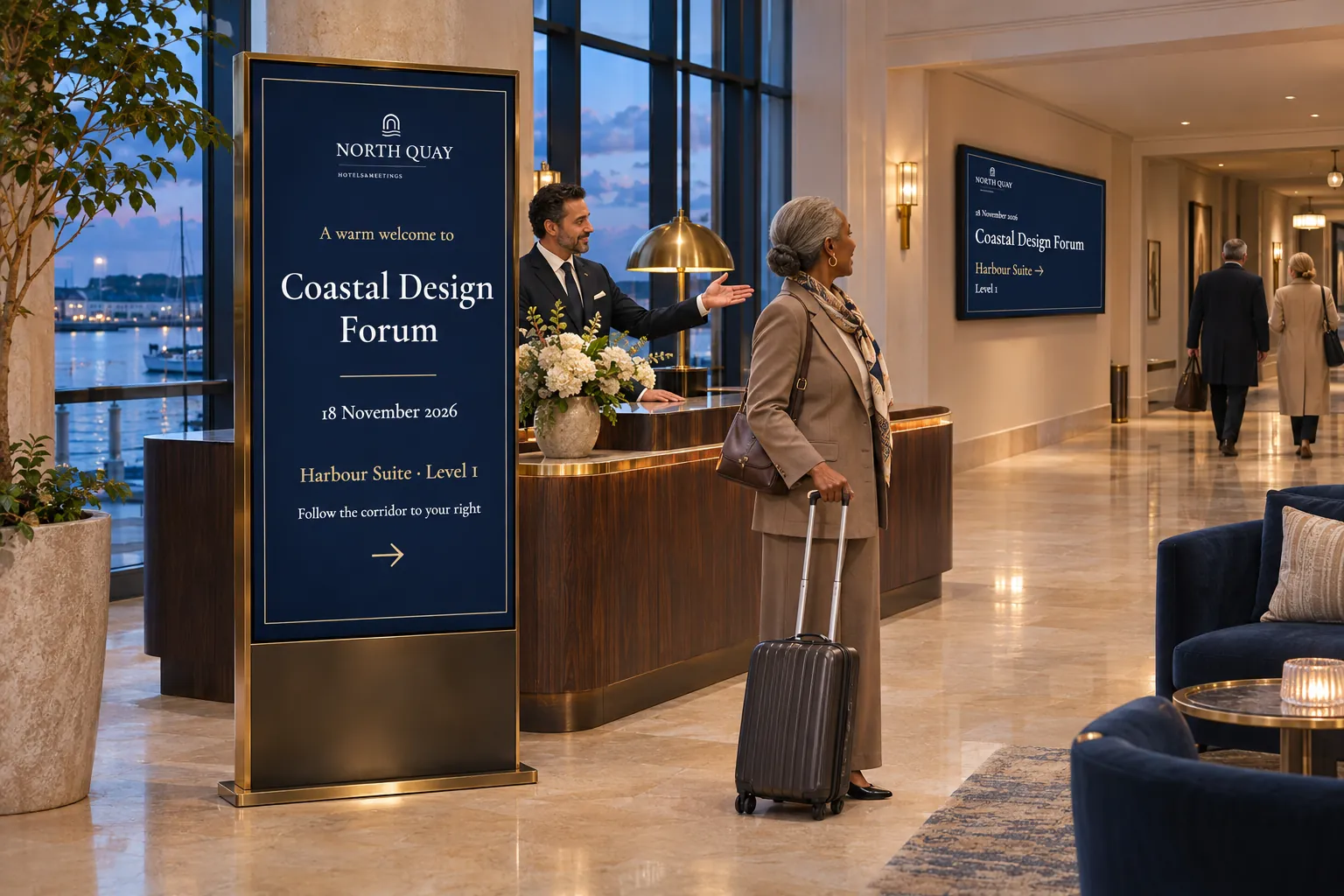
Before you start, decide what you want to reuse: the design, the finished message, or neither. That choice determines where the content belongs and keeps occasional work from filling the template library with unused designs.
Choose whether to reuse the message or its design
The same design tools support several kinds of work, but the results have different homes:
| What you need | Where to start | What you keep |
|---|---|---|
| An individual message with its own design | Choose a Blank template, if available on your site. | A playable item without a separate reusable template. |
| One booking's message in an existing design | Use a suitable template in the booking's playlist. | Content belonging to that booking. |
| The same finished message in several bookings | Create the item in the Media Library first. | One item that the bookings can reuse. |
| A design for many future messages | Create a reusable template. | A starting design for different content. |
Add media is available from the Media Library and a booking's playlist. When you use Add media -> Use template within a booking, you can fill the template's available fields directly. The result belongs to the booking without requiring a separate reusable Media Library item; the available fields and media choices depend on the design. The Smart Media message workflow explains the creation and save choices.
Give an event its own design
Suppose an event needs a special welcome slide with a layout that will not be used again. If your site has a Blank template, a designer can select it from the appropriate Media Library folder, name the Smart Media item, and open Advanced editing to build it in Template Creator. The finished item can then be previewed and scheduled for the event.
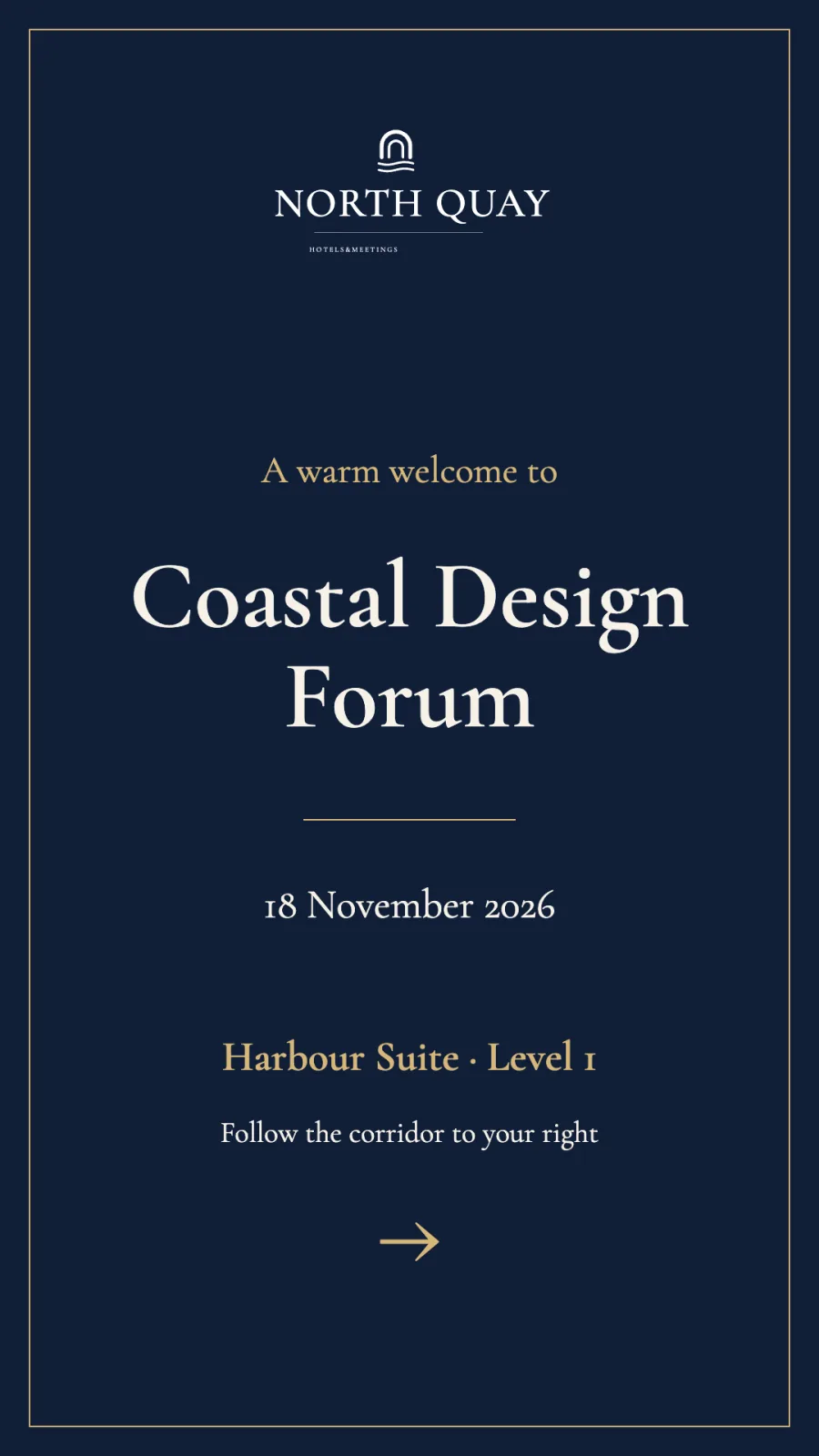
This uses the same design tools described in Templates, without first creating a reusable template. Smart Media covers creating and saving the item.
Storing the item in the Media Library requires a writable folder. Use Advanced editing when you need to change the full design, and check the result before publishing.
If an event template already supplies the right layout, a publisher can fill it in the booking instead. That is also useful for a local version of a campaign that belongs in only one booking. The template owner can keep the shared design category focused on reusable formats, while publishers prepare the occasional messages they need.
Reuse the result when that is the real need
A message intended for several bookings belongs in the Media Library from the start. Publishers can select the existing item again instead of maintaining a separate booking-specific copy in each place.
A recurring design is a different kind of reuse. If future events will need the same structure with different messages, follow Create template. Reuse branded designs explains how that design can fit a shared visual identity.
Whichever route you choose, review the finished message before saving or publishing. Creating content does not schedule it: the booking still needs the intended channel, targets, schedule, and publishing state. The useful shortcut is avoiding unnecessary design administration while keeping those publishing decisions clear.