Communication impact
Schedule campaigns across multiple locations
A seasonal offer, workplace initiative, public notice, or event program has a beginning, an end, and an audience. Agreeing those together lets a team prepare one campaign without asking local staff to start and remove copies from individual screens.
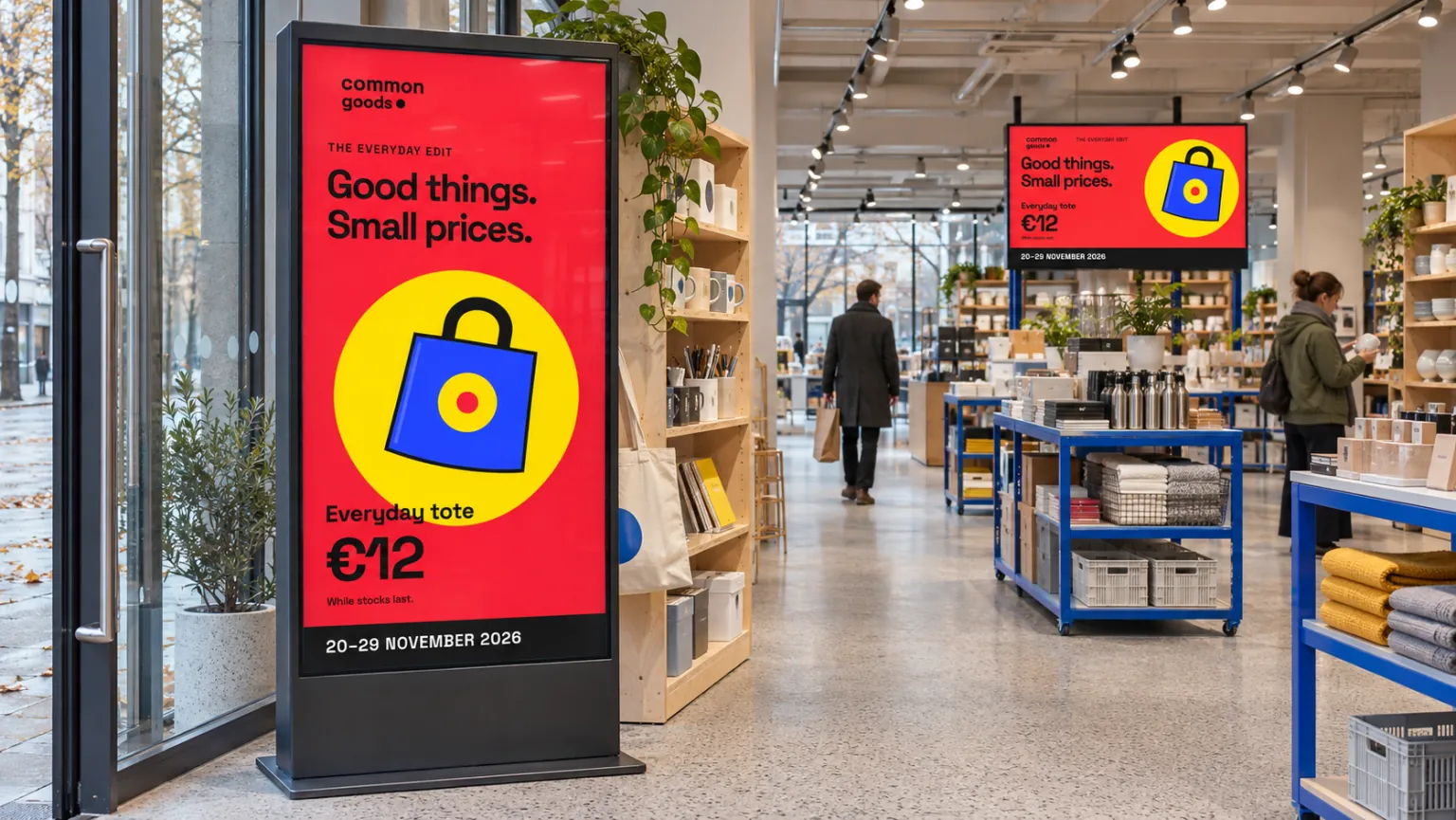
In Smartsign, a booking keeps the campaign's playlist, channel, targets, and schedule together. That makes later timing changes easier to follow than a collection of separate playlists, and gives reviewers a concrete publishing decision to assess.
Define the content and the period together
Choose the images, videos, documents, webpages, or supported streams the campaign needs. Scheduling can set its start and end dates, recurrence, and times of day. A campaign can run once, repeat, or appear during particular parts of the day; ordinary content continues after its scheduled period.
Marketing teams may coordinate an offer across stores. Communications teams may plan a workplace campaign across offices and production units. Healthcare, campus, and public-service teams may need a temporary notice, service update, or activity program. The scheduling principle is shared, but the content and audience remain specific to the task.

Keep promotional, local, and operational channels separate where different teams own them. A reception or multi-zone layout can display advertising or background content alongside local information. A supported data source can supply menu or promotional values maintained in a business system.
Advertising may also involve audience data or other integrations. Agree those source requirements separately; a booking does not supply them automatically.
Target a shared audience across locations
Suppose staff-information screens in production units in Sweden and Estonia should receive a campaign. Keep each screen in its usual location folder, preserving its inherited settings. Describe audience and country with tags, then use a Staff information screens tag folder to combine them:
| Rule | Tags | What a screen must match |
|---|---|---|
| ALL | Staff area | Have the Staff area tag. |
| ANY | Sweden, Estonia | Have at least one of these country tags. |
| NONE | Visitor area | Not have the Visitor area tag. |
All three rules apply together. A suitably tagged screen at a new unit joins the selection automatically; a screen whose tags no longer match leaves it. The selection can therefore change without moving screens out of their location folders or rebuilding a manual target list.
Use that tag folder as the booking target and confirm that the matching screens also subscribe to the campaign channel. Tags do not replace that subscription. Published status, the schedule, and screen active time still govern when content can appear.
Review Matching screens and Screens not matching before saving, and again when shared tags or rules change. Publish to screens using tags explains the setup. For audiences that follow lasting locations, departments, or screen formats, screen folders may already provide the target structure you need.
Make the publishing decision visible
Where review is required, submit the prepared booking as Waiting for approval. An eligible approver checks its playlist, timing, channel, and targets before publishing or returning it to draft. This keeps the decision attached to the campaign rather than leaving it in an unrelated email or chat.
Booking status and filters distinguish preparation from published work. Remember that the Published filter also includes inactive bookings; finding a campaign there does not establish that it is playing now.
See Booking settings for scheduling and publishing statuses. Make sure the reviewer has access to the campaign's resources as well as permission to publish.