Communication impact
Show room availability and event schedules
A meeting room's calendar may be correct while the notice outside its door is already out of date. The same gap appears at an event venue, library, or campus when staff have to recreate every schedule change as a slide. People see the old information and return to reception to ask where they should go.
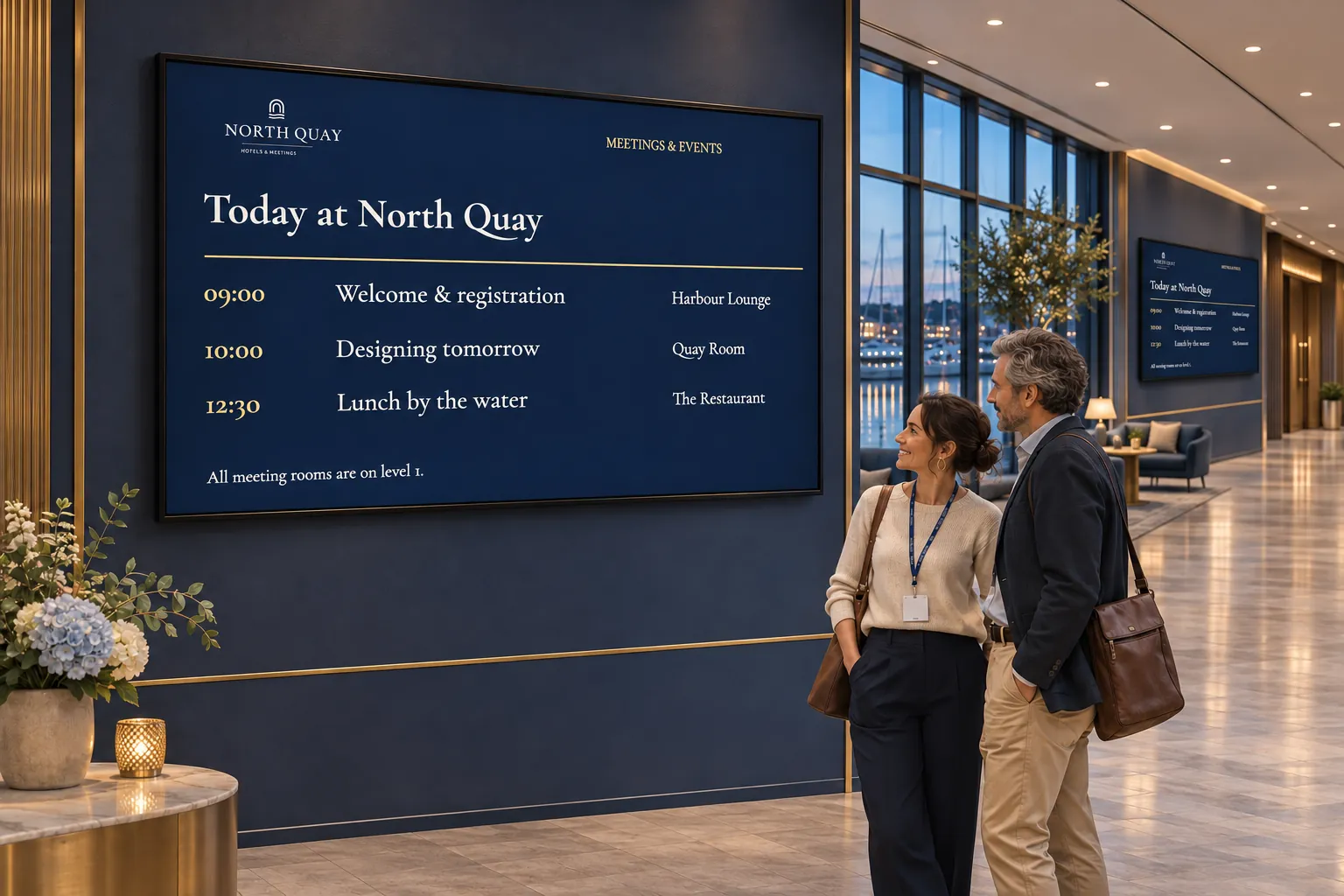
Screens can bring the maintained schedule to the place where it is needed: outside a room, at reception, in a conference area, or near a venue entrance. The first decision is how the booking or activity system can supply that information.
Match the display to the source
Ask the system's owner what is available before designing the screen. There is no native connector for every booking or calendar system. These approaches cover different kinds of source:
| What the team already has | How it can reach the screen |
|---|---|
| A hosted room-booking or calendar view | Webpage media can show the existing view. Live uses the device browser; Snapshot shows a periodically captured image where suitable. |
| Structured room, event, or schedule fields | A template data source can supply fields to a reusable template, saved as smart media. |
| An RSS list | A template designed for repeating entries can display the list. |
| Activities maintained by staff in Publisher | A Smartsign feed supplies an RSS list that staff update entry by entry. |
With a partner connection, agree who configures and supports it. Choose between the hosted view and the data connection according to what the source provides.
A secured hosted view also needs compatible authentication, playback mode, player, and network access. A page that works on an office computer or in Publisher preview may not work on the installed screen. Review webpage playback and login settings and test from the actual device.
Reuse the presentation while keeping each schedule local
An organization with several venues can prepare one event-list template and use the appropriate schedule data at each venue. The designer maintains the presentation; local coordinators maintain their schedules. This keeps the look consistent without mixing information for different locations.
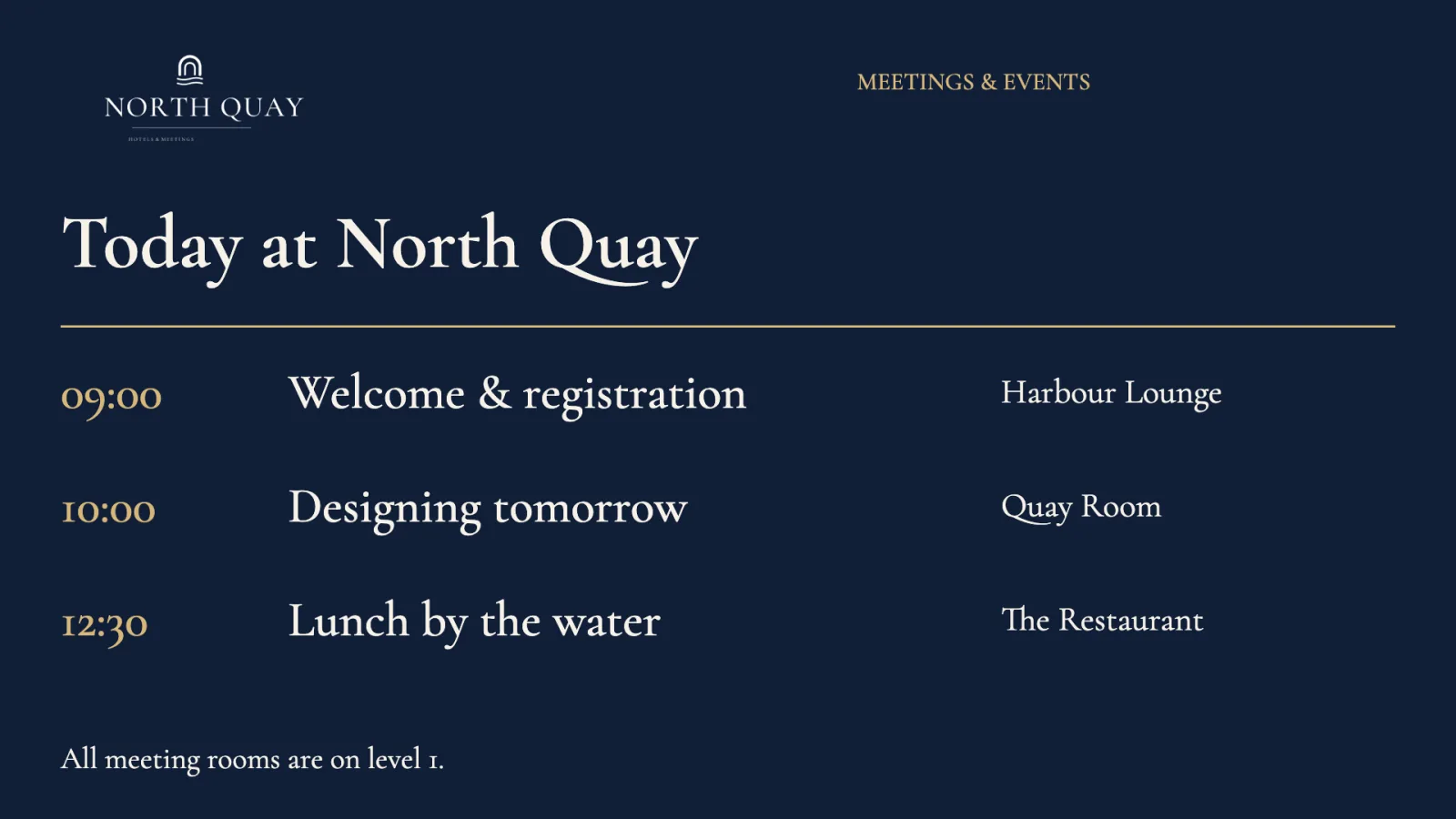
The resulting smart media is published through bookings on the relevant room or public-area channel. These bookings schedule signage playback. They are separate from reservations in the external room-booking system.
Template Creator explains connecting and binding a data source; the booking guide covers publishing the resulting media. For staff-maintained activity lists, Manage feeds explains how a feed lets an entry change without rebuilding the screen playlist.
Put the information where people make a decision
The same source choice can serve several settings:
- A workplace team places availability views near meeting and conference rooms.
- An event coordinator shows the day's program at reception and in the venue.
- Campus and municipal teams show calendars near the spaces they describe.
- Libraries and cultural centers display local events, programs, and daily activities.
A facilities team may prefer the booking system's existing view, while an event team may need a designed list. Choose for the information and location rather than assuming every screen needs the same presentation.
Check a real schedule change
Before the room or venue opens, change an entry in the source and confirm that the update reaches the intended screen. Check both the displayed information and whether the view remains available on the device. This establishes the path from the person maintaining the schedule to the person reading it.
Agree who owns the source, the reusable design, and the publishing targets. When another room or venue joins, those responsibilities give the new team a useful starting point. Other use cases cover the reception and local-information content that can accompany the schedule.