Brand and experience
Show several types of information on one screen
A visitor watching a queue number should not have to wait through an announcement playlist to see it again. A team checking a production dashboard may still need local notices beside it. When people need both kinds of information at once, separate areas can share a display without taking turns.
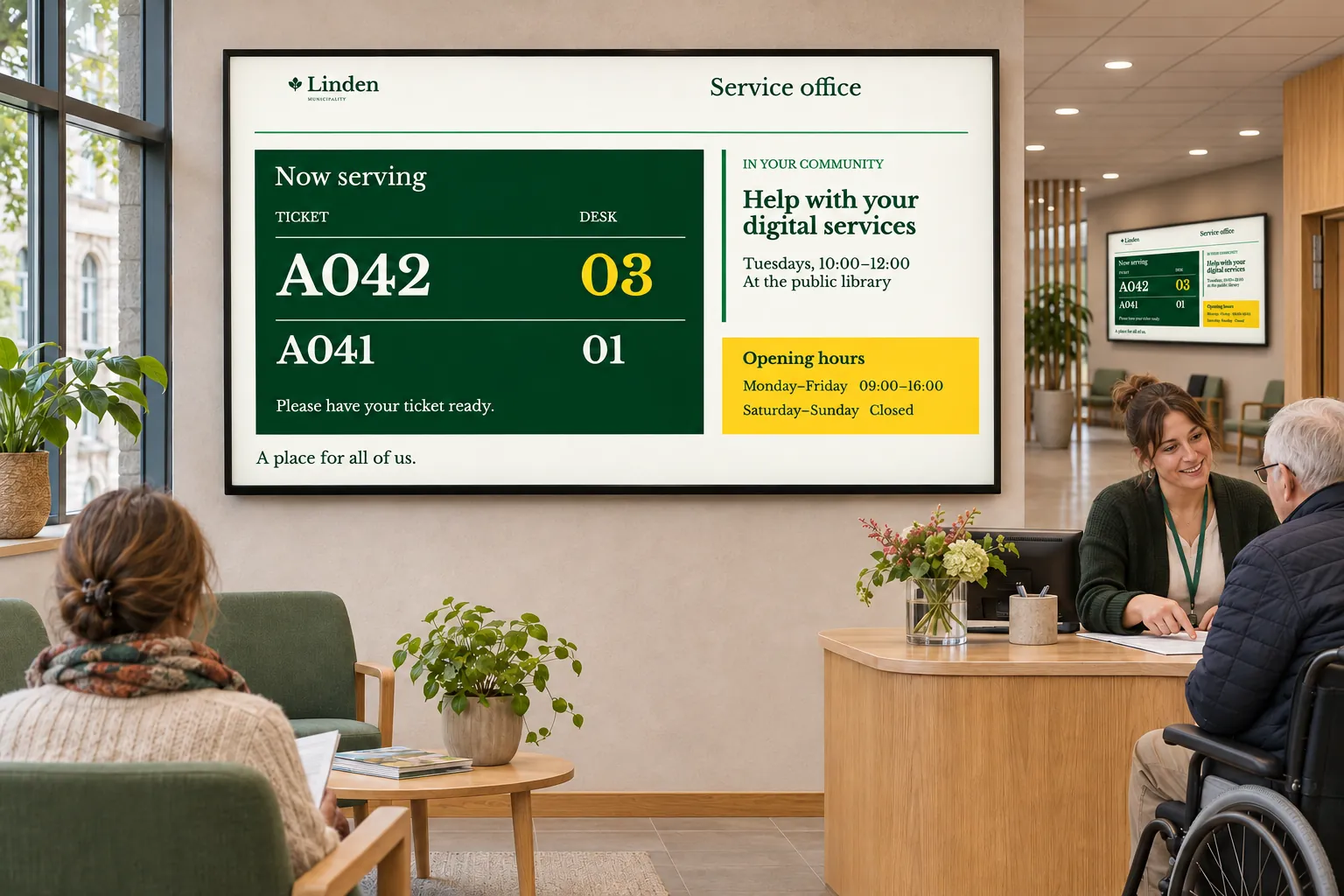
Start by deciding what must remain visible. If the messages can comfortably alternate, a single-zone playlist may be easier to read. Dividing a screen is useful when simultaneous visibility matters; adding more areas simply because content is available can make everything harder to see.
Give each area a purpose and an owner
Consider an operations area with a large dashboard and a smaller announcement area. The operational team maintains the dashboard source, while local publishers schedule notices separately. Updating the dashboard leaves the announcement bookings unchanged, and vice versa.
The same division can serve different audiences:
| Setting | Information that can share the display |
|---|---|
| Reception and visitor services | Queue status beside public notices. |
| Workplace and operations | A dashboard beside department announcements. |
| Public venues | Wayfinding alongside ambience or video. |
| Healthcare | Service information beside changing central and local messages. |
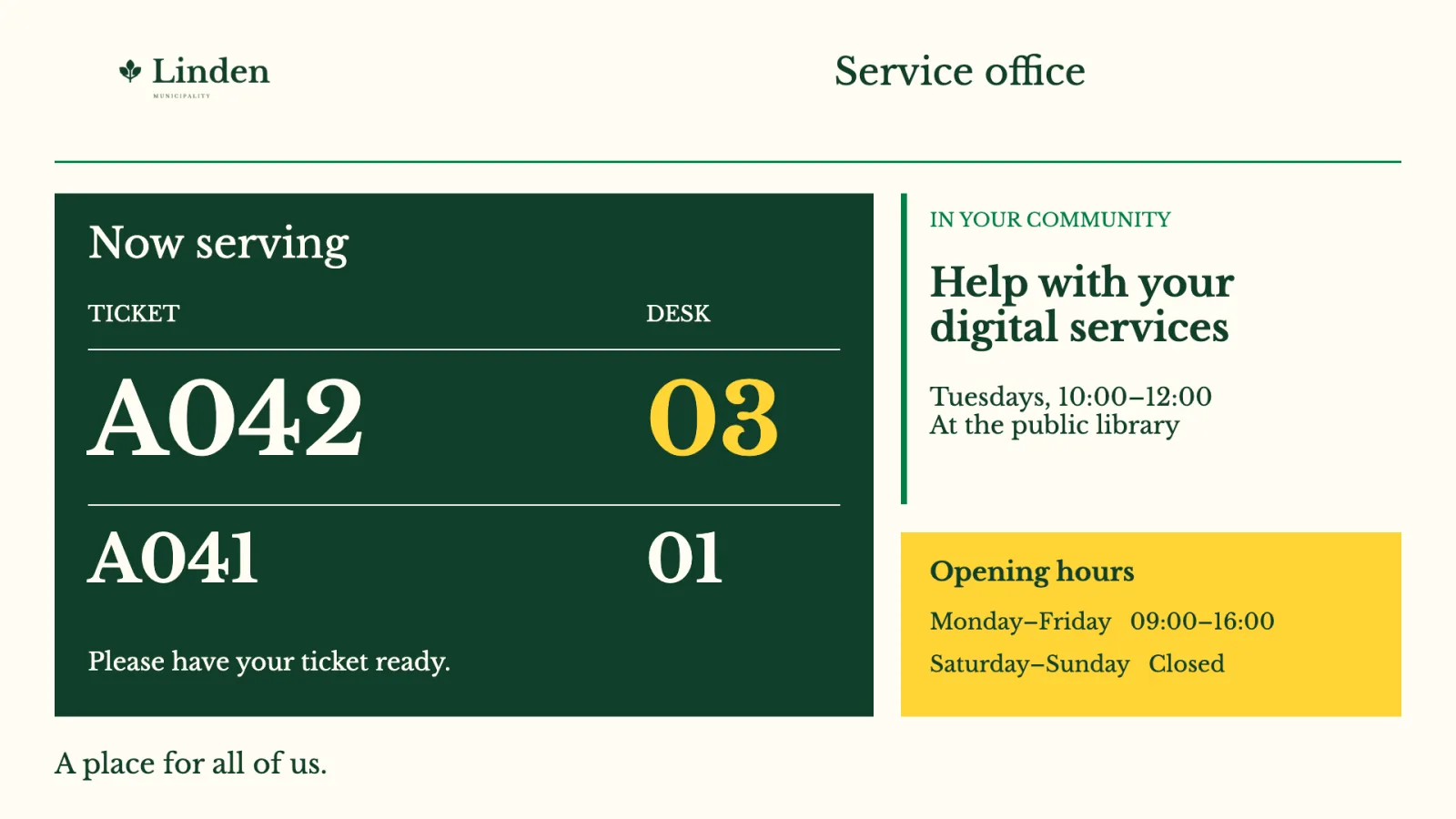
Agree who maintains each area before designing it. Reception, facilities, communications, and operational teams can share a display without becoming responsible for all its content. Size the areas for the information and the distance from which people will read it.
A queue or dashboard area also needs a source. A hosted view requires compatible playback, and displaying queue information does not provide the queue-management system itself. Choose secured web views when the source supplies the finished view, or business-data connections when values belong in a designed presentation.
Connect the areas through a screen layout
A screen layout is smart media assigned as the screen's overall design. It can combine Channel areas with text, images, branding, and connected data. Each Channel area plays channels with their own bookings, allowing the dashboard, announcements, and scheduled video to occupy different parts of the display.
Keep the layout and reusable content in the Media Library. Channels organize the content streams; bookings determine what plays and when. This separation lets teams maintain their messages without rebuilding the whole display.
Assign the layout to a screen folder when its screens should inherit the same design. The channels and layout are inherited together as Channels & layout. Screens and child folders with their own setting keep that override. Reusing an appropriate layout avoids designing every screen independently and helps keep central information present while local teams change their messages. Teams can use the same approach for similar installations, adapting branding, connections, and content to each location.
Channels saved inside the layout and channels added to a folder play alongside one another. The shared reception layout explains that central/local arrangement and how inheritance affects local assignments. Check those assignments when reusing a design: matching its appearance does not establish which messages it receives.
Check the complete display, including replacement views
Channel content is drawn in front of the layout's ordinary layers. If an interactive view must replace a playing area, configure it to hide that area and restore it on return. Moving an ordinary layer above the channel placeholder in the editor will not cover its playback.
Apply a screen layout explains layout assignment and inheritance. Interactions explains testing replacement views. Test the complete combination on the intended player, checking that each area is readable, receives the right content, and returns correctly after any interaction.
For related applications, browse the other use cases.