Switching to v11 user interface
Make sure to participate in our free online trainings to learn what's new and different with the v11 user interface before switching.
After you have upgraded to a Smartsign Server 11.x release, it's now possible to switch to the new v11 user interface as well.
Switching the user interface is a simple configuration that can be done while the server is running. After that, the new user interface is immediately accessible, but before it can be used, each site must be manually migrated.
Switch between v10 and v11 user interface
While it's possible to switch back and forth between v10 and v11 user interfaces, once a site has been migrated to v11 it will no longer function correctly in v10.
- Launch the Smartsign Server Installer - Advanced Settings from the start menu
- Select the user interface version that you want to use.
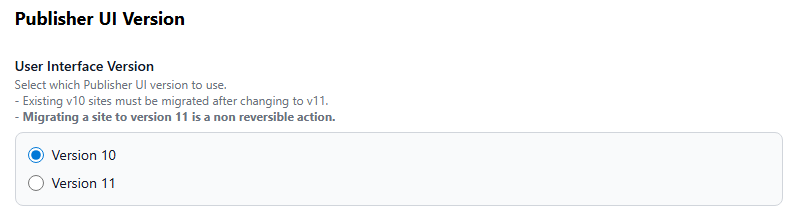
- Scroll down and click Save
- It's not necessary to restart the Smartsign Server Service, so you can simply click Exit
- Open your browser and go to the server URL. We recommend clearing the browser cache
when switching to v11. Once logged in you will be informed that the current site
is not yet available since it must first be migrated.
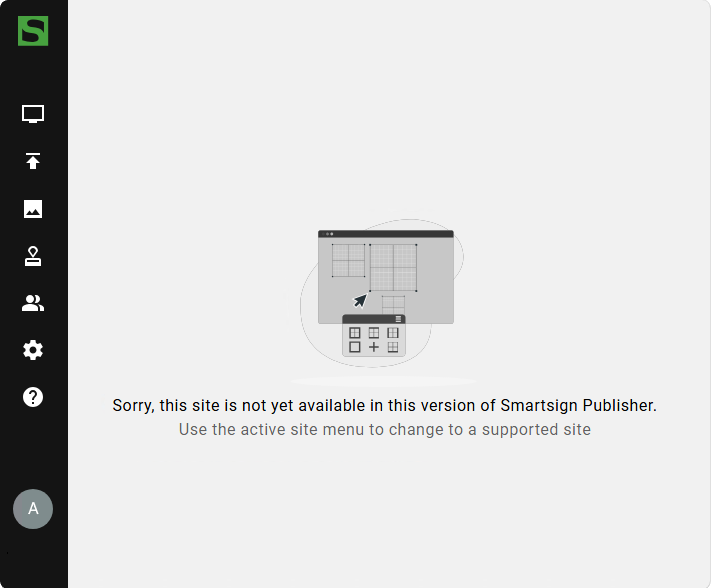
- Read on below for migration instructions.
Migrating a Site from v10 to v11
- Migrating from v10 to v11 is an irreversible action.
- Make sure you have an up to date database backup before proceeding
Before you can use a site with the new user interface (v11), it must be migrated. The migration must be performed for all sites that are in use on your server.
- Ensure that you are logged in to Smartsign as a system admin
- Switch to the site that you want to migrate
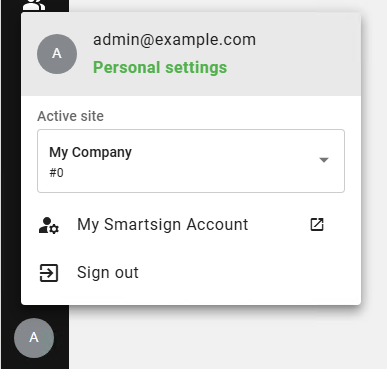
- Select the address field in the browser, and add "/migration" at the end.
Example URL:http://smartsign.example.com/migration

- Review the overview information and check that everything is ready for migration.
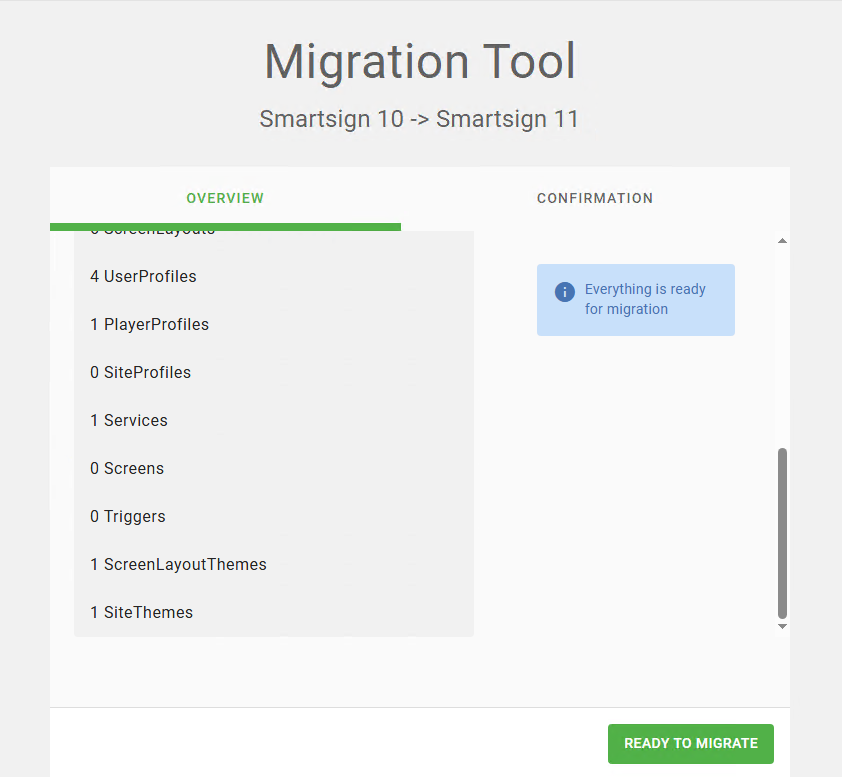
- Switch to the Confirmation tab
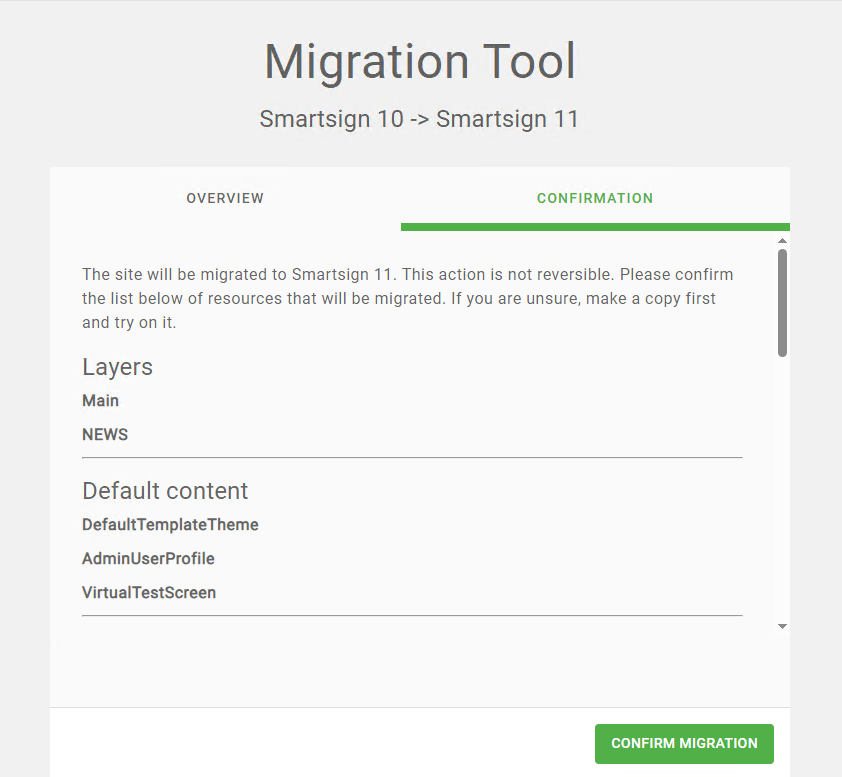
- Press CONFIRM MIGRATION to start the migration
Important! Stay on the migration page until the migration completes. - A dialog will appear to confirm once the migration is complete.
Should there be any issues with the migration, please contact support.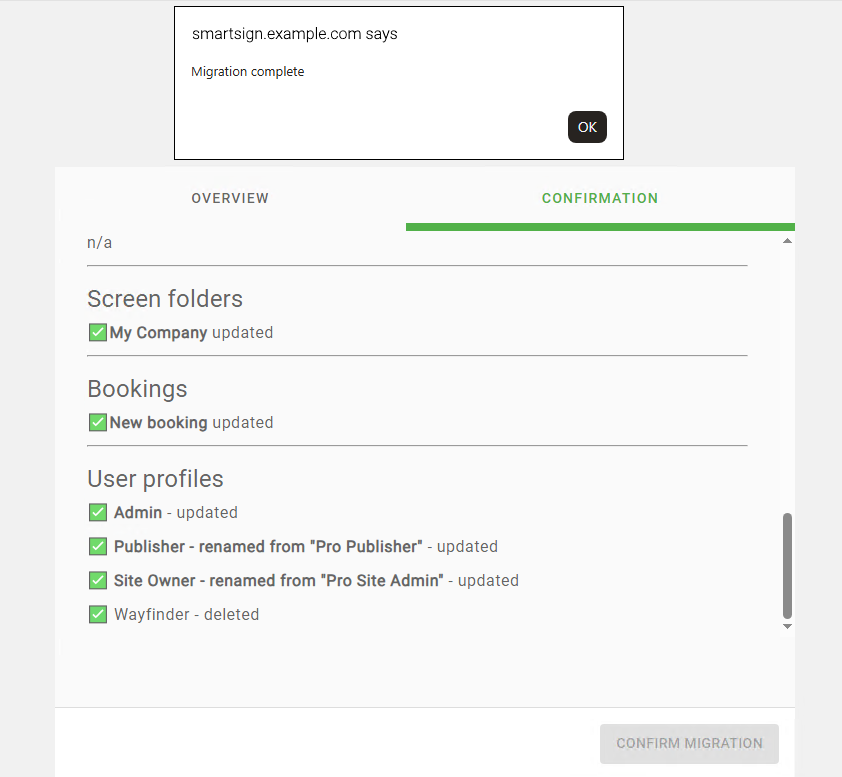
- Close the dialog. Your site is now ready for use.
Select a view from the menu on the left to get started. - If you have more than one site, repeat the process for the remaining sites.