Viva Engage
The Viva Engage datasource lets you show your Viva Engage (previously Yammer) content on screens.
Text and a single image per post. Replies, galleries and video playback
are not supported. Only the first attachment can supply the displayed
image; a video's thumbnail may be shown.
Requirements
- A business Viva Engage account
- A Microsoft 365 account with admin access to the business Viva Engage account.
- Screens must be able to reach https://social.smartsigncloud.net
Instructions
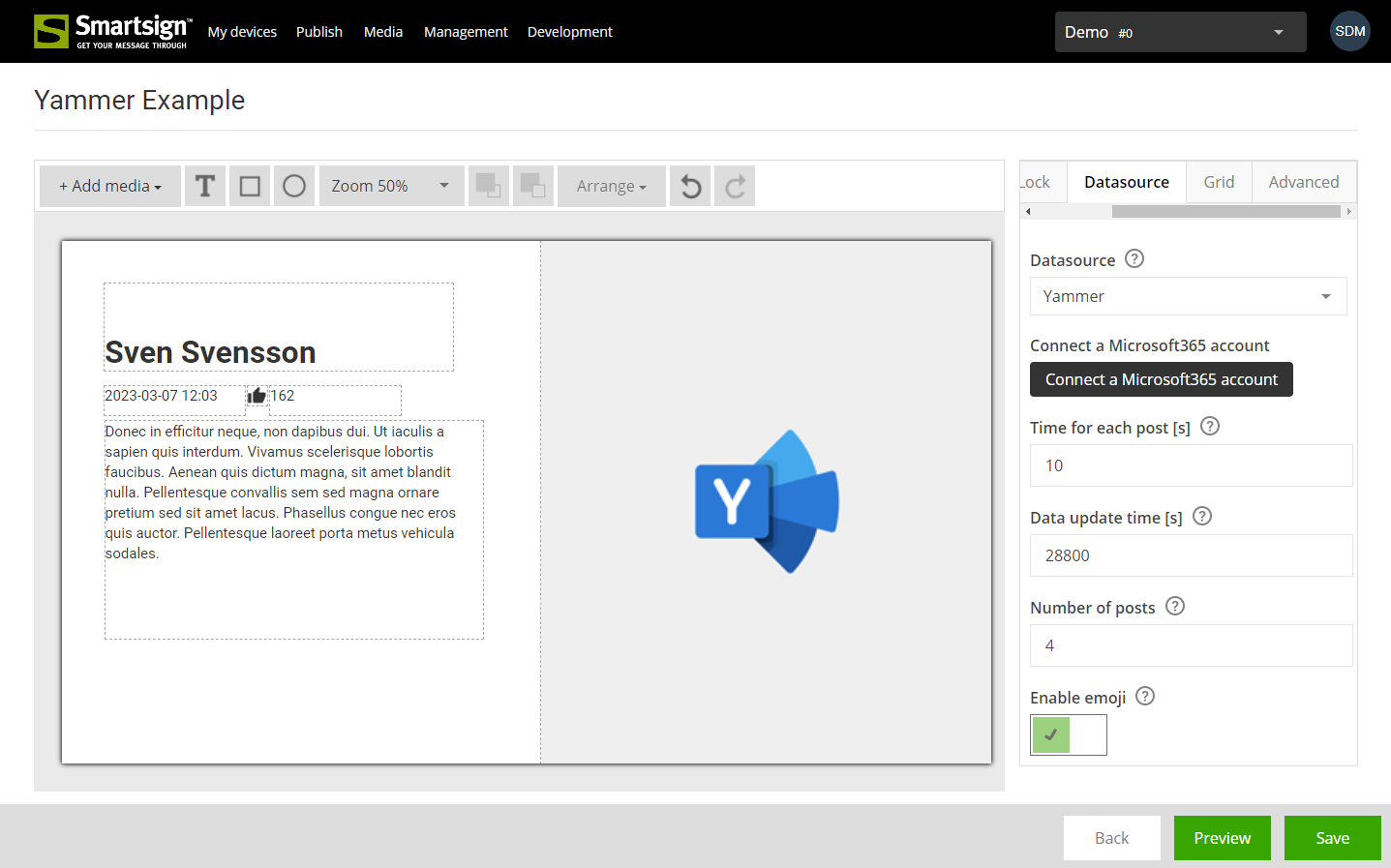
- Start with one of our prepared templates for Viva Engage
- Go to Templates -> Datasources and open your Viva Engage datasource, or select Add datasource -> Create new -> Viva Engage to create one.
- If no account is connected, click Connect under Microsoft 365 account (Viva Engage admin rights required!)
- Authenticate and approve the permissions when prompted, then select the community to display in Select a community. Only public communities are available for selection.
- Enter a name and click Create (Save when editing an existing datasource).
- Return to the template. Click outside the template to open Template settings, then expand Datasources.
- If a different Viva Engage datasource is connected, select it and use Replace this datasource to choose the configured connection, then click Connect. If none is connected, click Connect new datasource, choose the configured datasource and click Connect.
- Save the template
- The template is now ready for use and can be published to your screens.
Configuration
Set Microsoft 365 account and Select a community on the datasource. Set the post count, time, emojis and progress indicator for each template under Datasource settings for this template.
|
Setting |
Description |
Example |
|
Microsoft 365 account |
Click Connect to sign in with a Microsoft 365 account and authorize access to your data |
|
|
Select a community |
Choose the public Viva Engage community to display |
|
|
Time between posts |
Time in seconds to show each post |
10 |
|
Number of posts to show |
The maximum number of posts to display |
5 |
| Enable emojis | Enable to show emojis in messages | True |
| Show progress | Show a progress indicator for each post | False |
Updates are checked automatically.
Bind template elements to Viva - Message, Viva - Message Image, Viva - Message Author, Viva - Message Date, Viva - Message Like Count, or Last update time.