Teams Channel
The Teams Channel integration allows you to display updates from a Microsoft Teams channel directly on your screens. This enables communication across departments, projects, and locations, ensuring that important announcements, updates, and messages are visible to everyone.
This feature is especially useful for:
- Project teams sharing milestones or alerts
- Departments posting internal news
- Organizations promoting fast and transparent communication
How it works
When connected, Smartsign retrieves posts from the selected Team and Channel using the Microsoft Graph API. The fetched data is then formatted and displayed on screens using a Teams-based template.
Smartsign can retrieve the following information:
- Subject – The subject of the Teams post
- Message – The message body content
- Image - The image included in the post
- Created Date – When the post was created
- Message Author – Name of the user who posted the message
- Last Updated Time – Timestamp for when the most recent data was fetched
To display images, you must copy/paste them directly into your Teams message. If you upload images as attachments (drag-and-drop or using the attachment icon), they are not part of the message data returned by Microsoft and will not appear on screens.
Requirements
To connect to Teams, you must authenticate using your Microsoft 365
account and some of the permissions asked may require administrative approval.
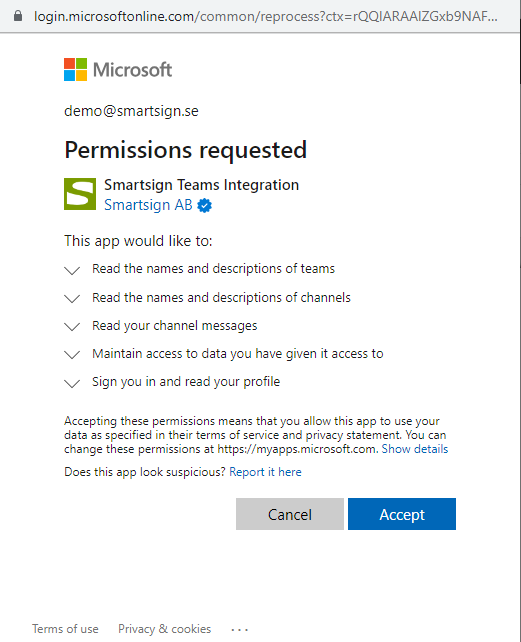
If you don't hold sufficient permissions on your own, you can
usually request such approval during the connection process and then
return later once approval has been granted.
Screens must also be able to reach https://social.smartsigncloud.net, which is the endpoint is used for retrieving Teams data.
Video guide
Setting up the datasource
When you have a user with sufficient permissions, you can start by setting up the datasource.
- Go to Templates and Datasources.
- Select Add template datasource.
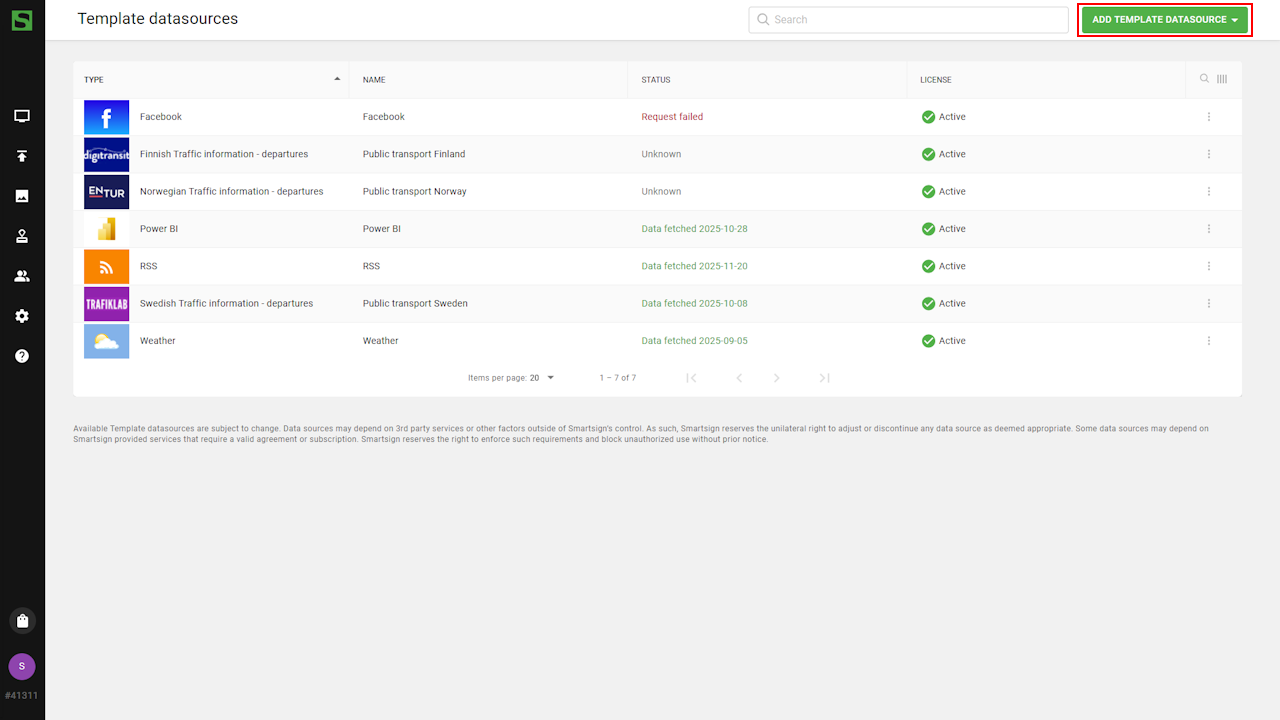
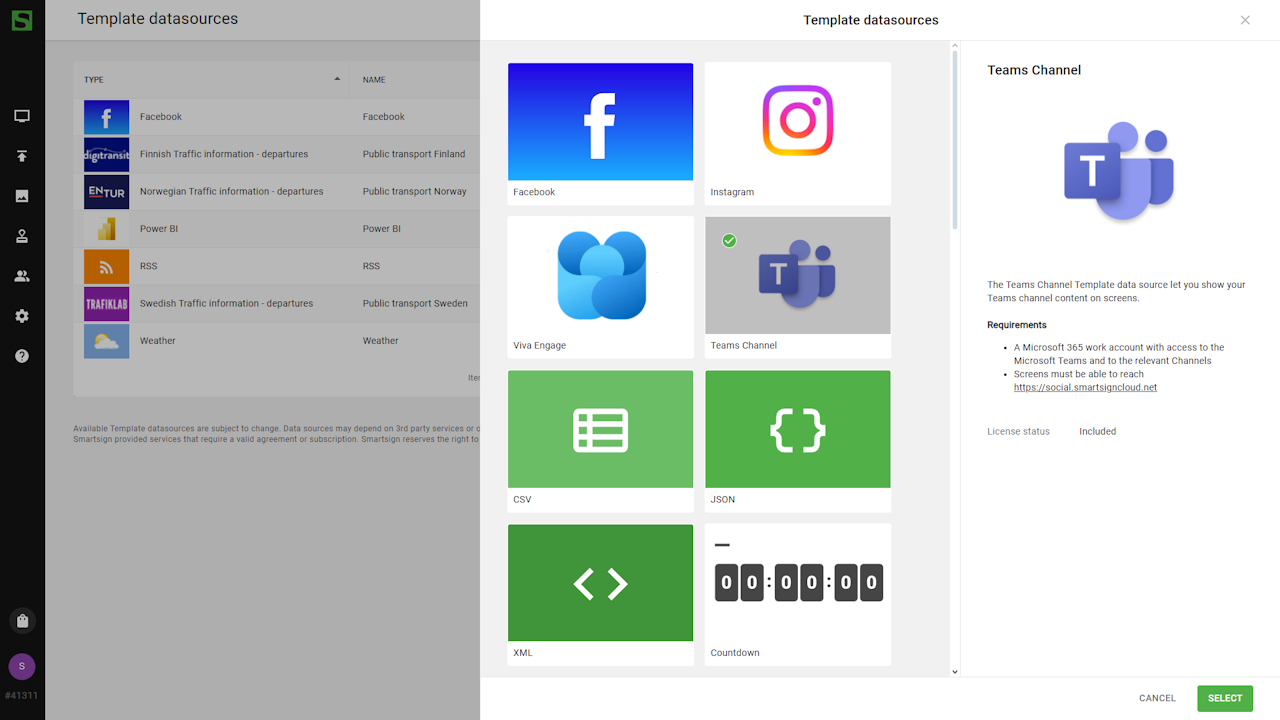
- Browse available datasources and choose Teams Channel.
- Configure the datasource by entering name, description, and authenticate with a Microsoft account.
- Select a Team and Team Channel to show in the template.
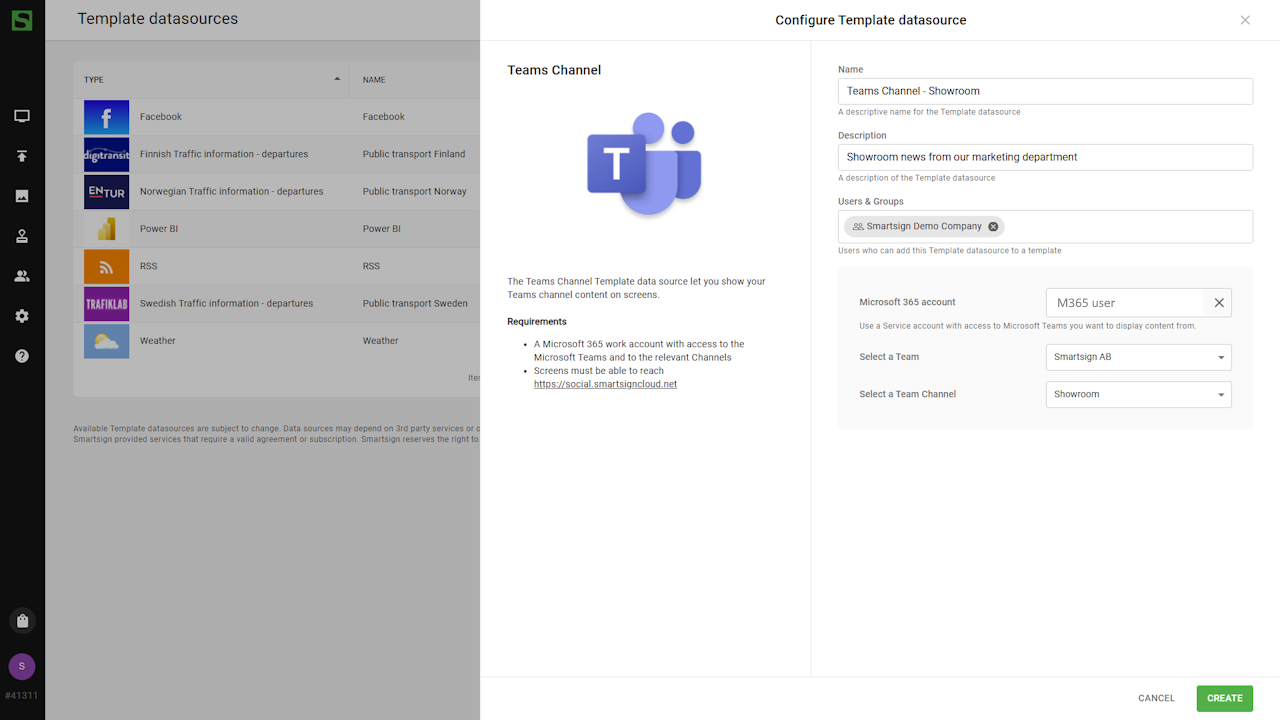
- Click Create to finish.
- Once created, you can confirm that data has been fetched and
Datasource is now ready to be used.
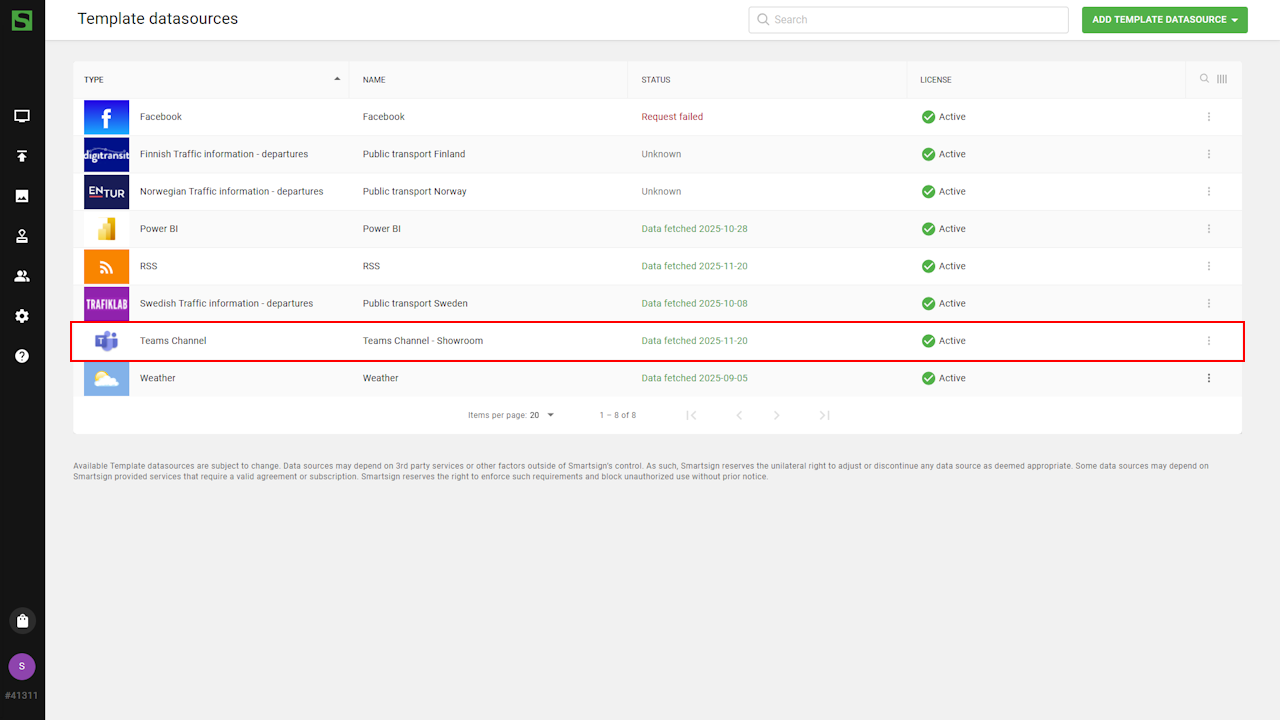
When the datasource is configured, you can use a Teams Channel template to display the feed on your screens.
Teams channel template
Smartsign offers a few default Teams templates available in the Marketplace and you can also design your own using the Template Creator.
Download template from Marketplace
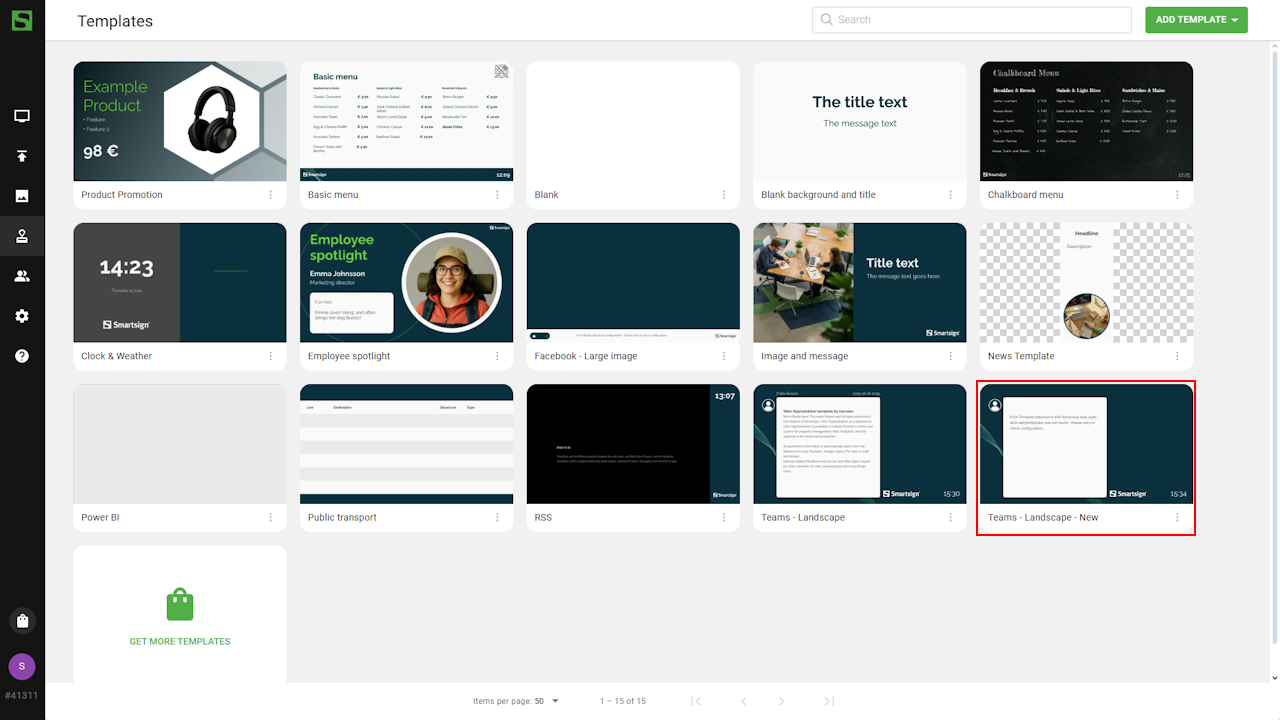
- Go to Templates
- Select Get more templates.
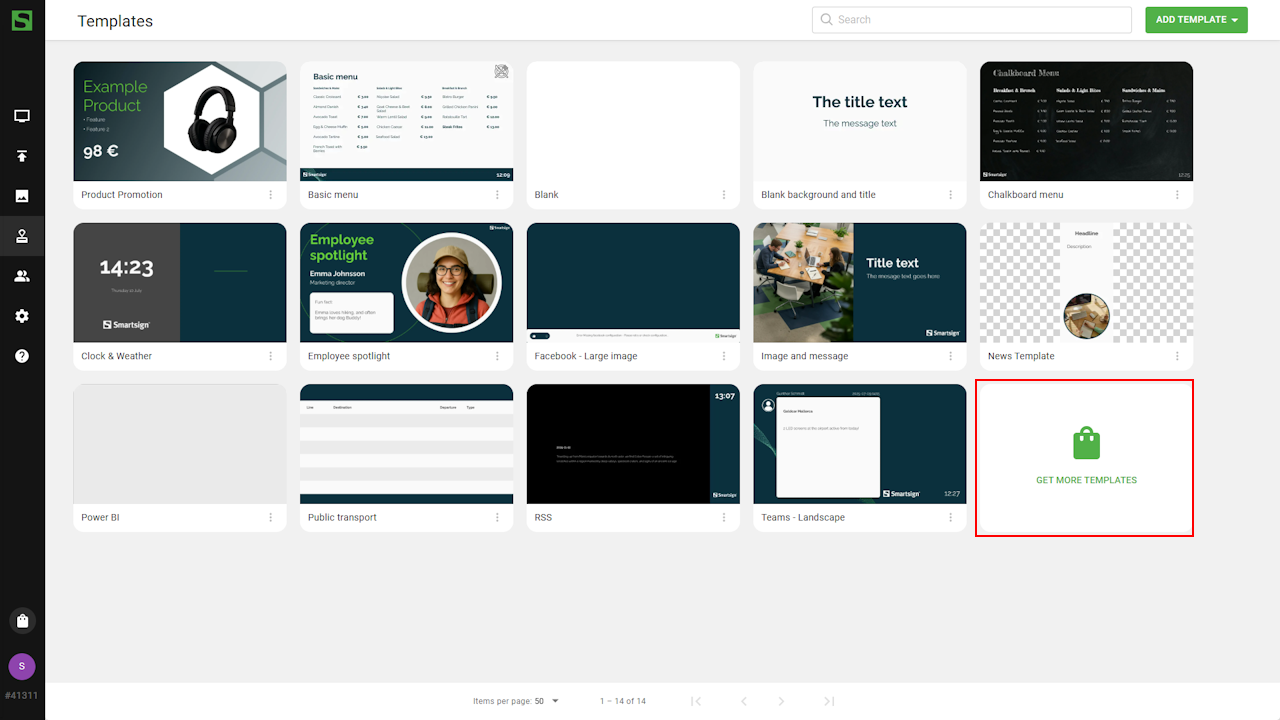
- Browse or search for Teams templates.
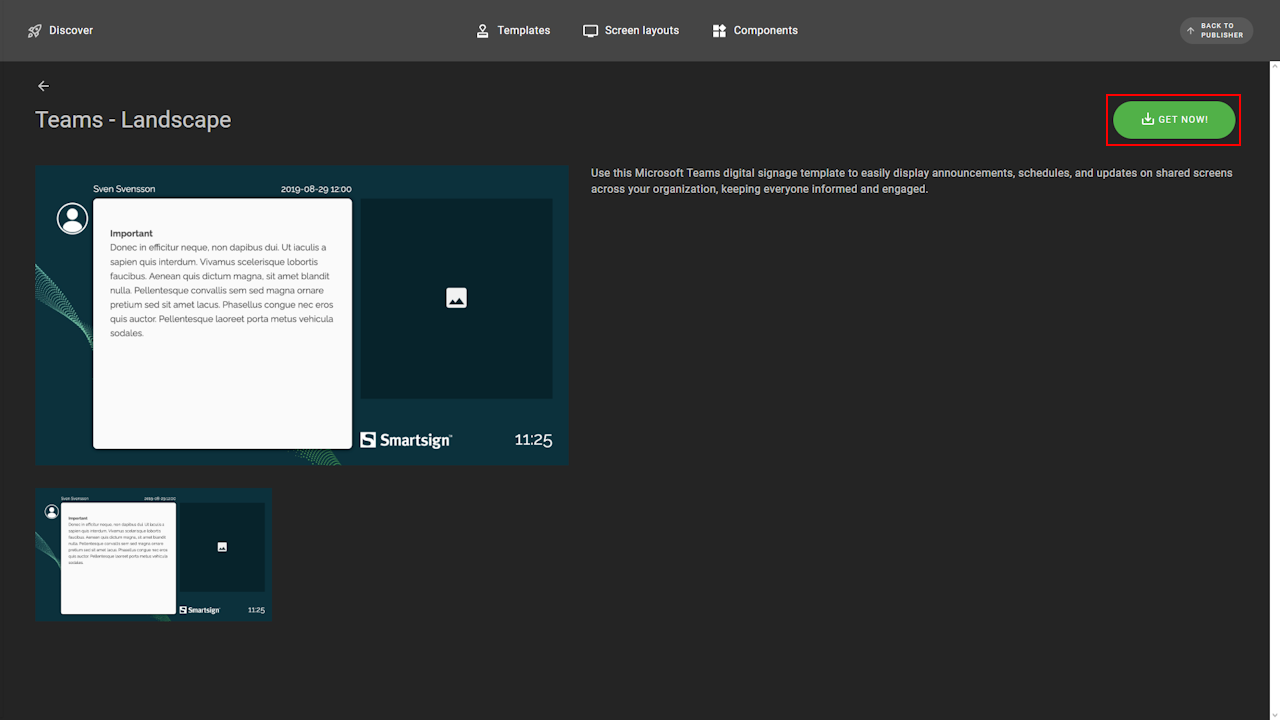
- Select a template and click get now to download it.
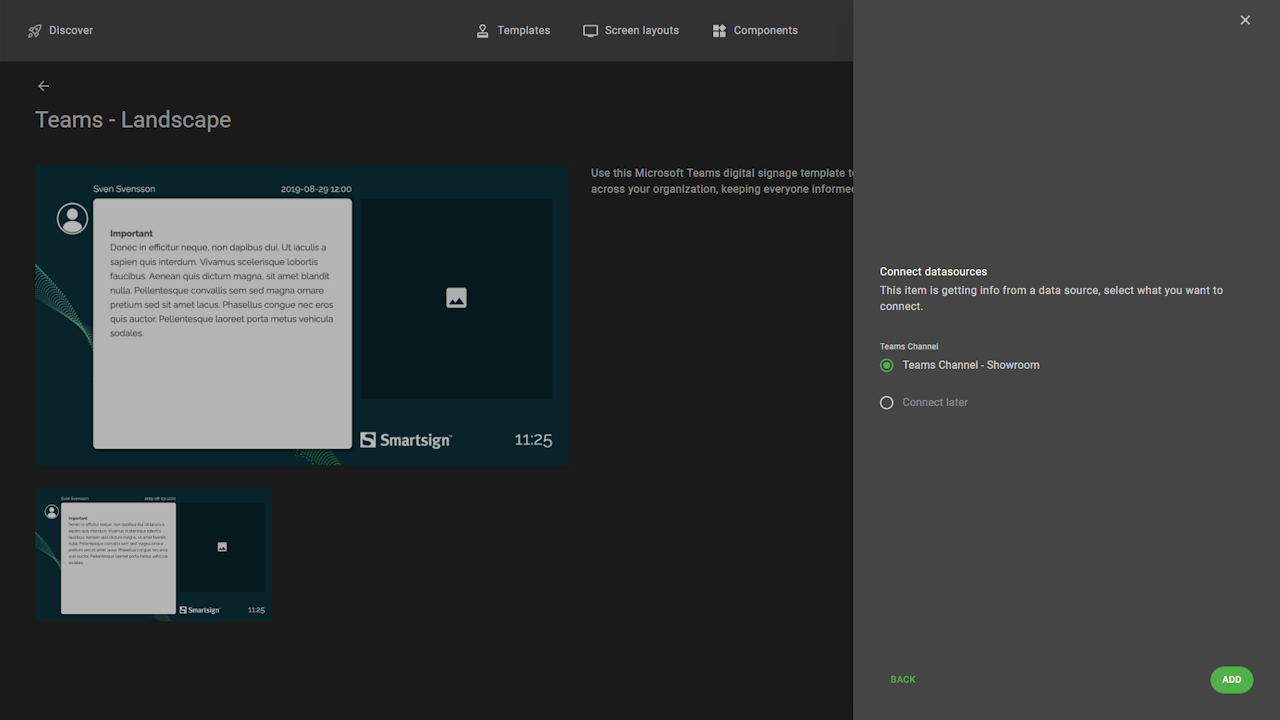
- As you already have a configured Teams datasource, you can connect
it directly to the template during download. It can otherwise be
done when it's added to a booking or media library.
- Return to publisher where the new template is available.
- Template is now ready to be published on a screen.
Publish template
Once the Teams datasource is configured and your template is ready, you can publish it to a channel.
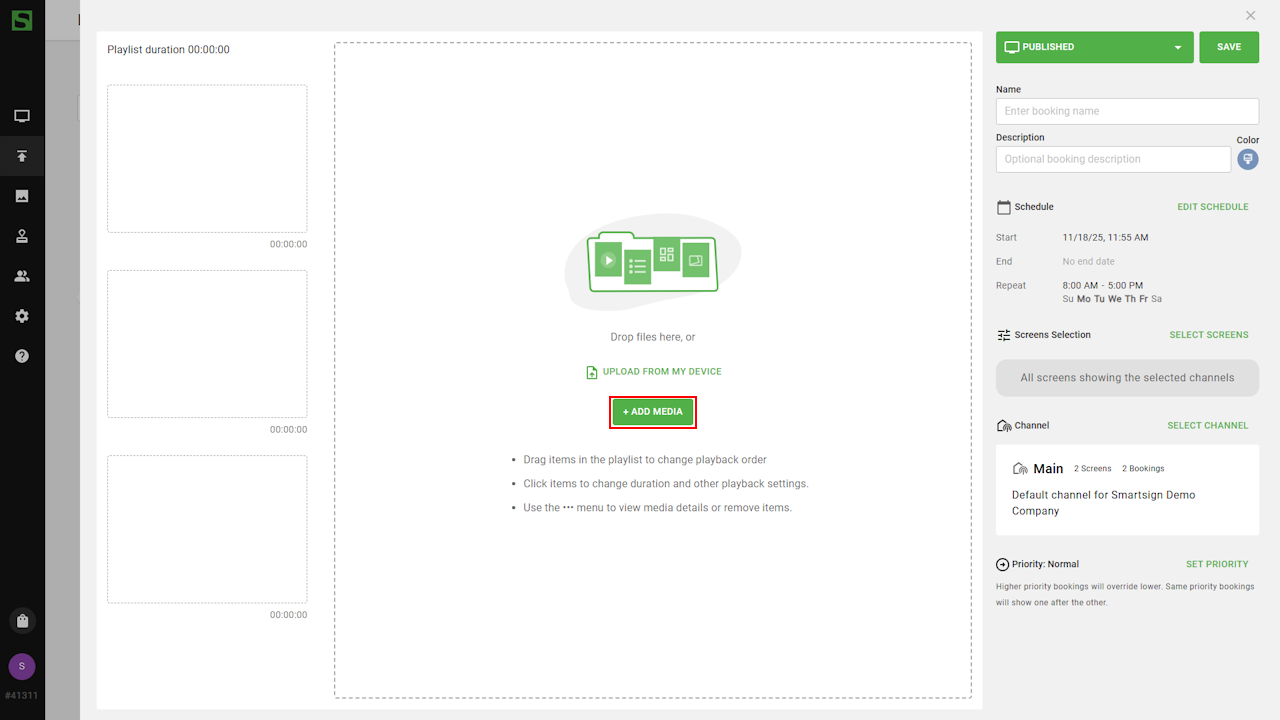
- Go to the Channel Calendar for the screen or channel where you want to publish the template.
- Create a new booking (or edit an existing one).
- Click Add Media
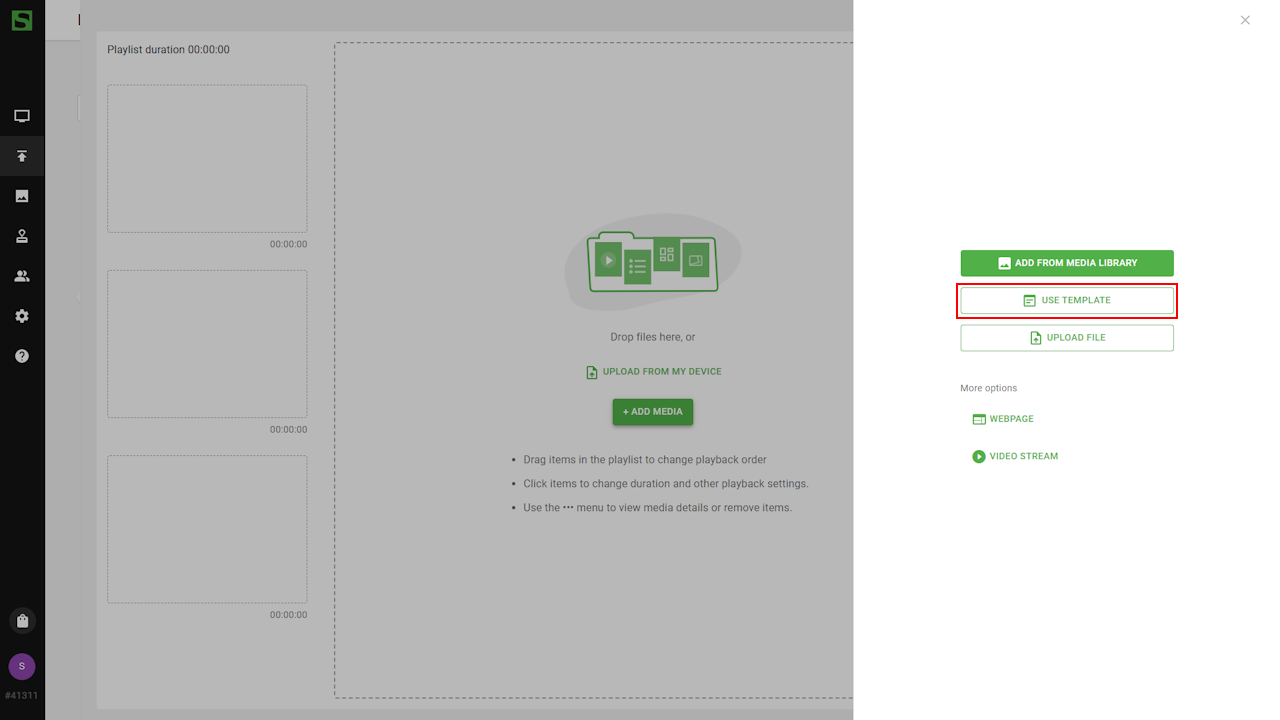
- Select Use Template
- Choose the Teams template you want to use
- Click the datasource box to edit configuration options (see below)
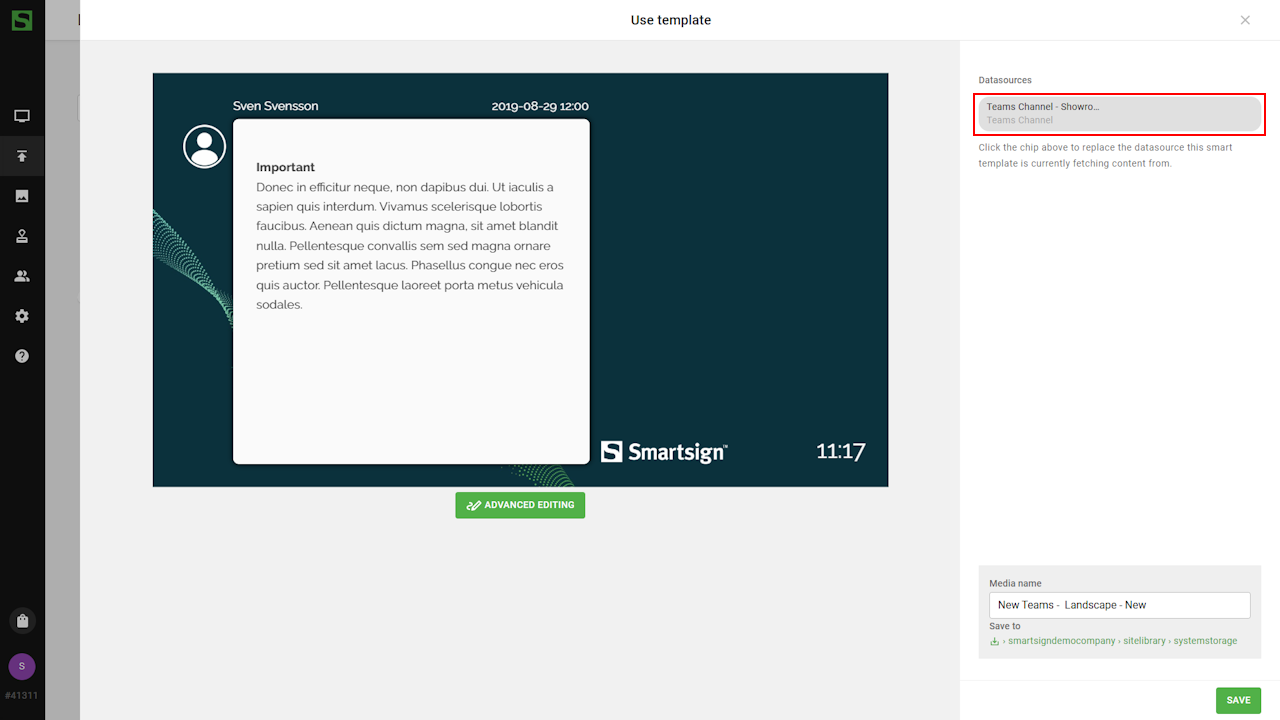
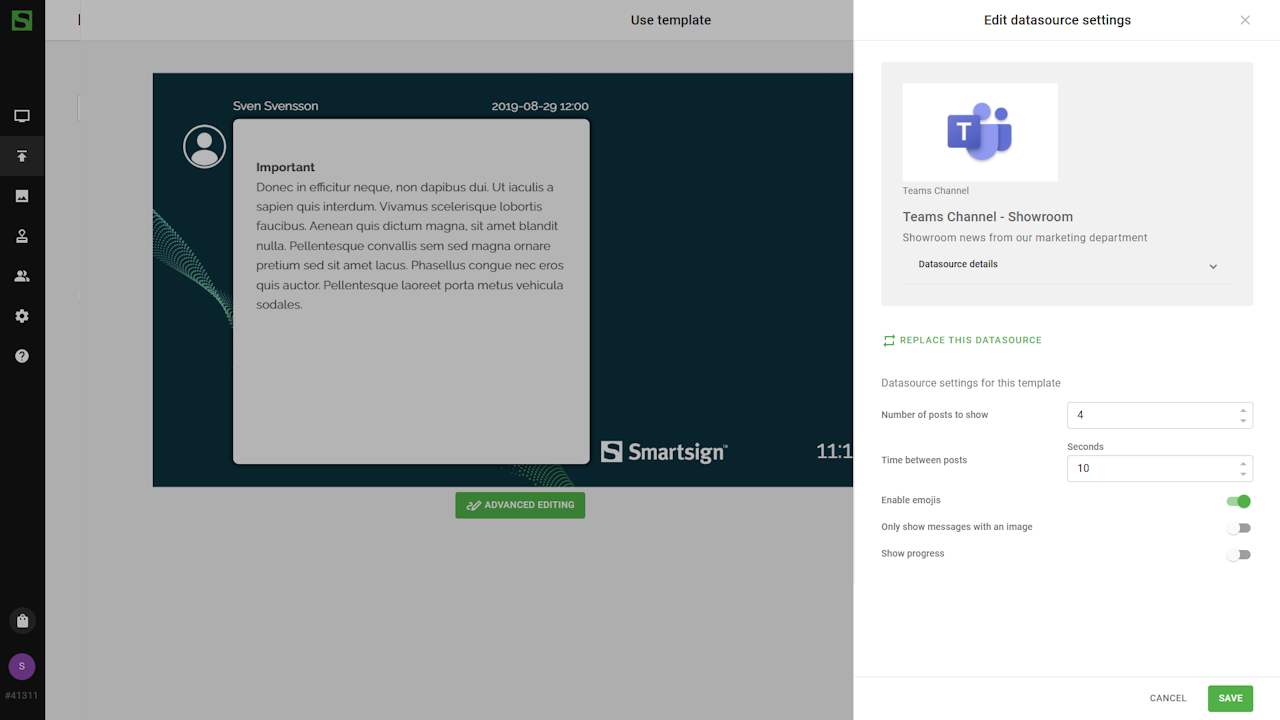
- Save your template and publish the booking.

Configuration options
You can adjust the datasource settings to control how Teams posts are displayed.
|
Setting |
Description |
Example |
|
Replace datasource |
If multiple Teams datasources exist, choose the datasource for this booking |
|
|
Time for each post |
Time in seconds to show each post |
10 |
|
Number of posts |
The maximum number of posts to display |
5 |
| Enable emoji | Enable to show emojis in messages | True |
| Only show messages with an image |
Enable to only show messages that have an image included |
False |
Technical information
Permissions required
The Teams integration uses Microsoft Graph API and requires the
following delegated permissions.
Some of these may require administrator approval depending on your
Microsoft 365 tenant settings.
| API | Permission | Type | Microsoft description | Used for |
|---|---|---|---|---|
| Microsoft Graph | User.Read | Delegated | Sign in and read user profile | Allows users to sign-in to the app, and allows the app to read the profile of signed-in users. It also allows the app to read basic company information of signed-in users |
| Microsoft Graph | Team.ReadBasic.All | Delegated | Read the names and descriptions of teams | Allows the application to read the names and description of the teams on behalf of the signed-in user |
| Microsoft Graph | Channel.ReadBasic | Delegated | Read the names and descriptions of channels | Allows the application to read the names and description of the channels on behalf of the signed-in user |
| Microsoft Graph | ChannelMessage.Read.All | Delegated | Read user channel messages | Allows the application to read all the channel messages on behalf of the signed-in user |
Limitations
- No video support – only text, images, gif and sticker
- Only one image per message is shown
- Replies and reactions are not shown
- Attachments are not supported (attach/drag & drop)
- Data refreshes every 15 minutes