The Facebook datasource allows you to display posts from your Facebook pages on your Smartsign screens.
This makes it easy to show social media updates, announcements, campaigns, or community engagement directly in your digital signage content.
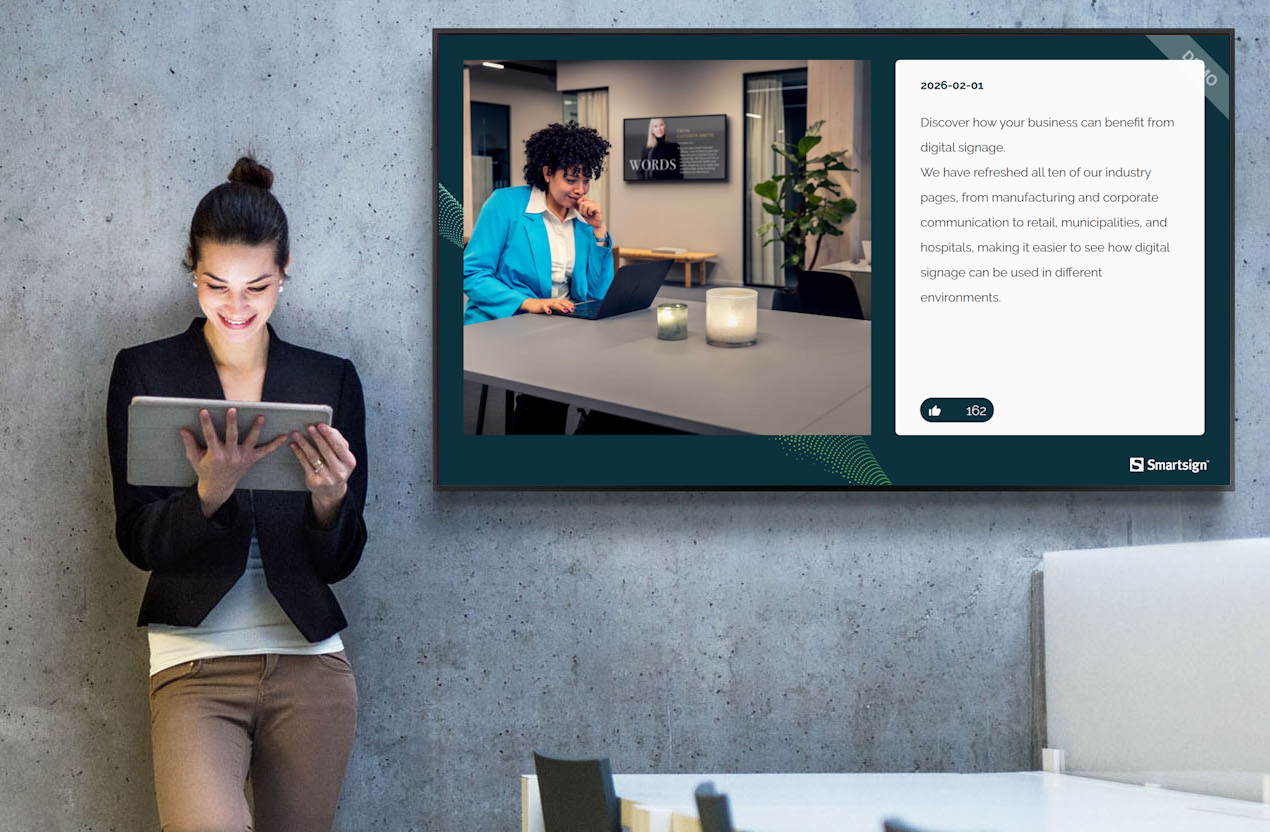
How it works
Once connected, Smartsign securely integrates with your Facebook account and retrieves posts from the selected Facebook page.
The selected posts are then available inside the template and displayed according to your configuration, such as:
- How many posts to show
- How long each post is displayed
- Whether videos and emojis are enabled
The content is automatically updated at a defined interval.
Requirements
To use the Facebook datasource, you need:
- A Facebook Business account
- Administrator permissions for the Facebook page you want to display
- Screens that can reach https://social.smartsigncloud.net
If video is enabled, the screen must support HTML video playback.
Set up the datasource
The first step is to configure the Facebook datasource.
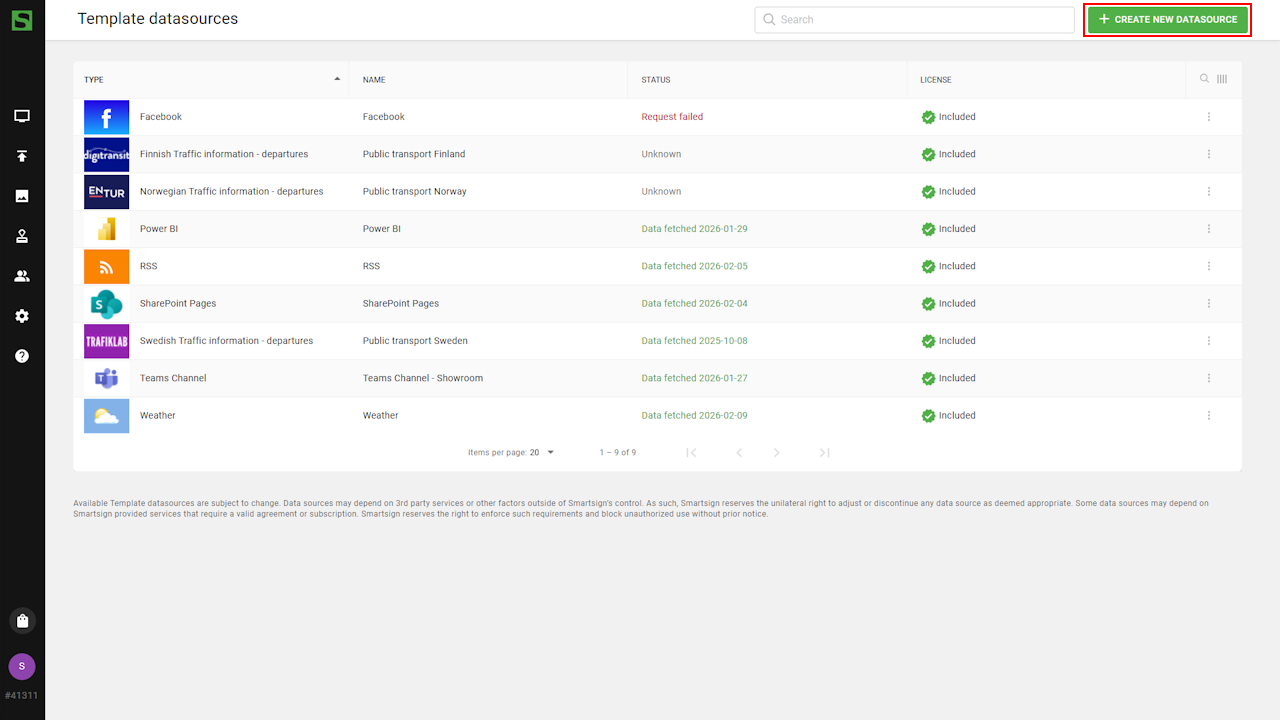
- Go to Template datasources and select create new datasource.
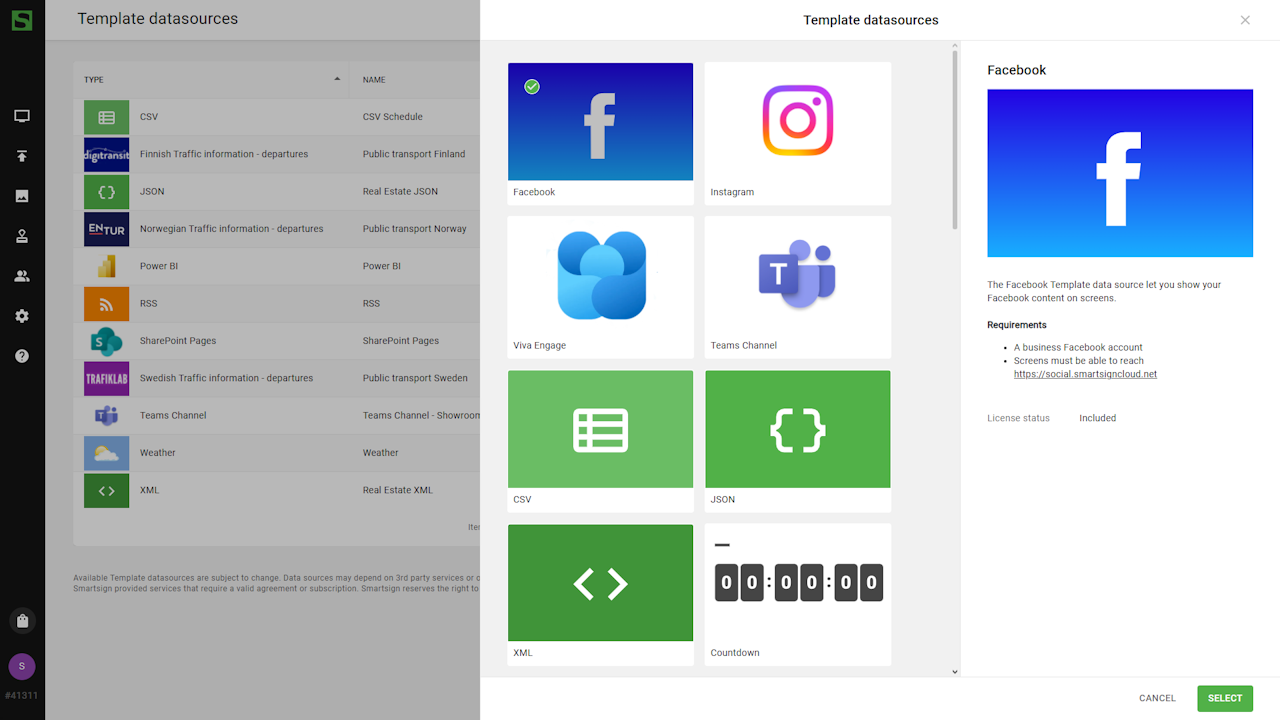
- Select the Facebook datasource.
- Enter Name and Description.
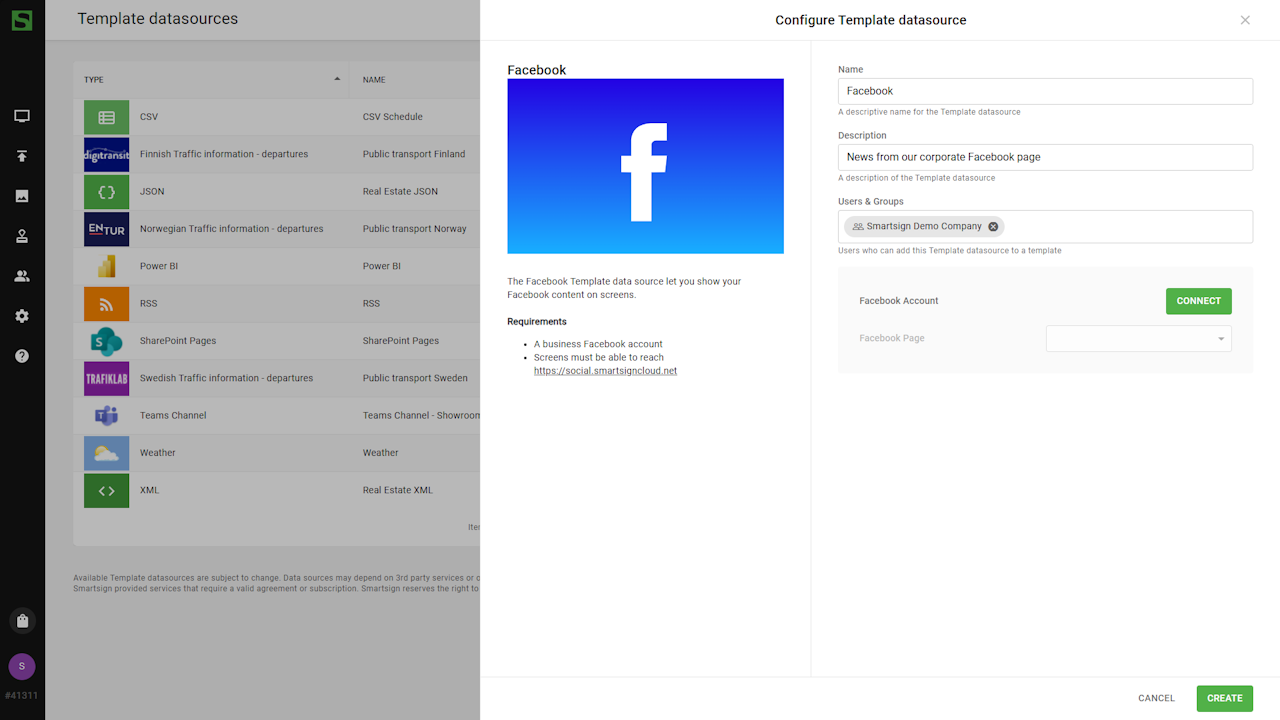
- Click Connect with Facebook to authenticate the datasource.
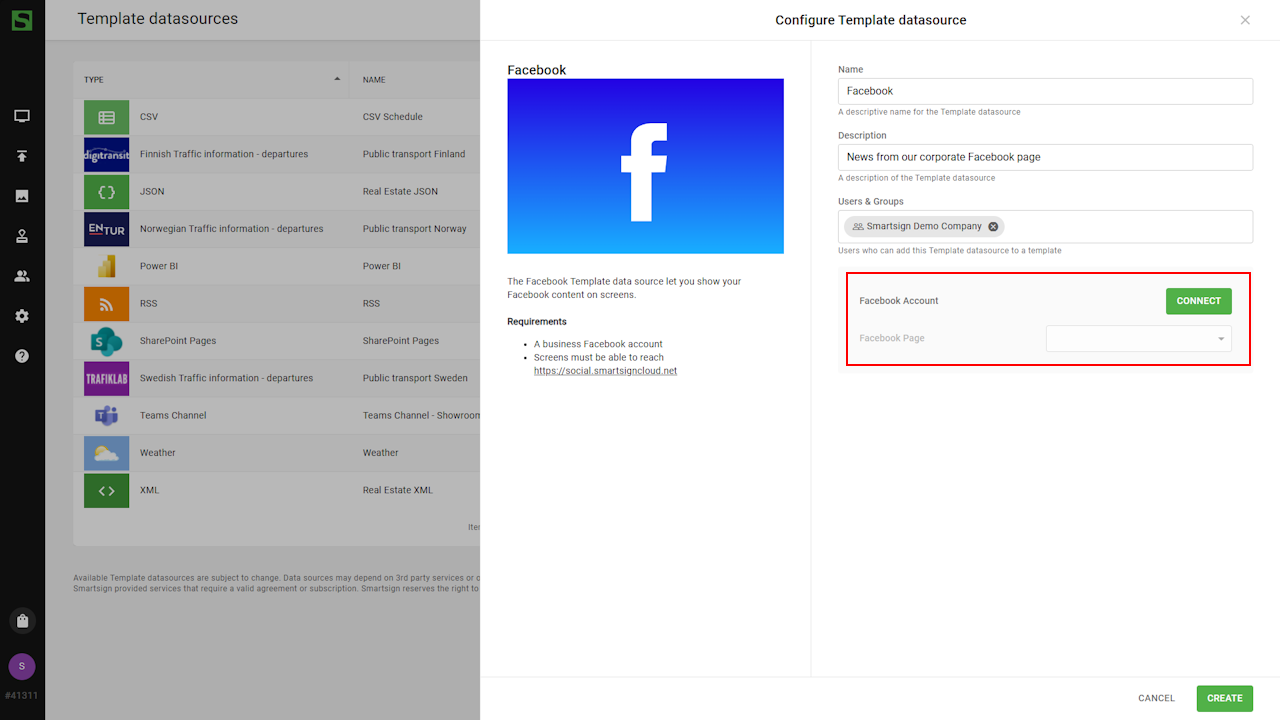
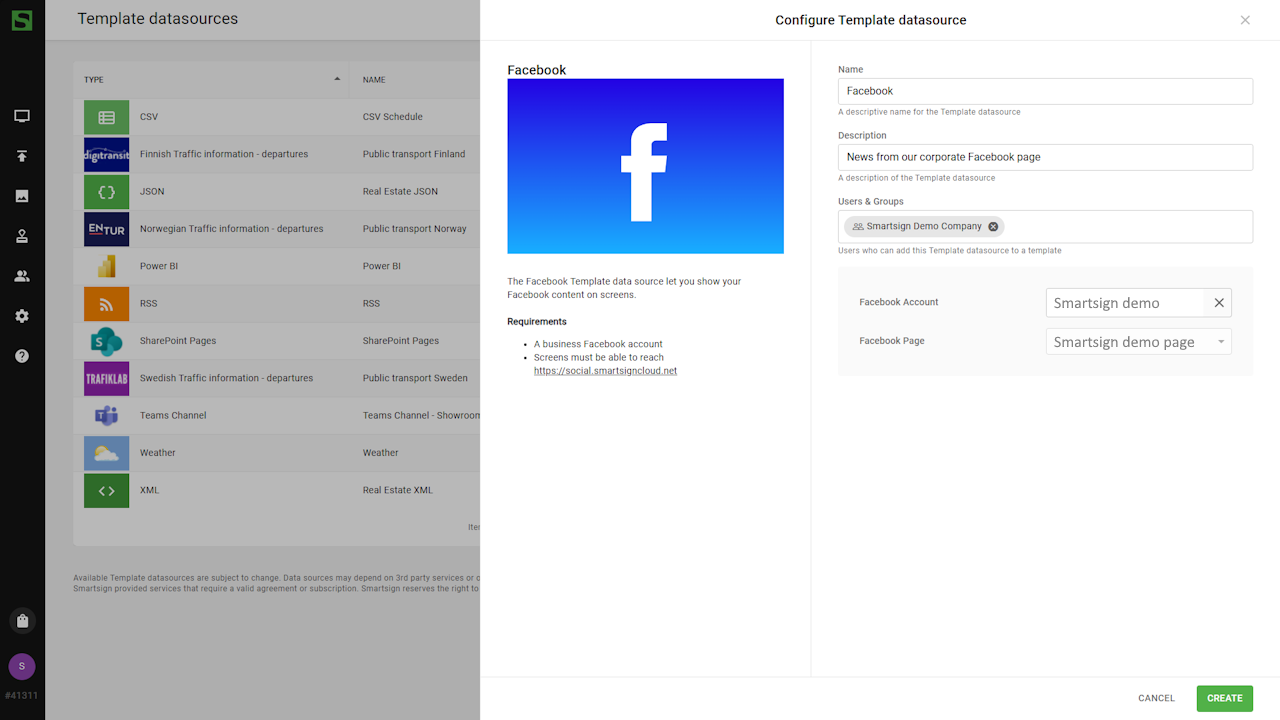
- Click Create and verify that data can be fetched successfully.
Datasource is now ready to be used.
Use Facebook templates
When the datasource is configured, you can use a Facebook template to display posts on your screens.
Smartsign offers a few default Facebook templates available in the Marketplace and you can also design your own using the Template Creator.
Download template from Marketplace
- Go to Templates
- Select Get more templates.
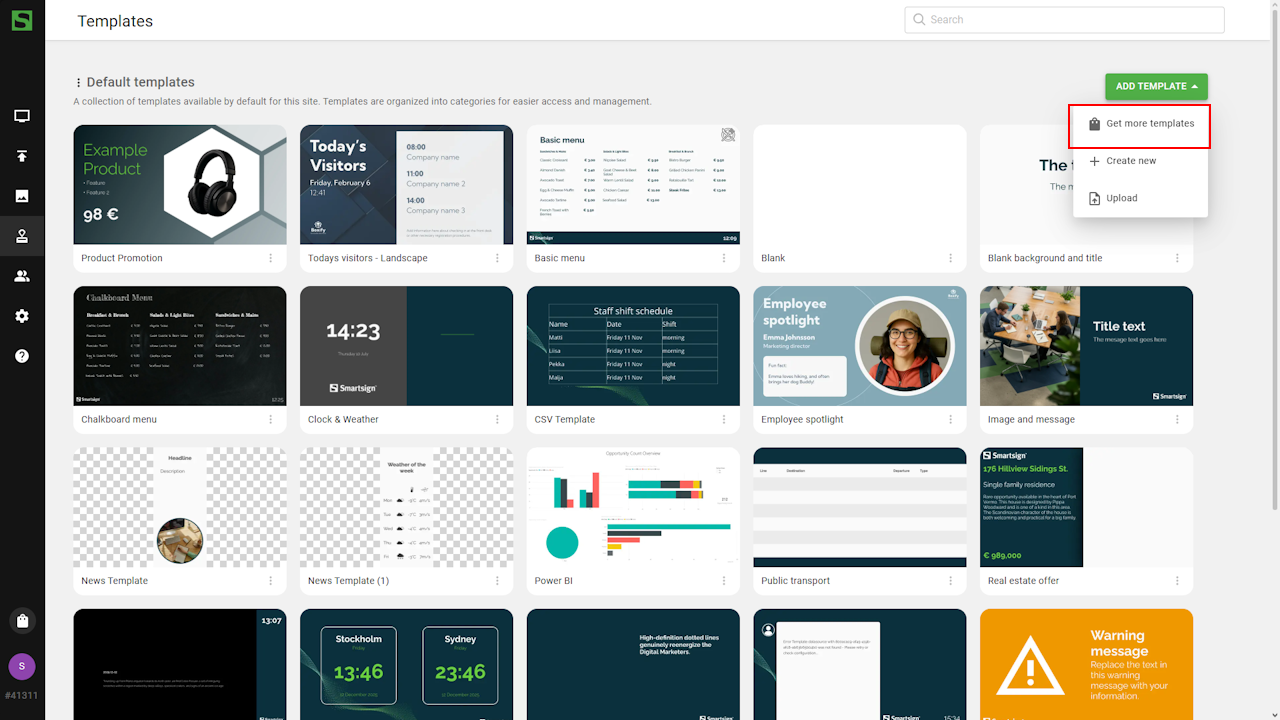
- Browse or search for Facebook templates.
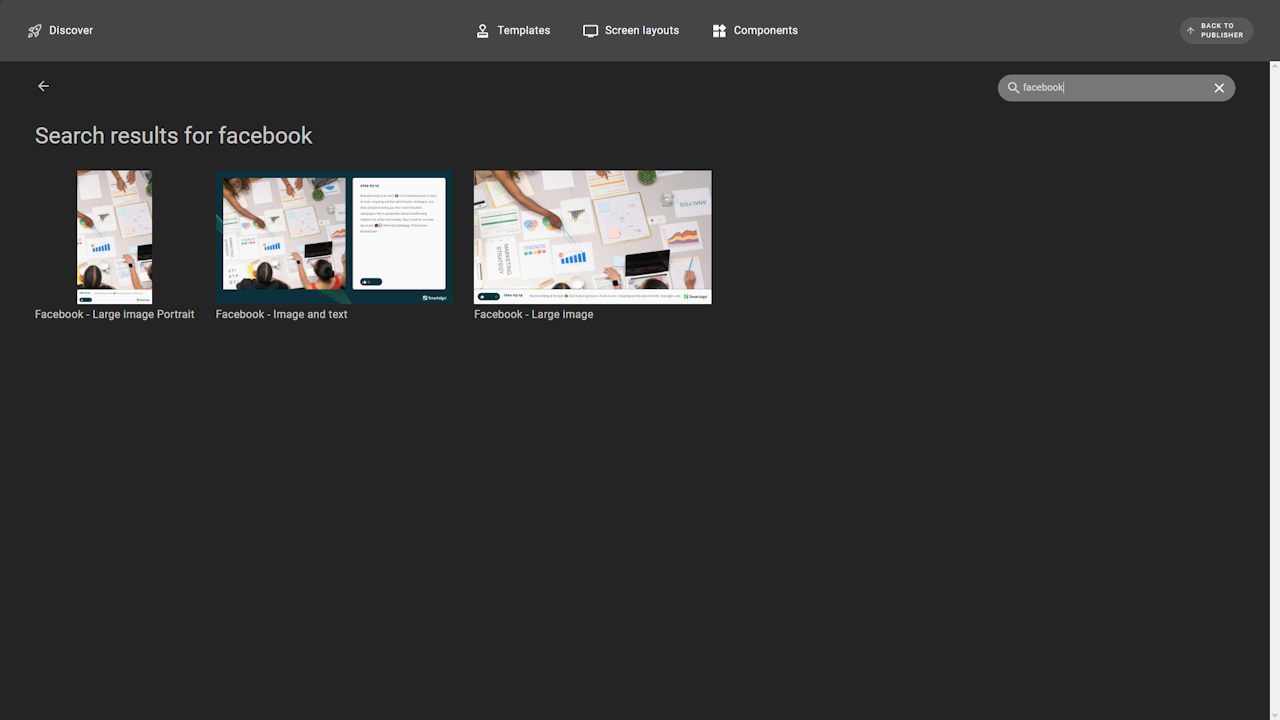
- Select a template and click Get now.
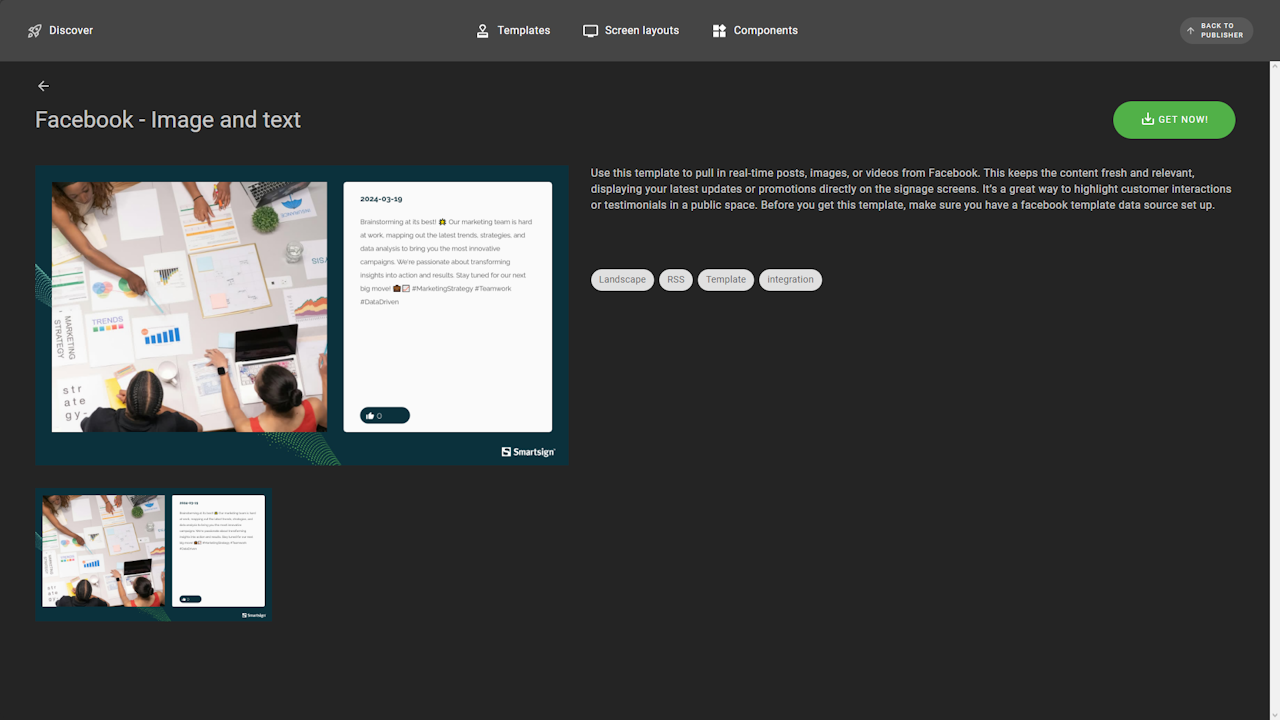
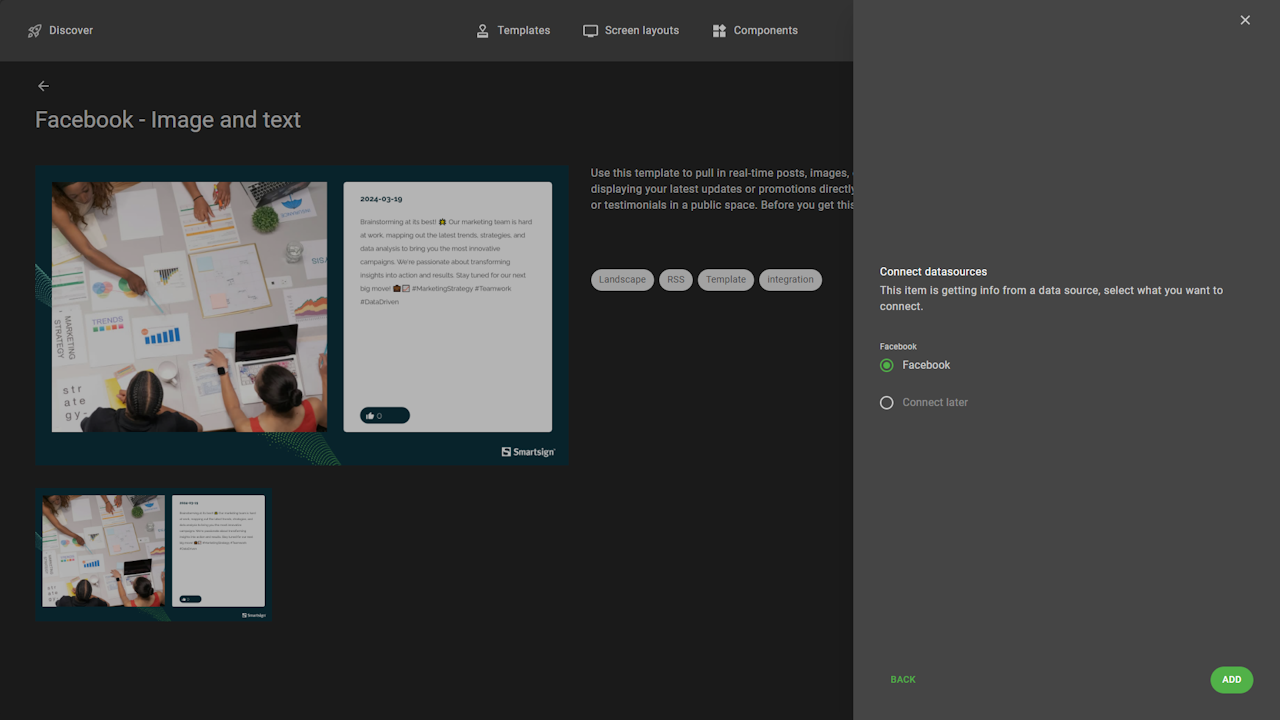
- If you already have a configured Facebook datasource, you can
connect it directly during download. Otherwise, it can be connected
later in the template library.
- Return to publisher where the new template is available.
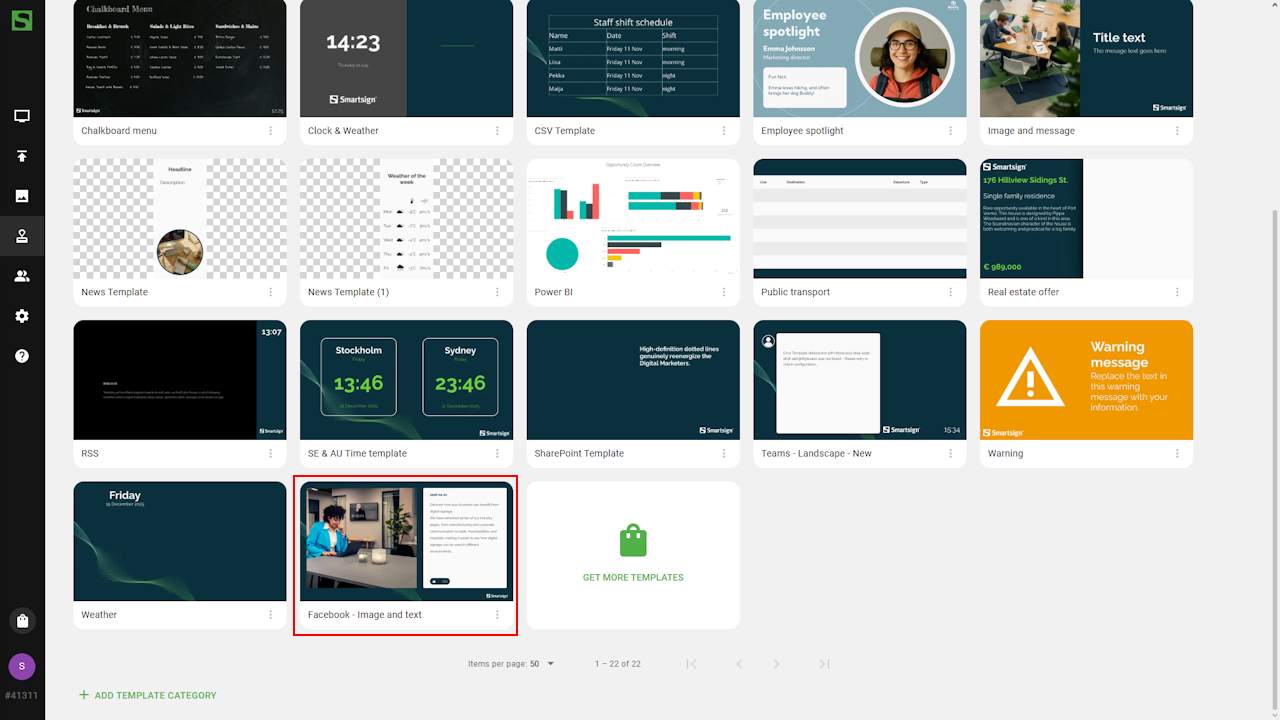
The template can now be used to create Smart Media and publish to screens.
Configure datasource settings
Datasource settings can be adjusted in:
- The original template.
- A booking.
- The Media Library.
Edit original template
- Select Edit template in options menu.
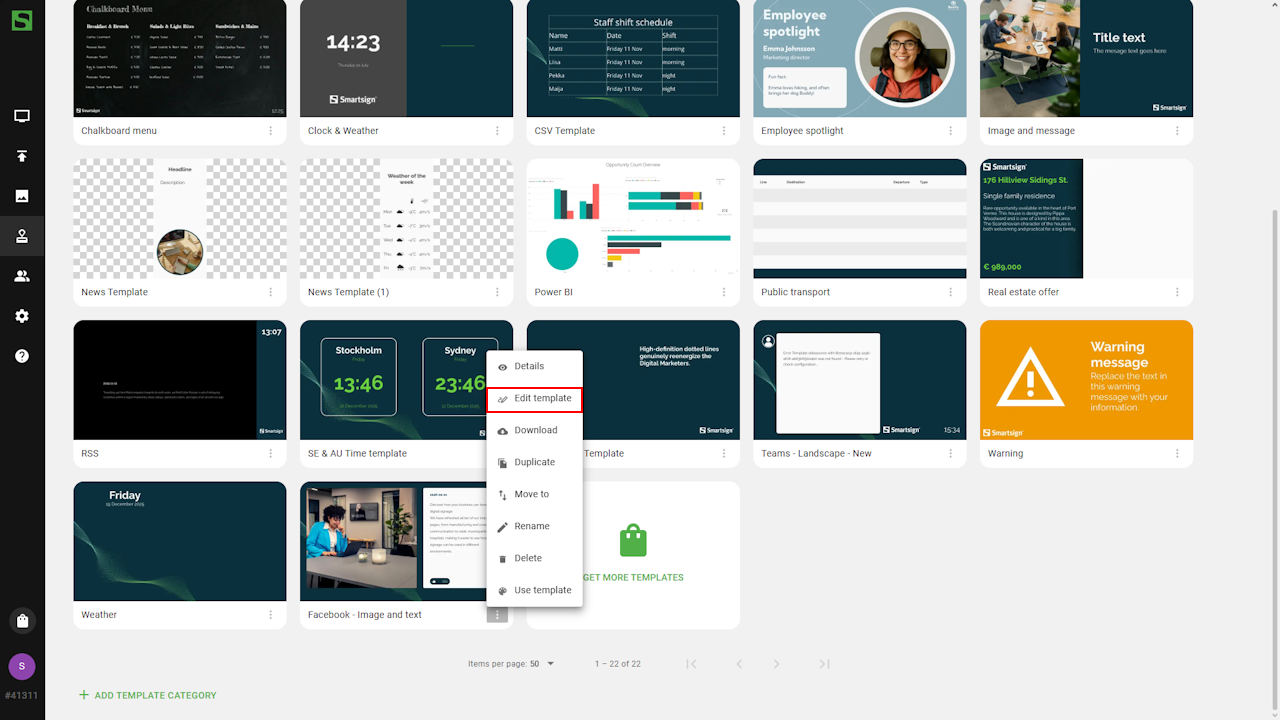
- Open the datasource settings.
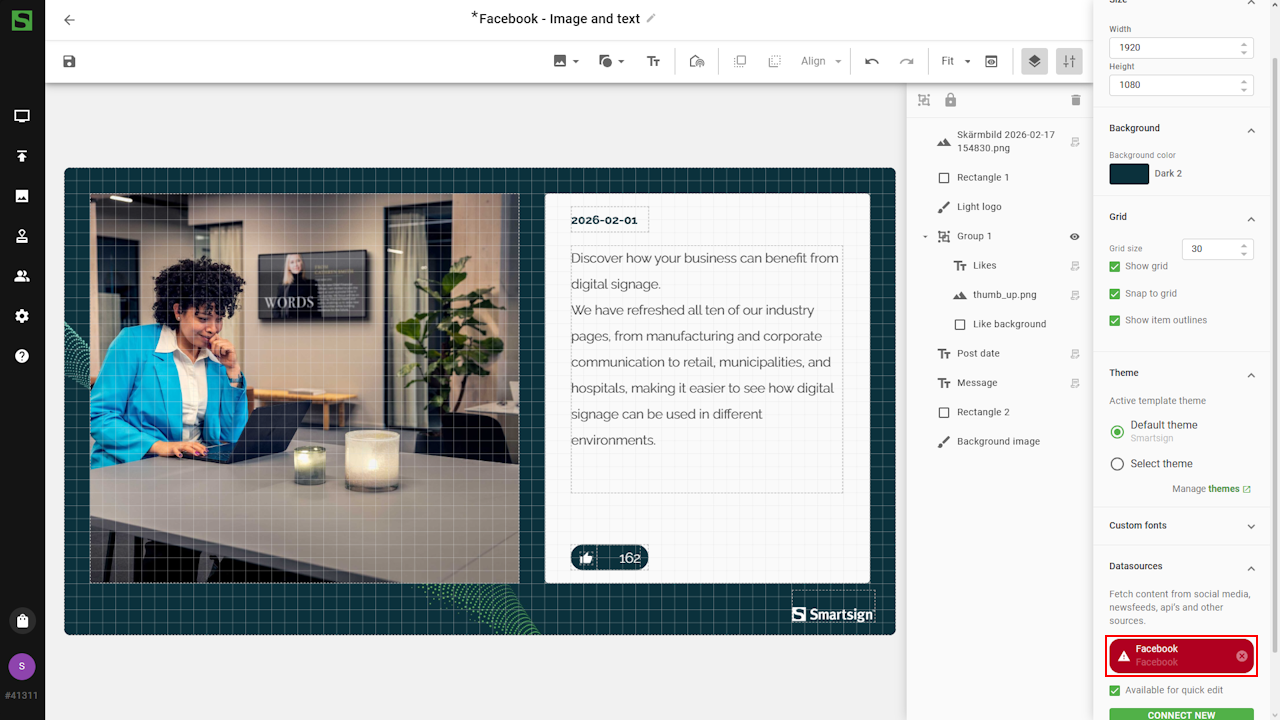
- Adjust settings as needed.
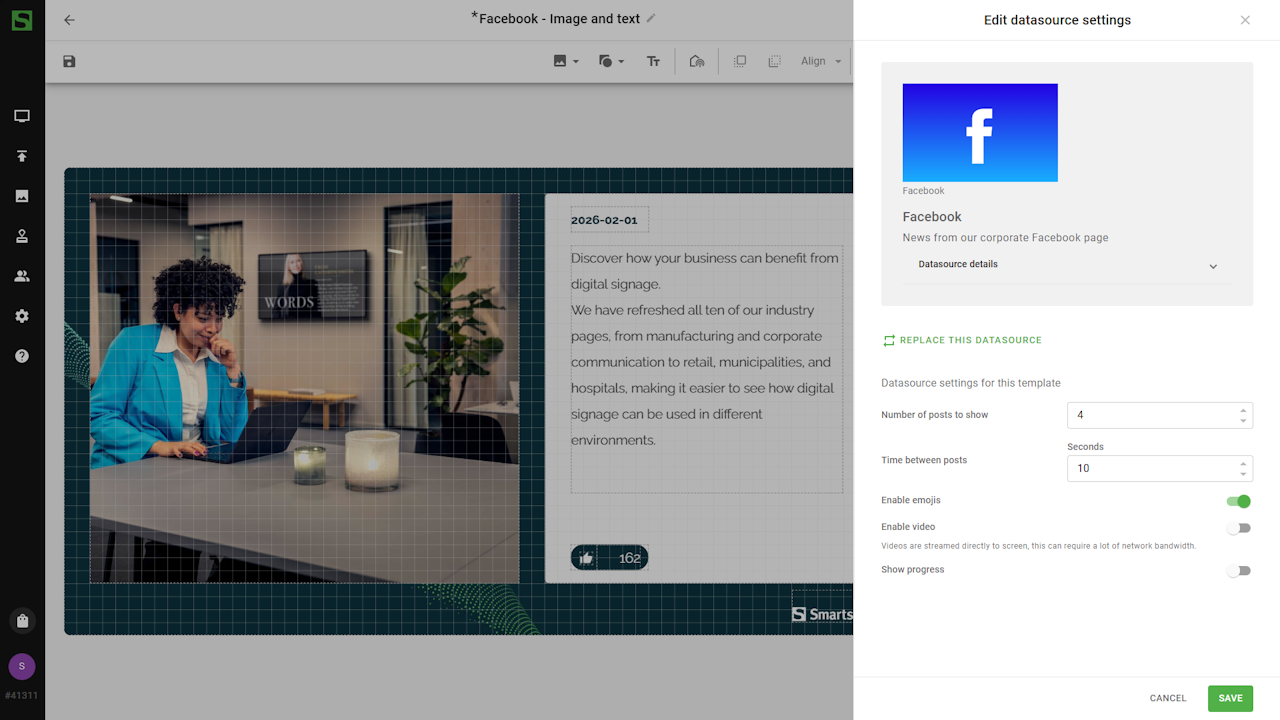
- Save the template.
Edit in booking or media library
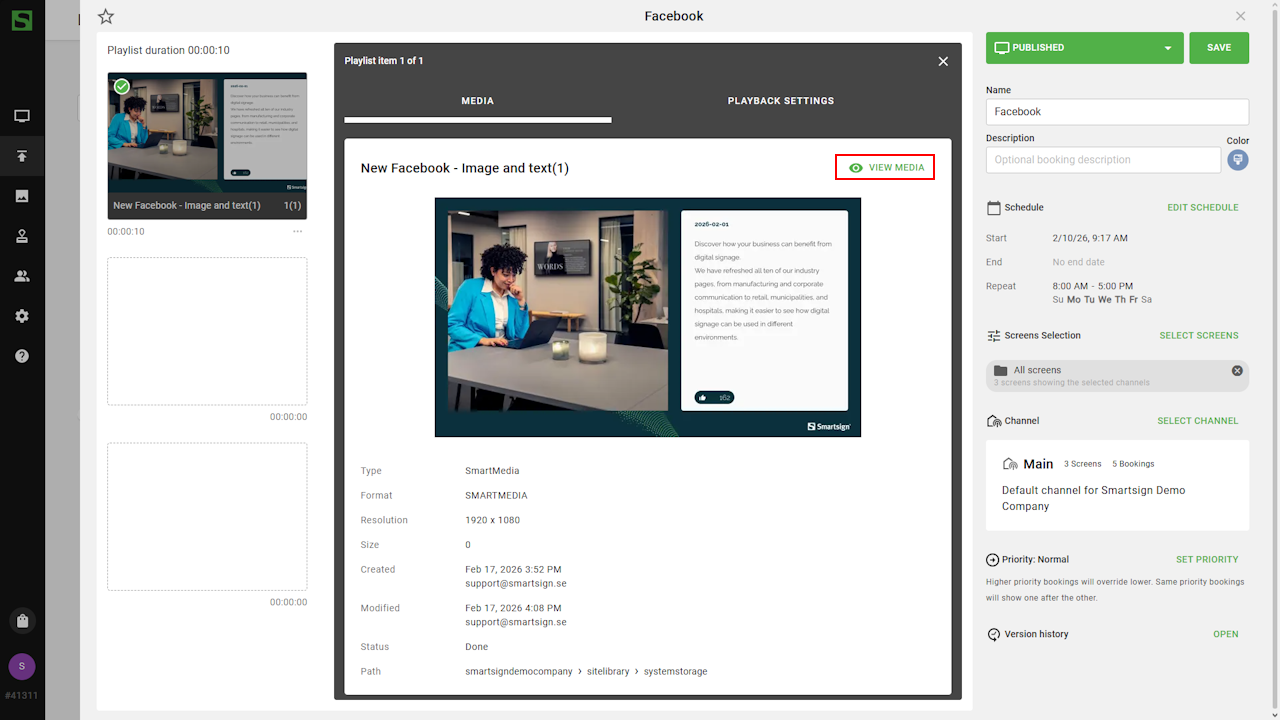
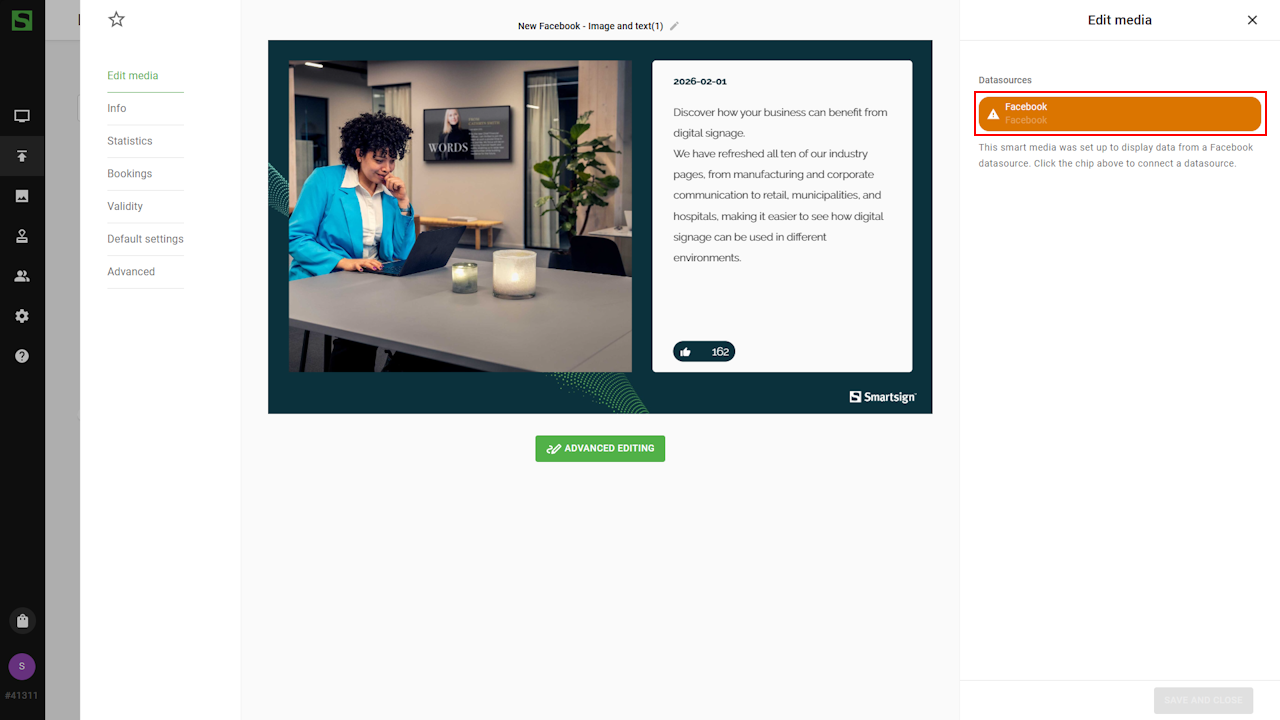
You can also modify these settings directly from the booking where the media is published or in the Media Library if the Smart Media is saved to a dedicated folder.
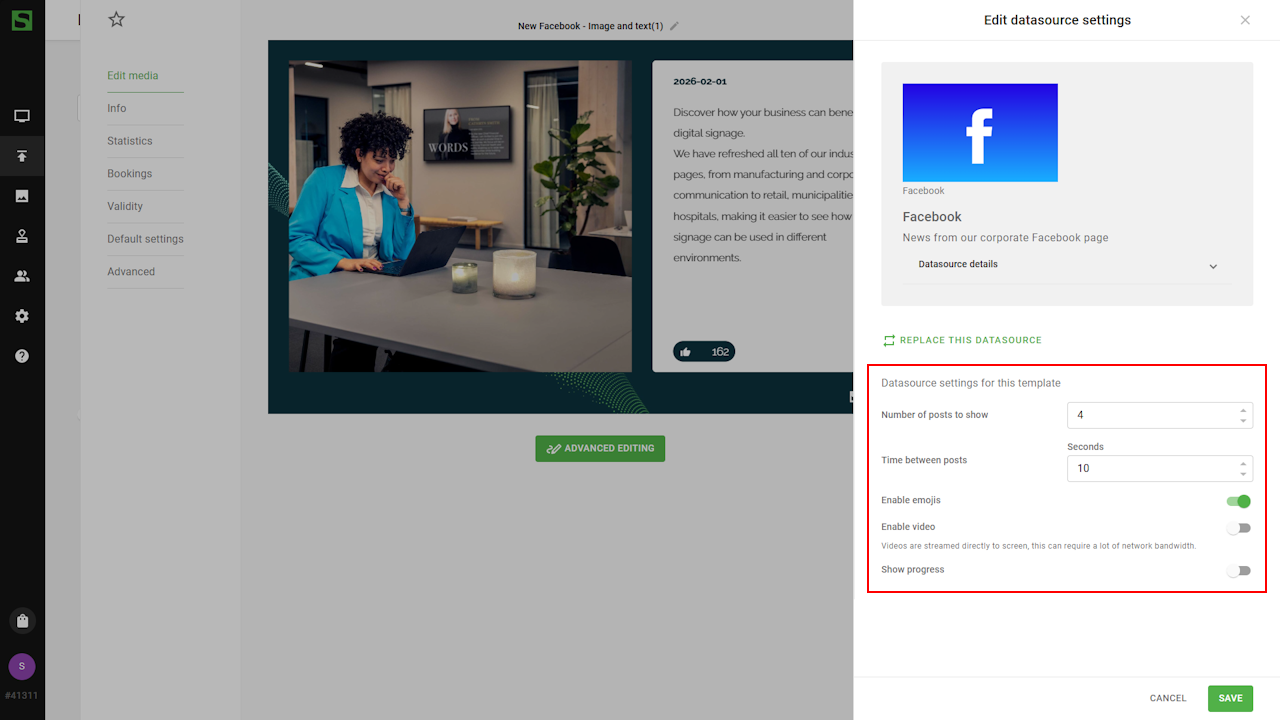
| Setting | Description | Example |
|---|---|---|
| Number of posts to show | The maximum number of posts to display | 4 |
| Time between posts | Time in seconds for each post | 10 |
| Enable emojis | Enable to show emojis | Enabled |
| Enable video | Enable to allow video (muted only) | Disabled |
| Show progress | Display a visual progress indicator for posts | Disabled |
Limitations and considerations
Video playback
If video is enabled:
- Posts containing video will automatically adjust their duration to match the video length.
- The screen must support HTML video streaming.
- Performance and stability depend on the screen manufacturer and hardware capabilities.
Videos are streamed directly to the screen. This may require significant network bandwidth and could incur additional costs on metered connections.
Hardware support
- Not supported on Legacy hardware