Screens
The screen view represents the physical screens that are connected to your site. You can see connection (online or offline) and license status. You can also perform remote actions such as Update screenshot, Restart and Player update.
The connection status is Online, Offline (in the list, Offline since and a date), Recently online (online within the last hour) or Pre-registered. The license status is Licensed, No license, Inactive or Demo, and in the grid, cards show a No license or Deactivated badge.
Some screen settings and features are not available to the default Publisher profile, for example renaming, moving, restarting and deleting screens.
Access to screens, settings and media items is set in user profiles and groups by your administrator. Go to Users & Groups to learn more.
Views
You can change the view of the screen view in different ways depending on your needs.
Use Search to find screens by name, description, tags, status, player or IP address.
Grid
Shows your screens with a thumbnail of the most recent screenshot. Actions like preview and update screenshot can be performed from options menu. Use the sort menu to sort the screens by Name, Created or Modified.
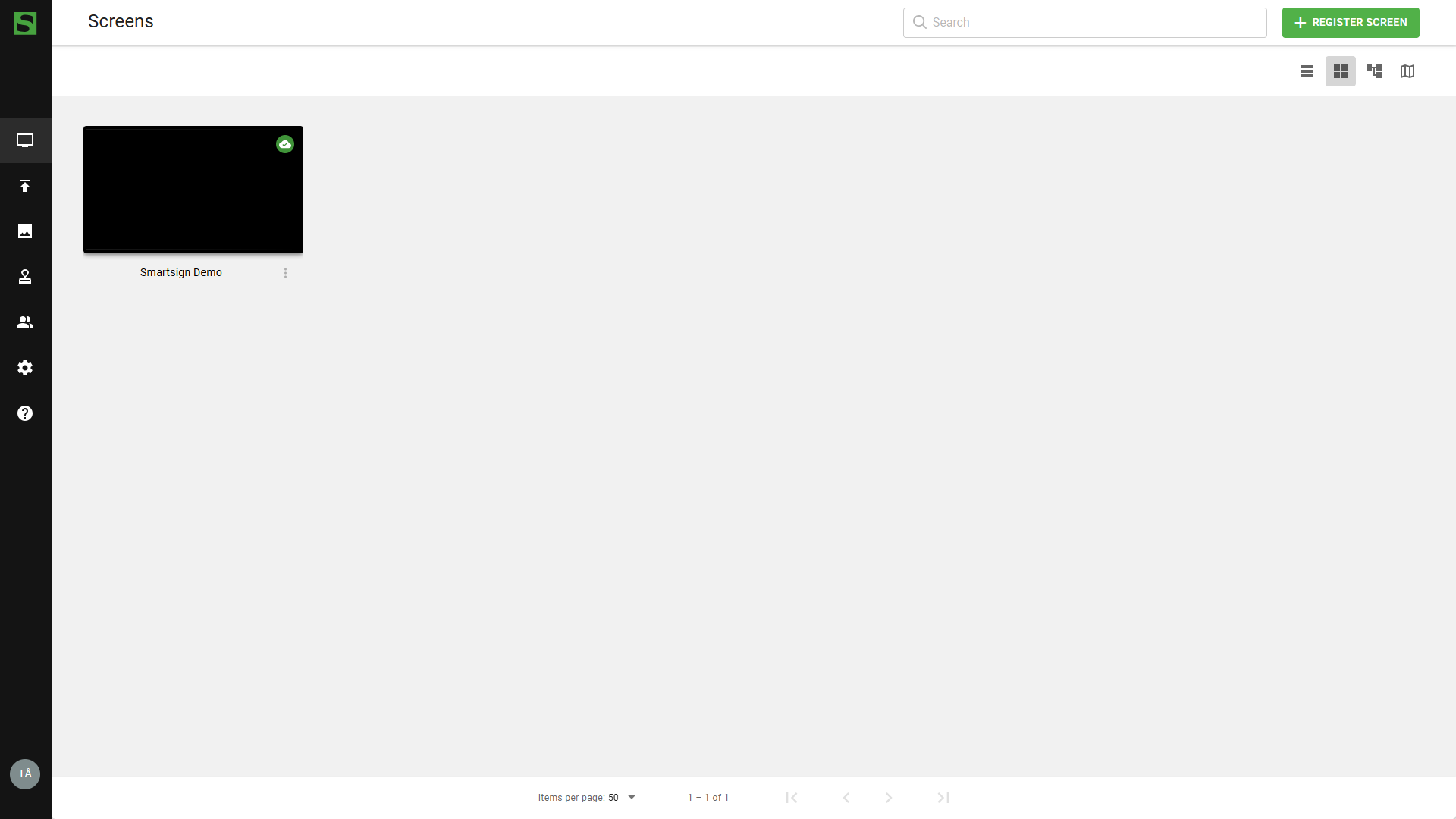
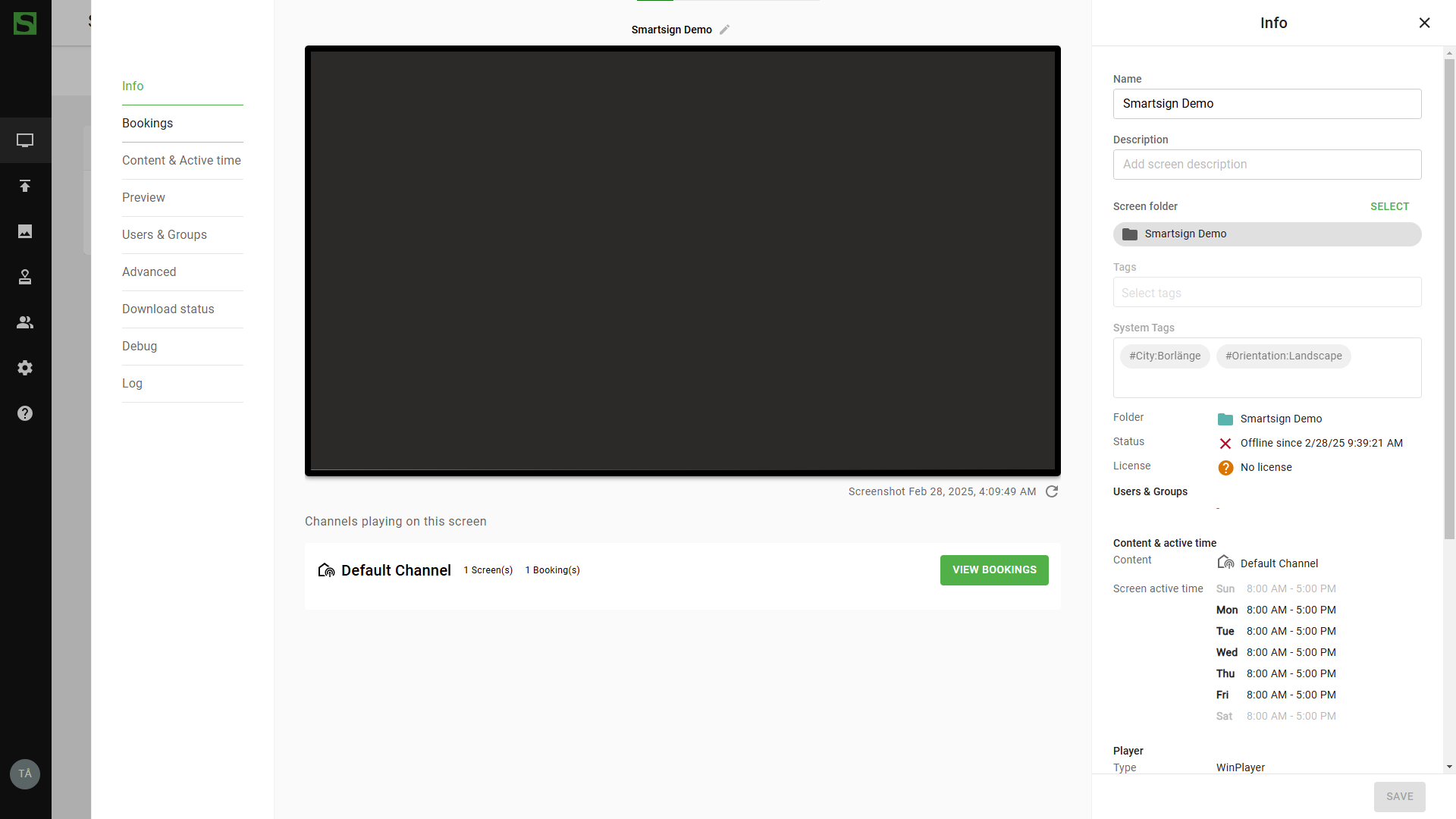
Click on a screen will open screen detail view.
List
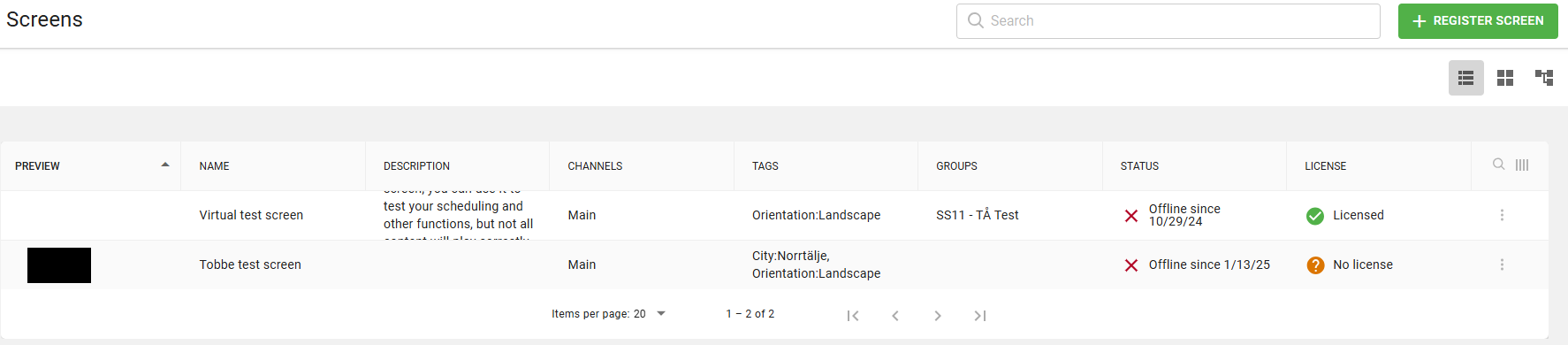
The list view shows more details about your screens which can be useful to see description, groups as well as network and license status.
Select several screens to Update screenshot, Restart, Move to folder or Delete them together. Use the column settings to show more columns, such as IP addresses or player version. Export list (.xls) downloads the list as an Excel file. It is only shown if your user profile has the System reports permission.
Tree
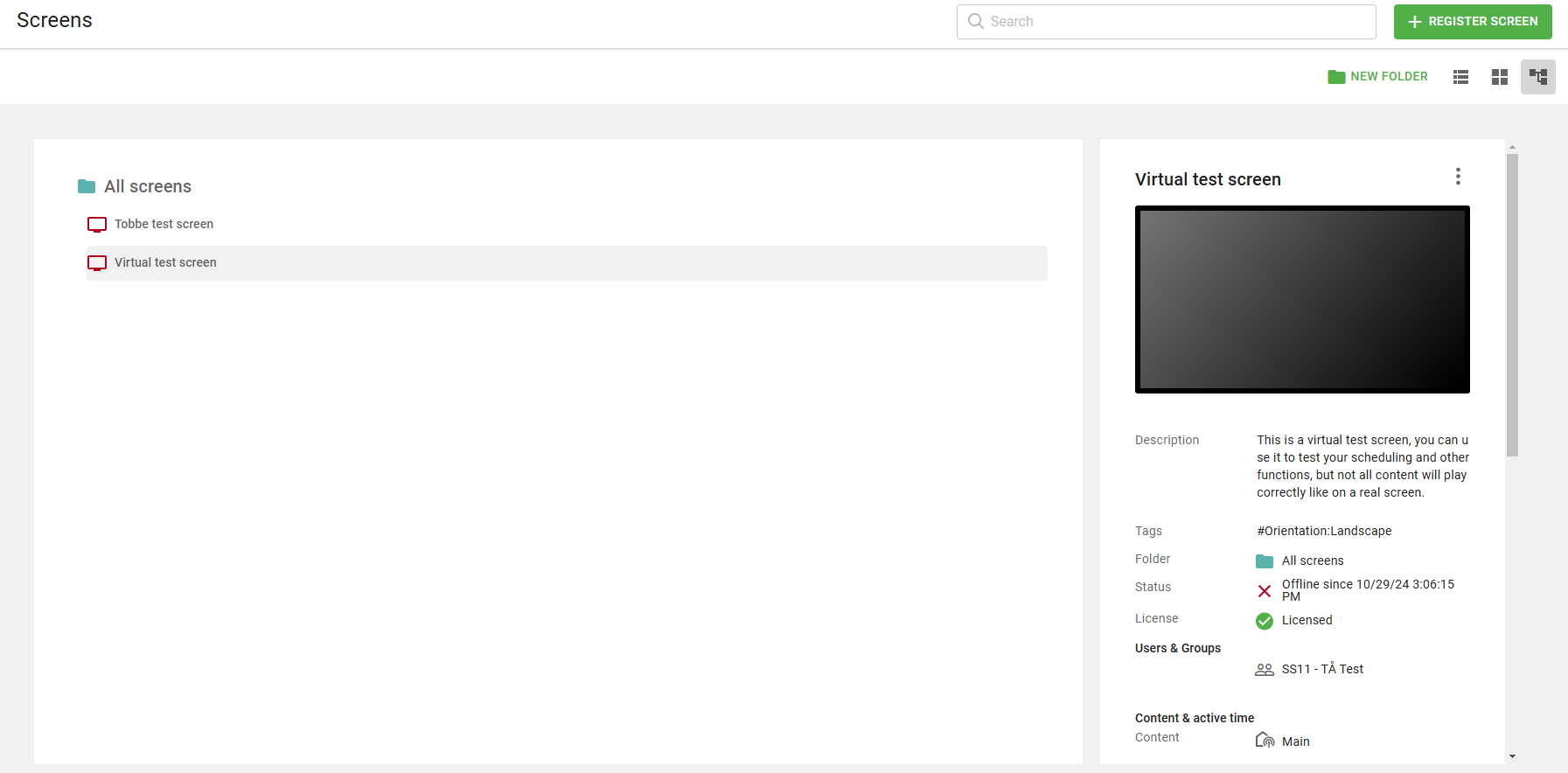
Tree view allows you to see the screen folders and structure your screens based on location or departments to make it easier to manage content for multiple screens.
By default, screens will inherit content, active time and permissions from the screen folder. Click a screen or folder to see a summary on the right. Click View to open its details, or use the options button for more actions.
If you have permission, use New folder to create screen folders.
Map
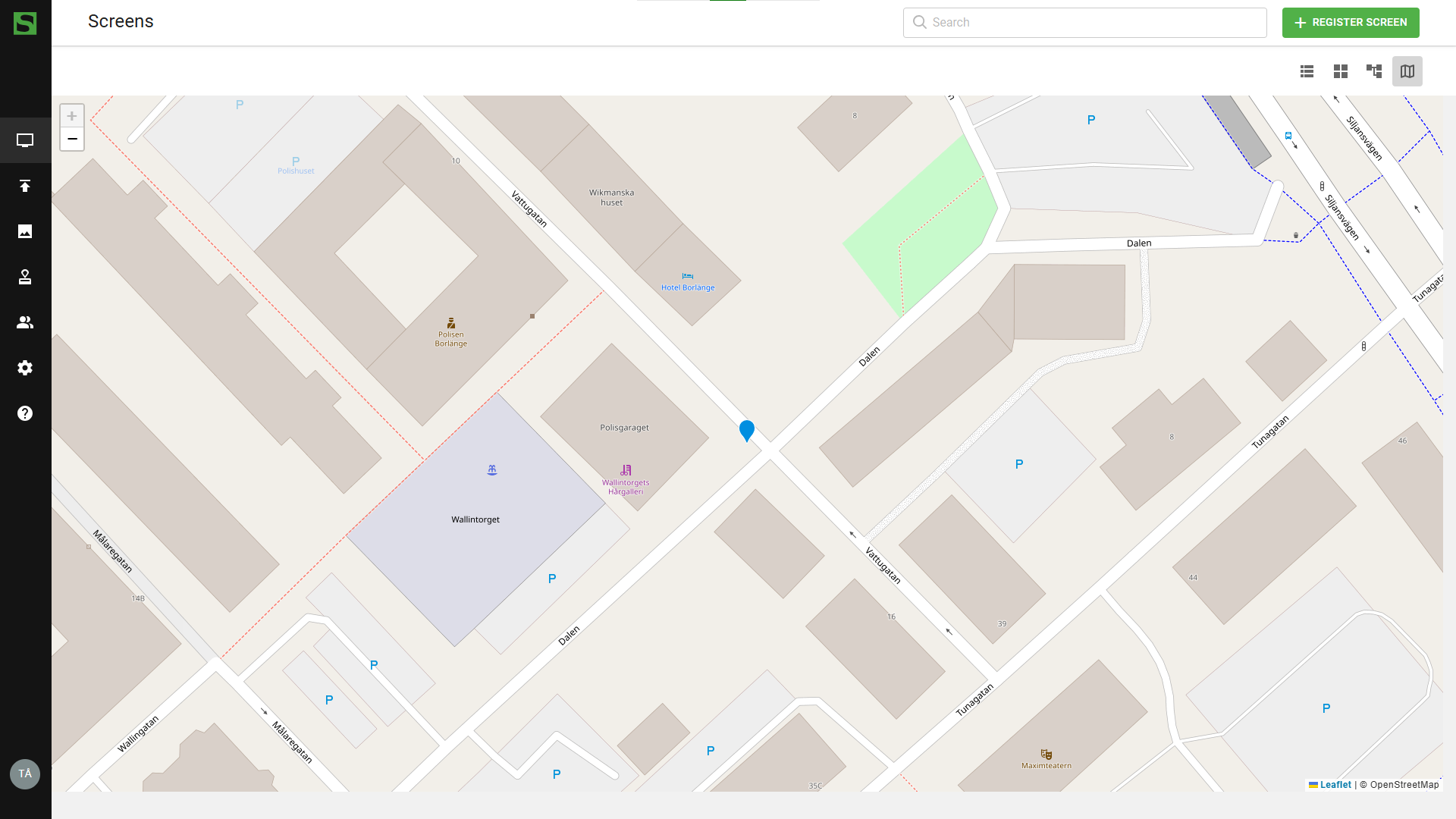
The map will show your screens based on their geo location settings. Nearby screens are grouped into a numbered marker that splits up as you zoom in. Click a marker to see its screens.
Geo location settings are by default set based on the IP number of your internet provider which can show incorrect information.
Map view shows only the screens on the current page of the grid view, and nearby screens are not grouped.
Screen option menu
When you click on the screen options button, you will see additional options available for the screen.
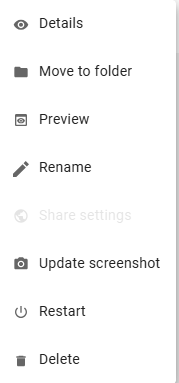
- Details
The screen detail view gives you an overview on the particular screen where you can see and adjust settings.
Available options vary depending on user permissions.
- Move to folder
Allows you to move screens to different folders in the tree view.
- Preview
Use preview to see the current scheduled bookings on your screens. Very useful to check that content is playing in the order you have selected. Preview opens a new browser tab with what the screen plays now. To preview bookings that are scheduled ahead of time, open the screen's details and use the Preview tab, where you can select the time to preview.
Preview is a simulation from the CMS and does not show live view the physical screen.
- Rename
Change the names of the screens if needed.
- Share settings
Opens the Share screen tab, where you can create a public link to the screen's content. Only available if your site's license includes screen sharing. If you don't see it, ask your administrator.
- Update screenshot
Update the screenshot to see what the screen is showing in that moment. Very good to check that screens are responding properly.
- Restart
Sends a restart command to the screen. Can be used if screen does not download the scheduled content or you suspect that it isn't responding properly. Depending on the screen's settings and device support, it restarts the player or the whole screen.
Update screenshot and restart requires that screen is online and can receive commands from the CMS. With several screens selected, the command is sent to all of them.
- Player update
Shown when a newer player version is available for the screen. Updates the player software after you confirm with Update. The screen must be online. If you don't see it when an update is available, ask your administrator.
- Delete
Use delete to remove old or unused screens from your site to free up licenses. If you don't see Delete, ask your administrator.
Deleting a screen removes it from the site. To confirm, type the screen's name. The panel lists bookings that are scheduled to play on the screen. Bookings in channels that other screens also use are not deleted. You cannot undo the removal. Proceed with caution.