Google Drive Sync
This feature allows you to display files stored in Google Drive on your Smartsign screens.
This makes it easy to show presentations, images, videos, and other shared files directly in Smartsign and keep them updated in your Google Drive.
How it works
When you add a file from Google Drive, Smartsign creates a synchronized media item in the Media Library that is linked to the original file in your Google Drive account.
Smartsign periodically checks the source file in Google Drive for updates. If the file has changed, the updated version is automatically synchronized to Smartsign and distributed to the screens where the media is scheduled.
This allows you to update content directly in Google Drive without needing to upload the file again in Smartsign.
The maximum update frequency is once per hour. Changes made in Google Drive may take up to one hour before they are reflected on your screens.
Requirements
To use the feature, you need:
- A Google account with access to Google Drive
- Permission to access the files that will be synchronized
Add Google Drive media to Media Library
Follow these steps to add and sync a file from OneDrive to your Media Library:
- Go to media library and create a folder for the synced files.
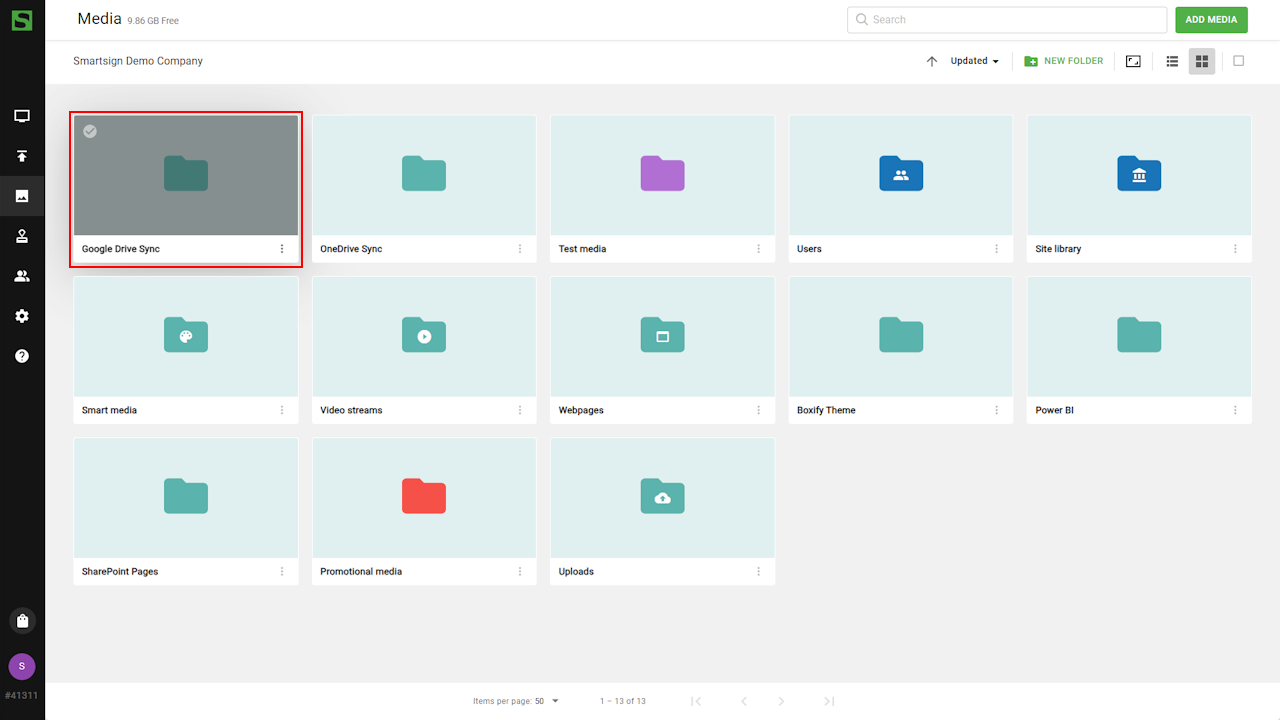
- Open folder and select Add Media
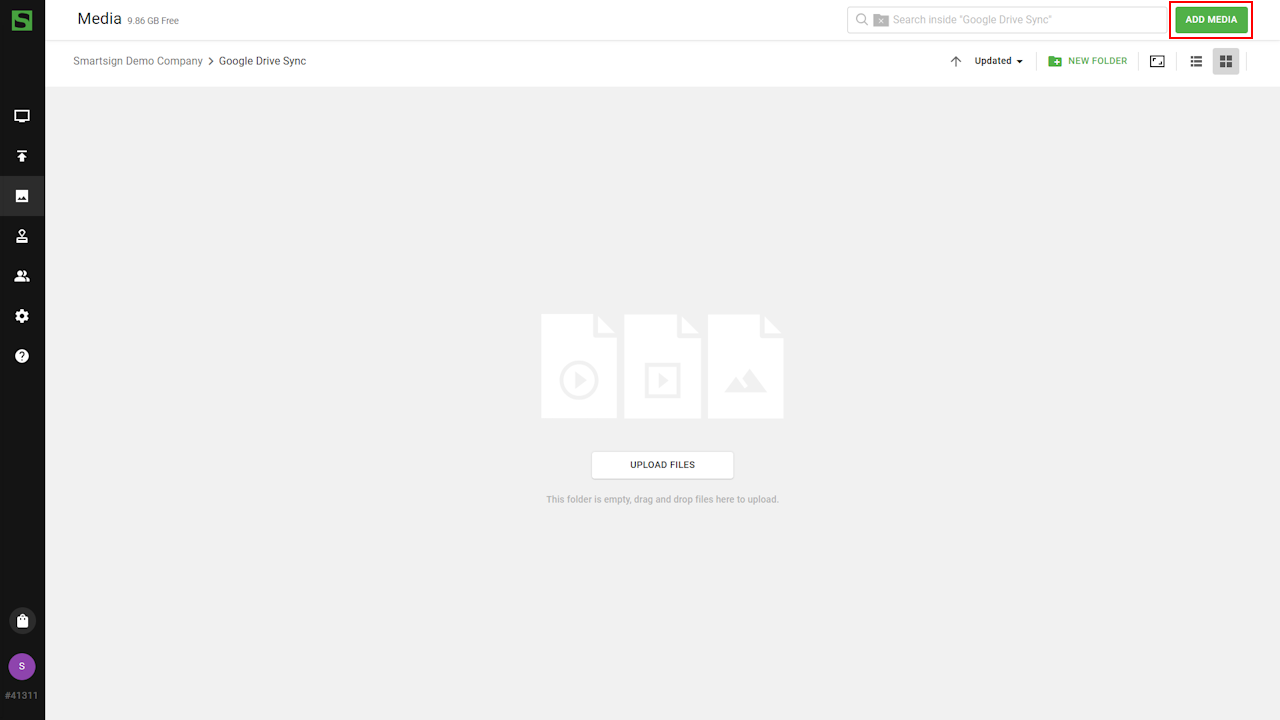
- Click Upload File
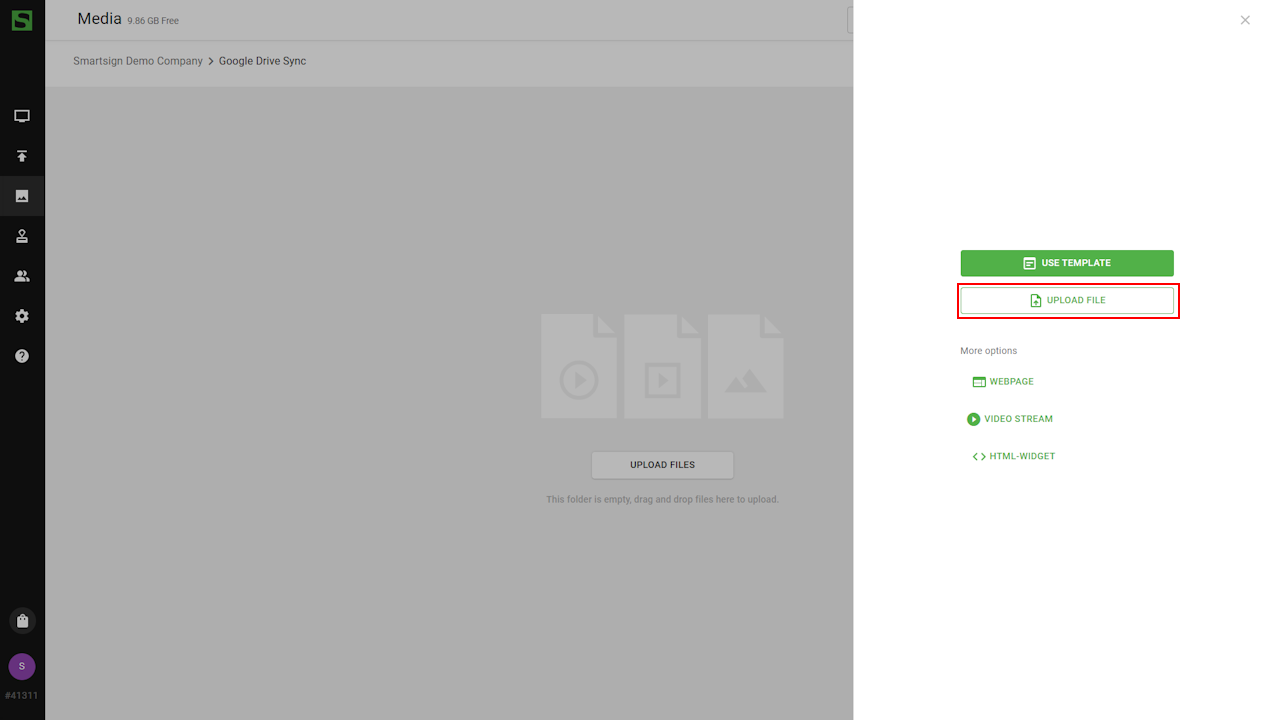
- Select Google Drive
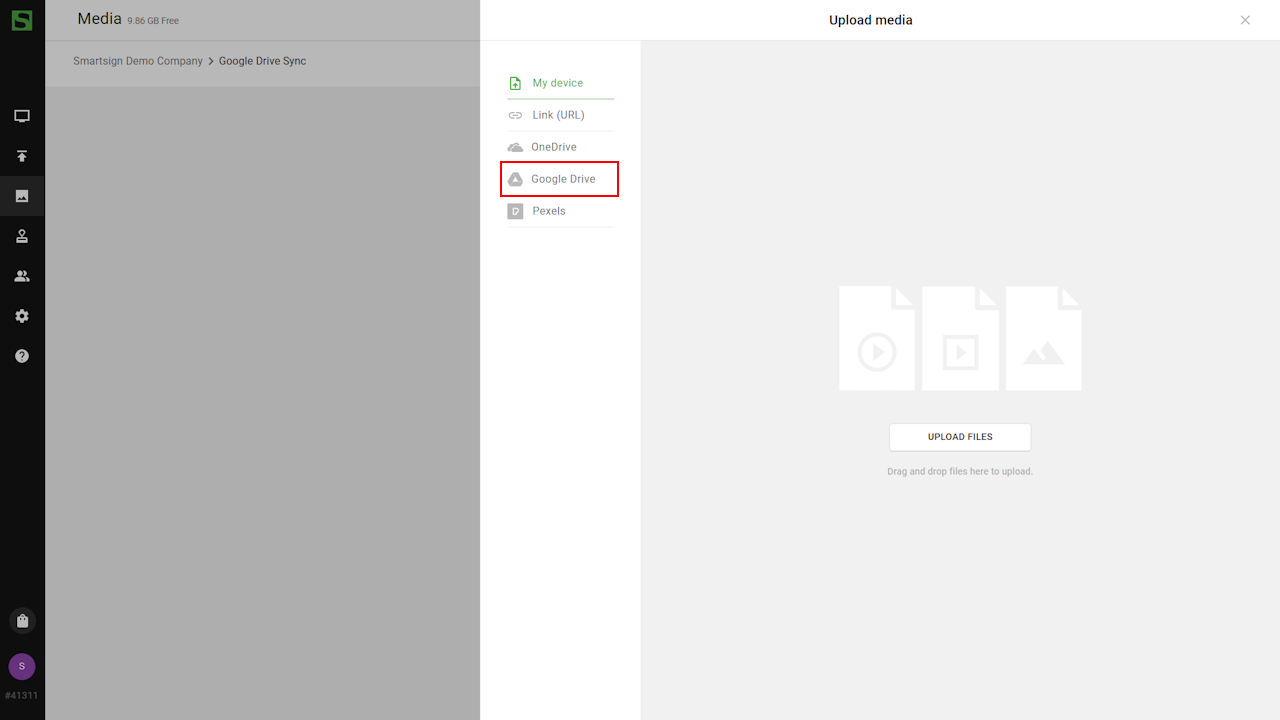
- A popup appears and allows you to authenticate with your
Google account.
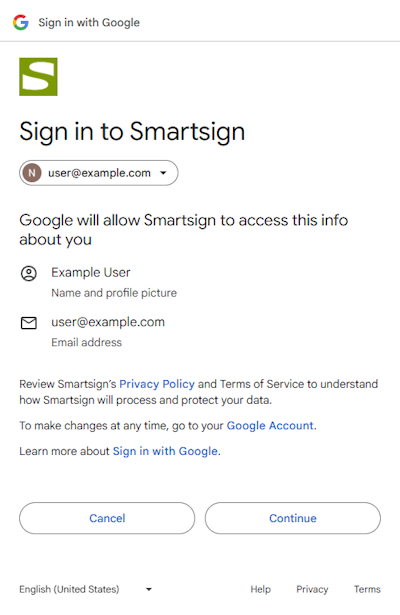
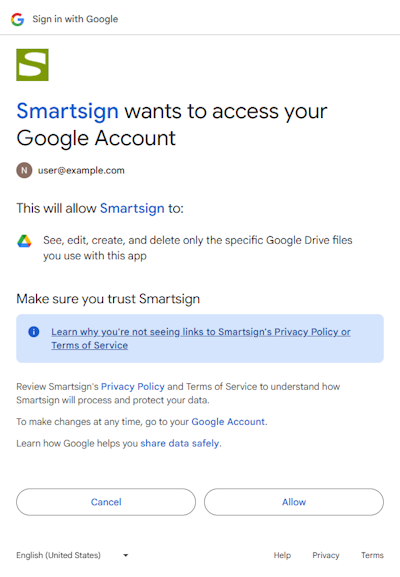
- The first time you authenticate, you may need to allow pop-ups in your web browser.
To allow pop-ups in most browsers, click the lock or alert icon on the right side of the address bar and select Always allow, or open Site Settings to manage pop-up permissions.
- After authentication, browse and select one or more files you want to use from
Google Drive.
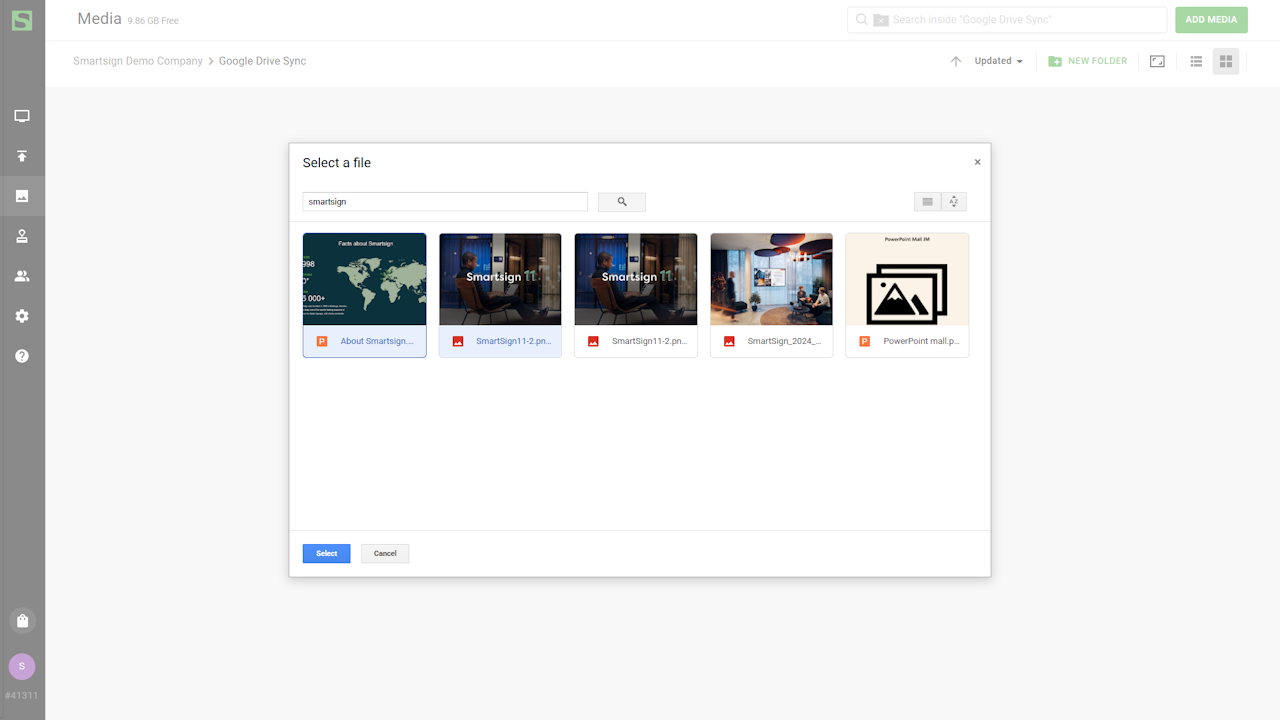
- Select synchronize to sync the files with Smartsign.
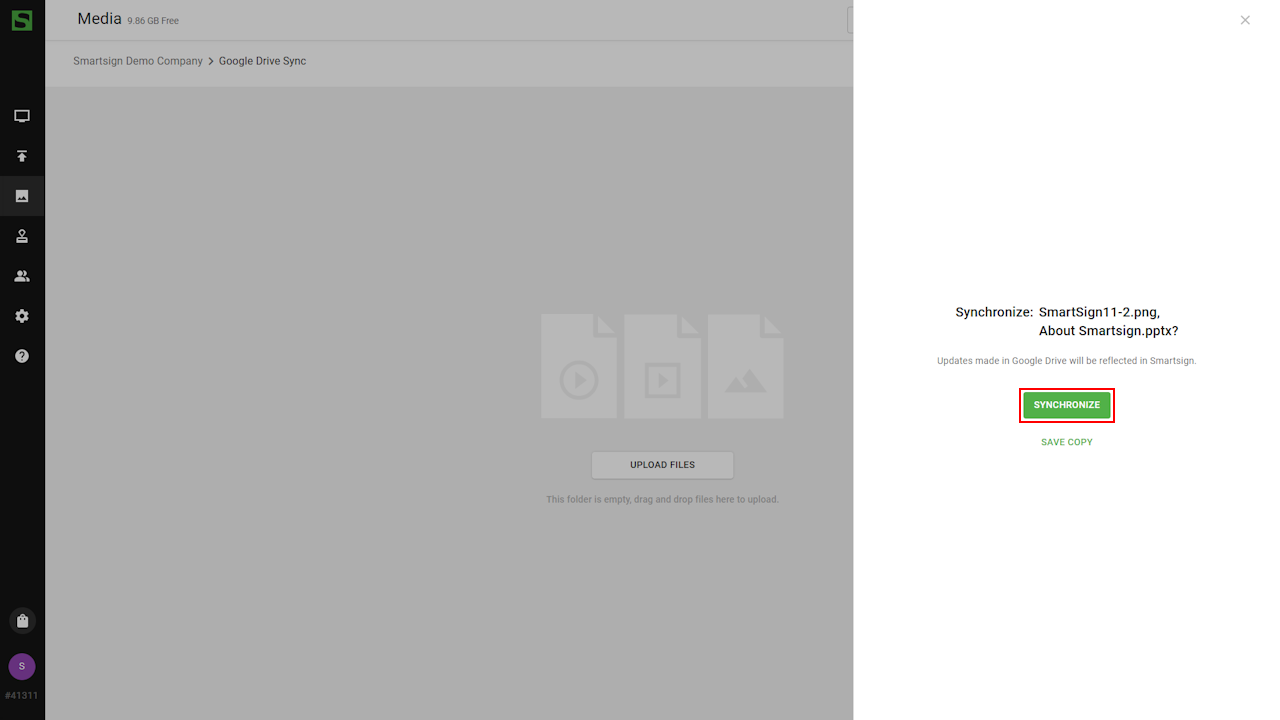
- Once the sync is complete, you can book the content on your screens.
Changes made to the file in OneDrive will automatically be reflected
on your screens after the next synchronization.
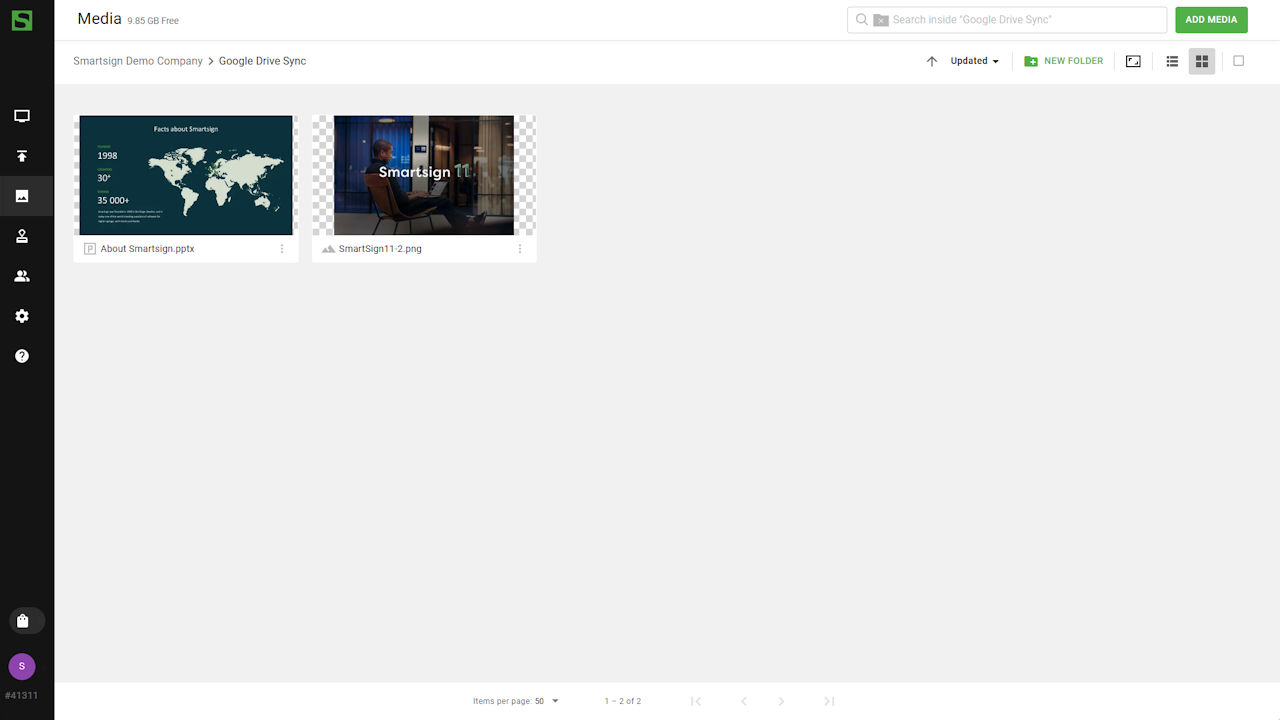
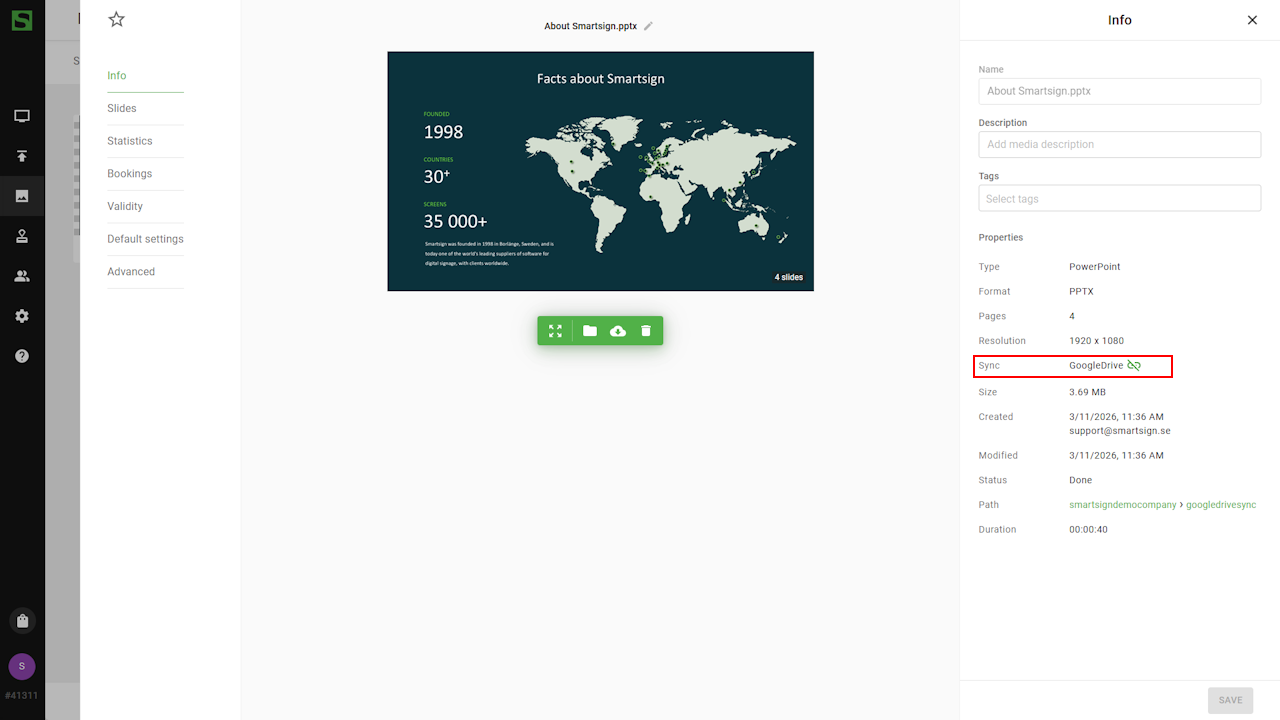
- The file details show which sync source is used.
Permissions required
| Permission | Description |
|---|---|
| https://www.googleapis.com/auth/drive.file | See, edit, create and delete only the specific Google Drive files you use with this app* |
* This is the Google recommended least privilege permission. There is no equivalent read-only permission available.