Themes
The theme lets you define your graphical identity — such as logos, fonts, and colors — and apply it across all templates and screen layouts you create in the Publisher.
Each template either follows the site's default theme or uses a
specific theme, chosen under
Theme & Fonts
in Template Creator.
When you update a theme, the changes automatically apply
to all Smart media using that theme.
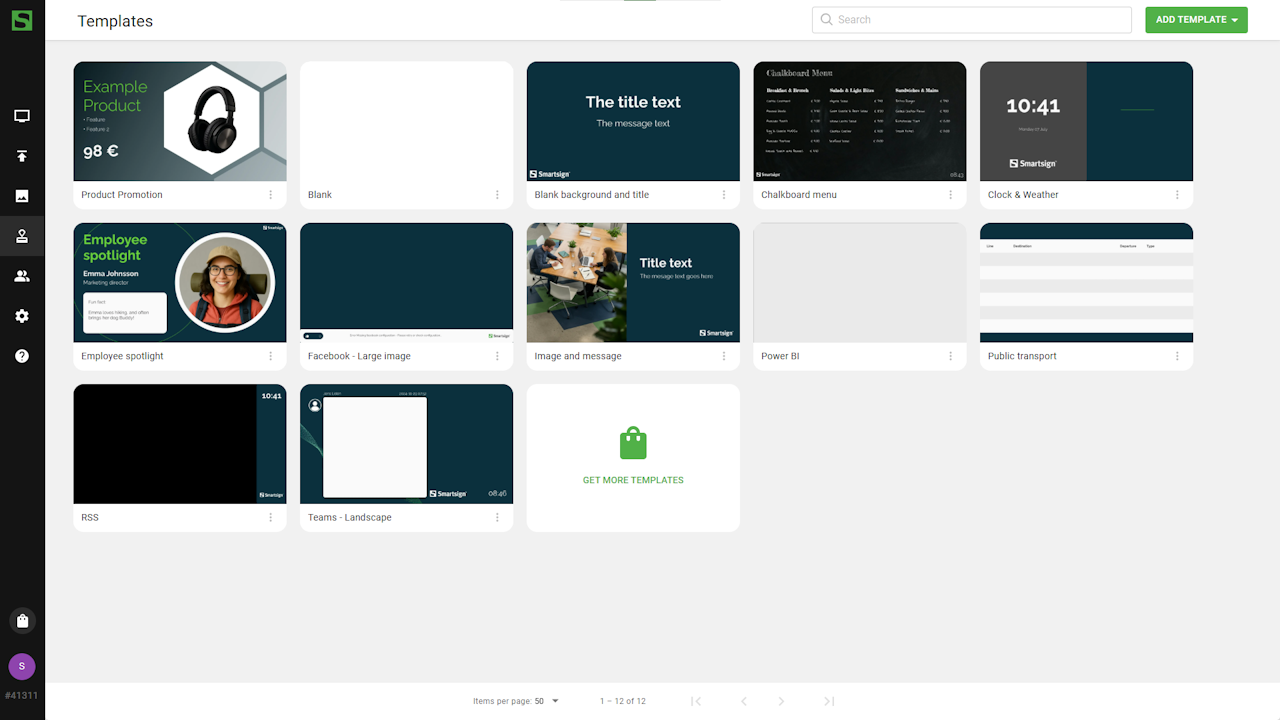
Change your logo or brand color in the site theme, and all templates and layouts using that theme are updated — no need to edit each one. The update runs in the background and can take a while.
Managing themes needs the Template themes permission.
Create a theme
Video guide
Configuration steps
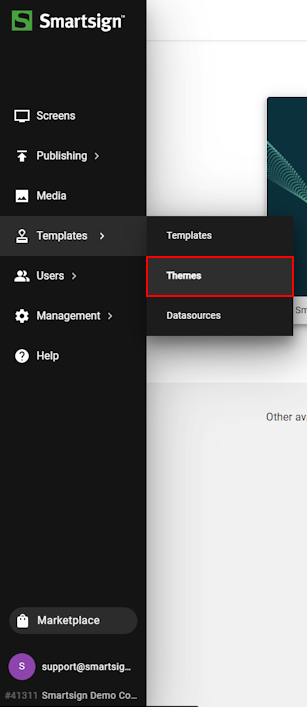
To create a theme, go to Templates -> Themes.
-
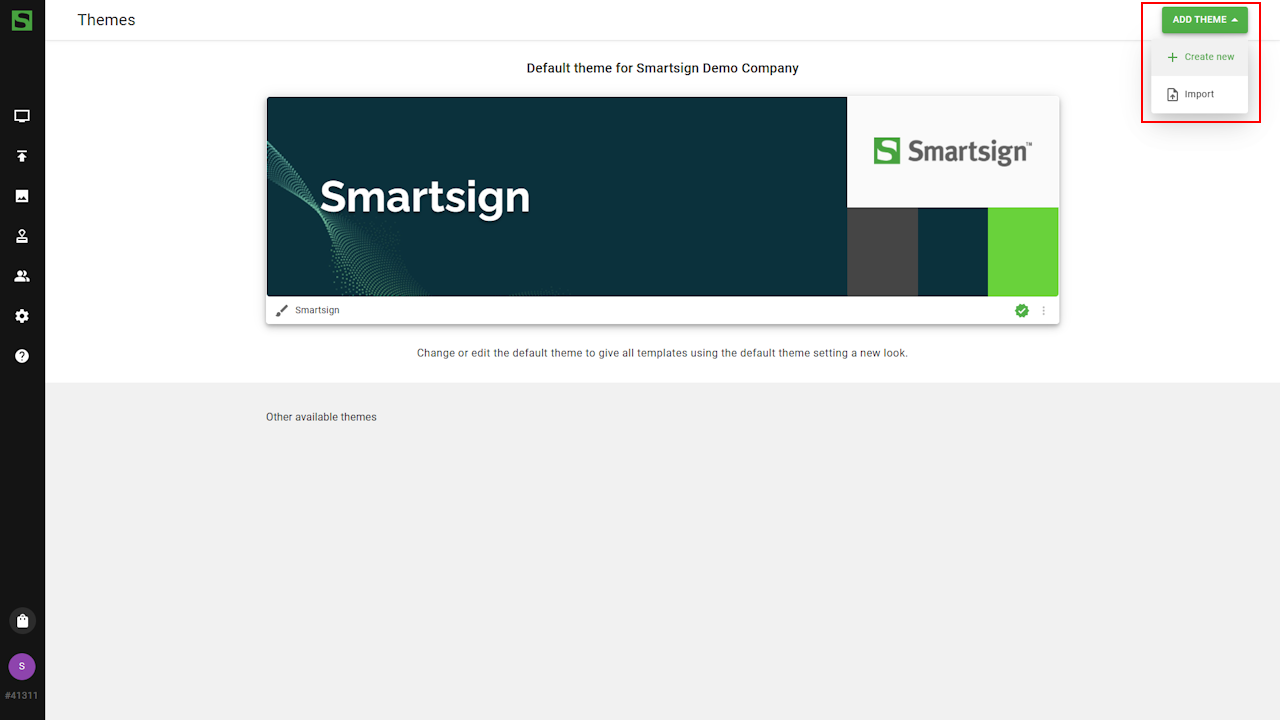
Click Add theme and choose Create new.
-
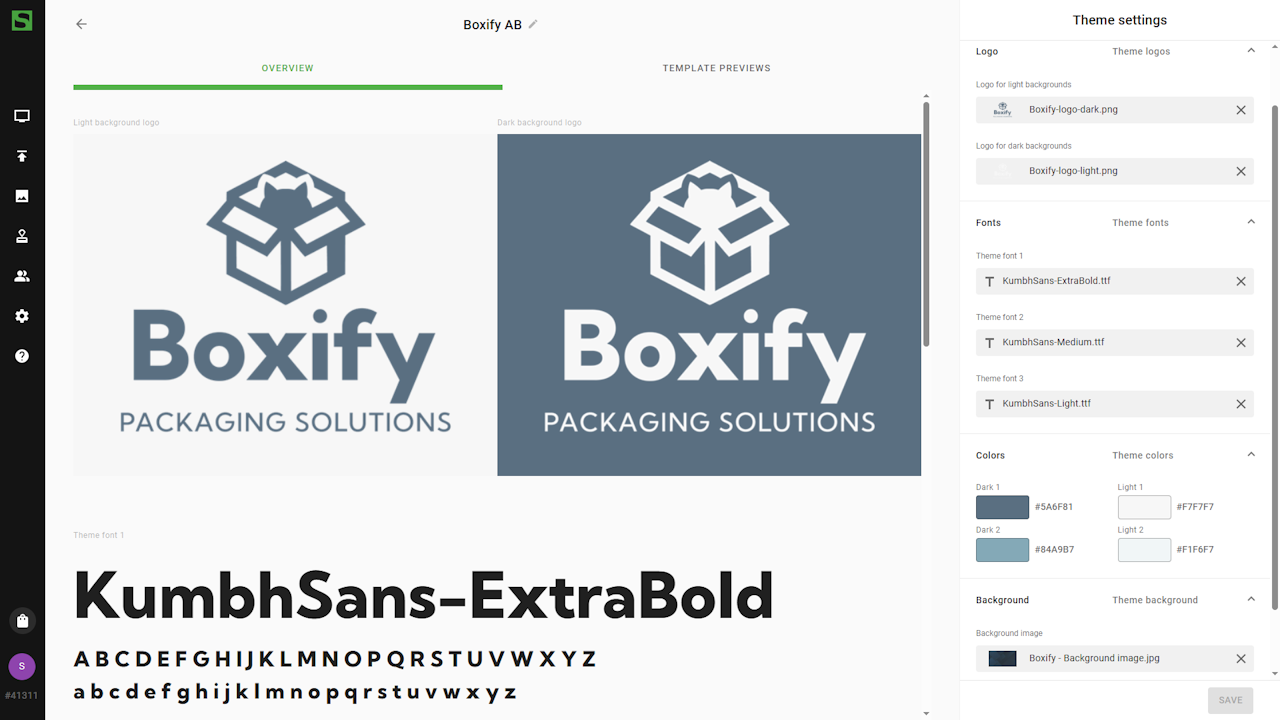
Give the theme a name and add your logos, fonts, colors and background image.
-
On the Media preview tab, click Select preview media to see how a template or smart media item looks with the new theme.
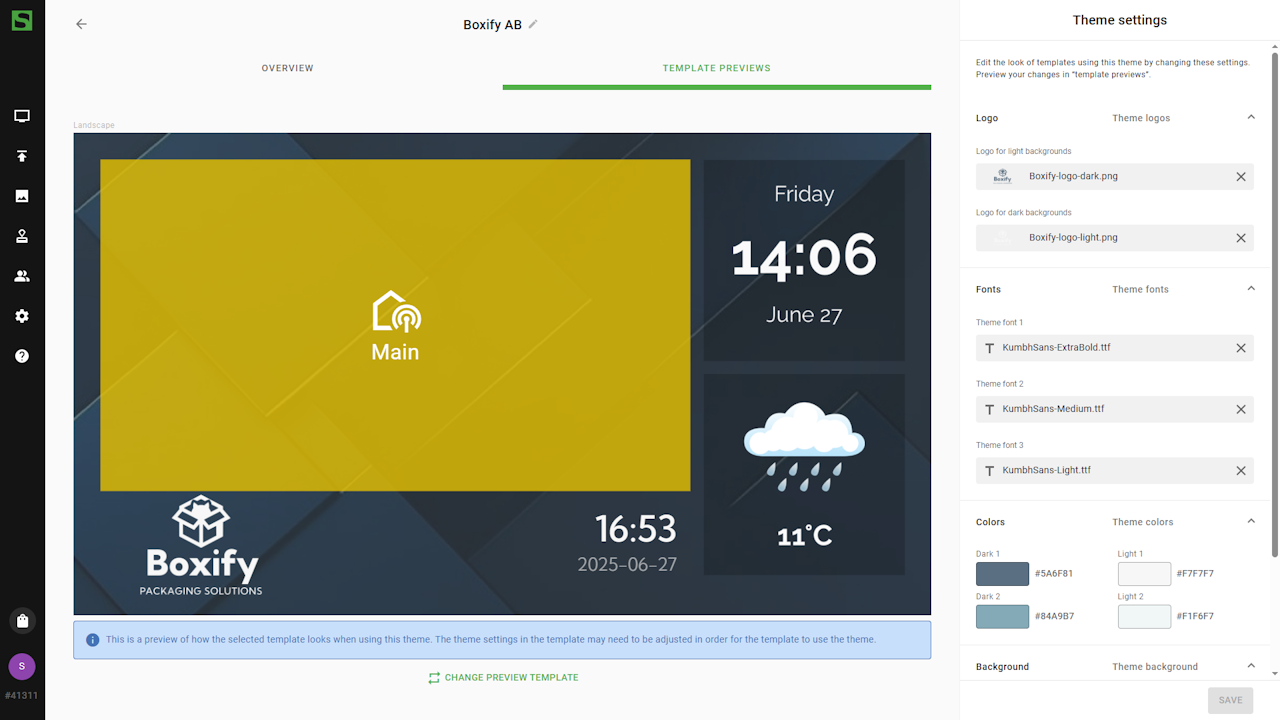
When you are happy with your theme, click Create. The new theme
is listed under Other available themes on the Themes page.
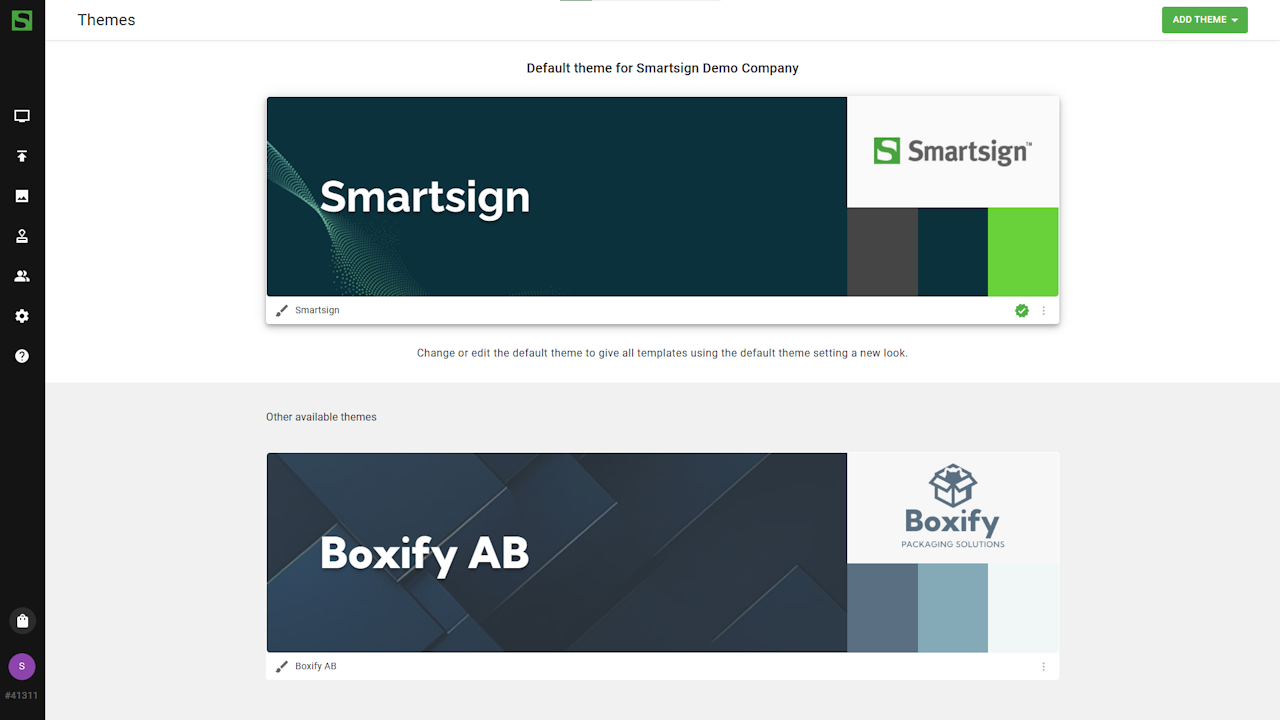
Apply theme
When the theme is done, you can make it the site's default theme. Templates and smart media that follow the default theme then use the new theme. Those set to a specific theme keep their theme.
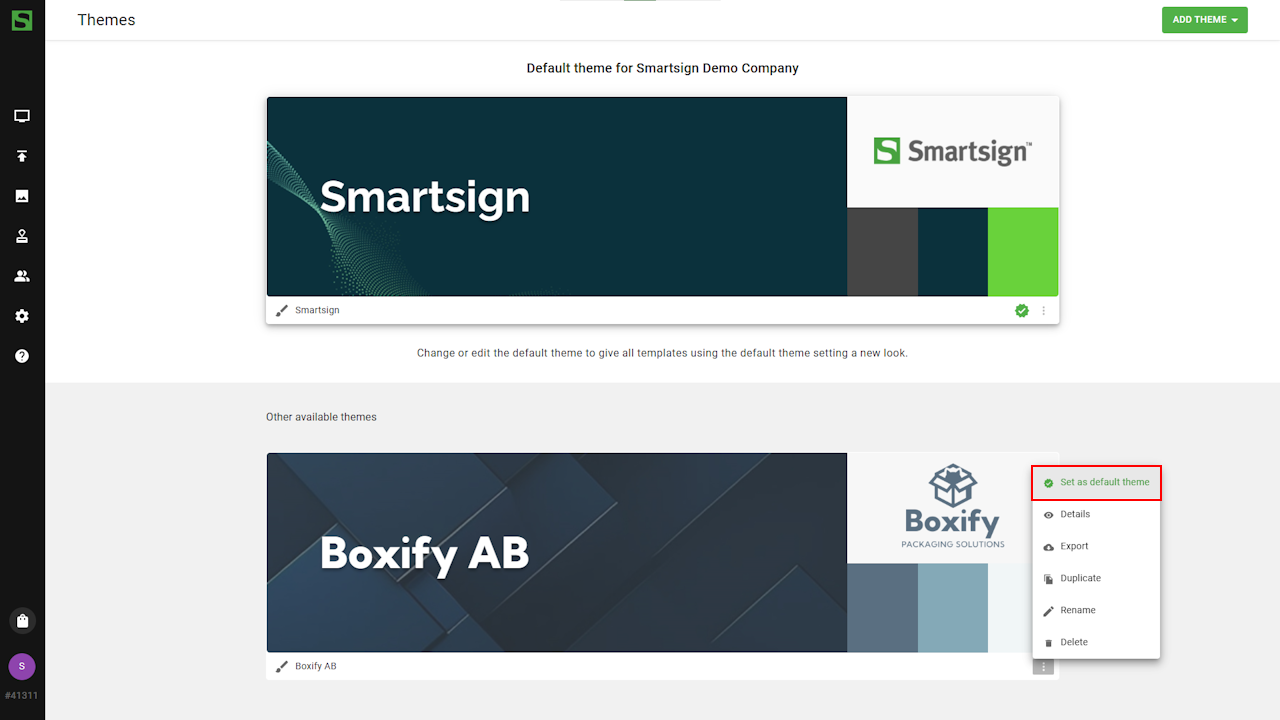
- Click the options menu and click Set as default theme.
A confirmation shows the estimated time. Click
Set as default theme to start the update, or Close to cancel.
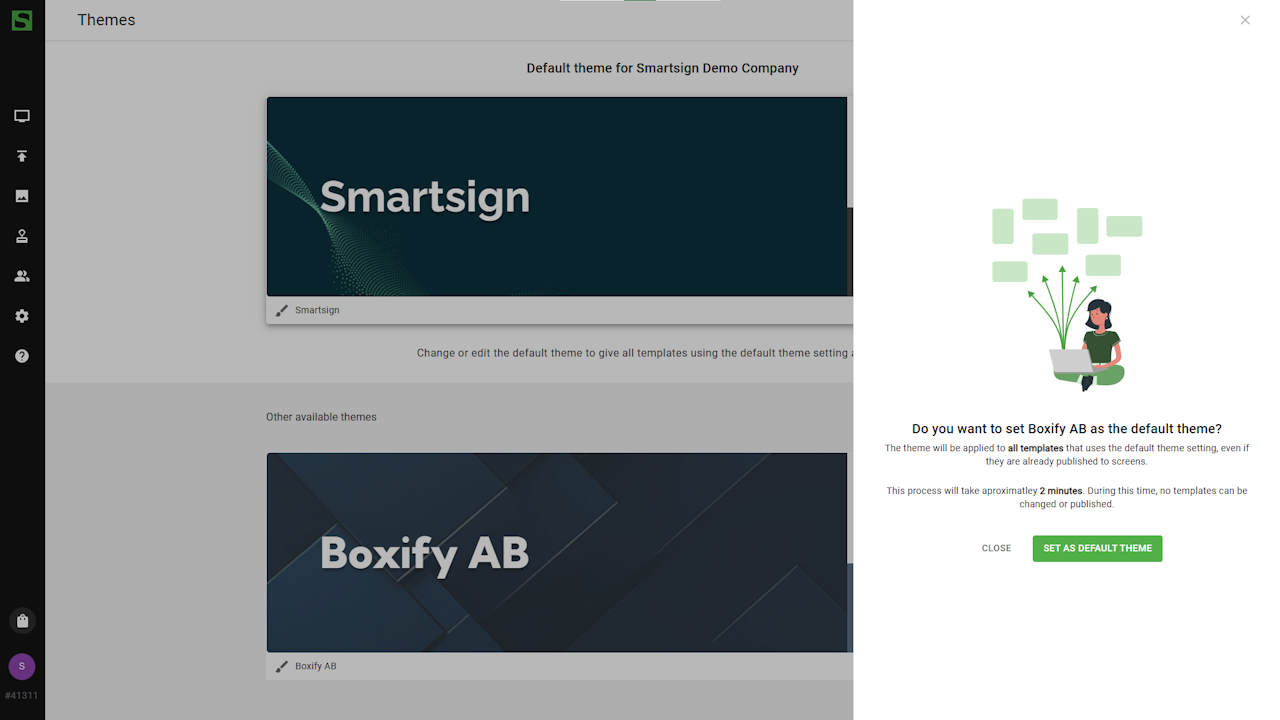
Applying a theme can take some time depending on the amount of templates. During this time, templates and smart media using the theme can't be edited or added to playlists until they have been updated.
-
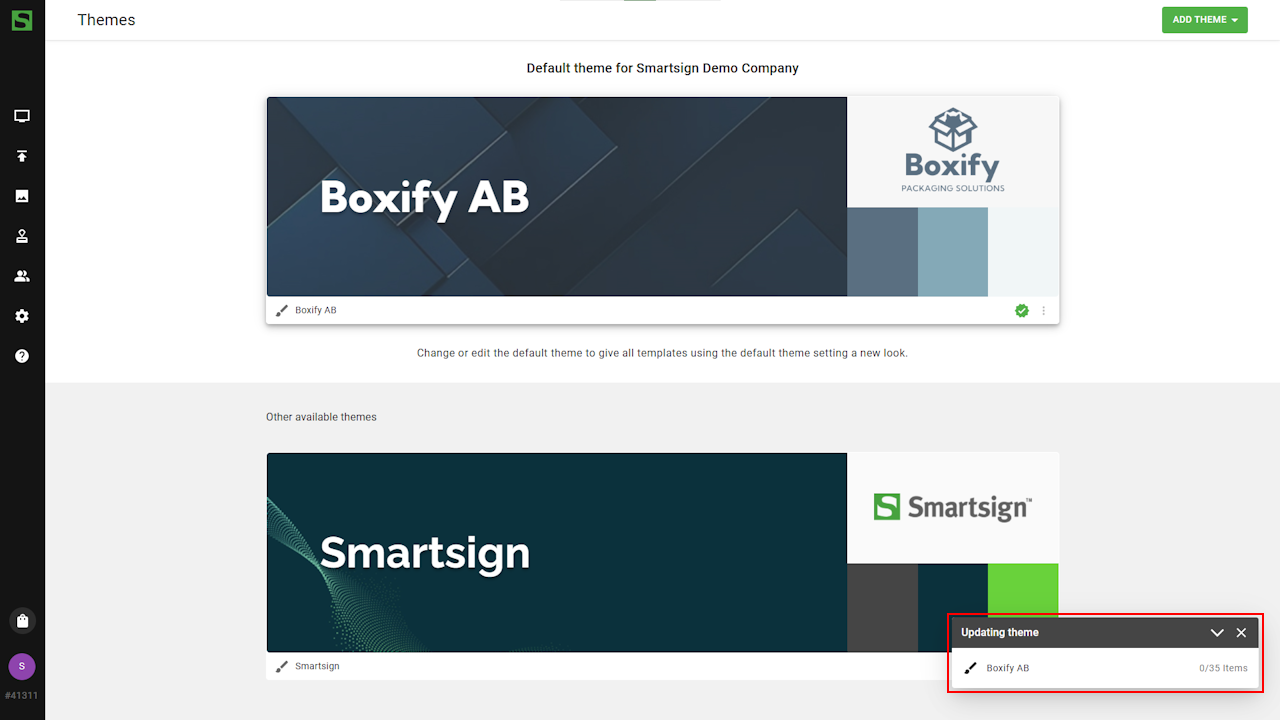
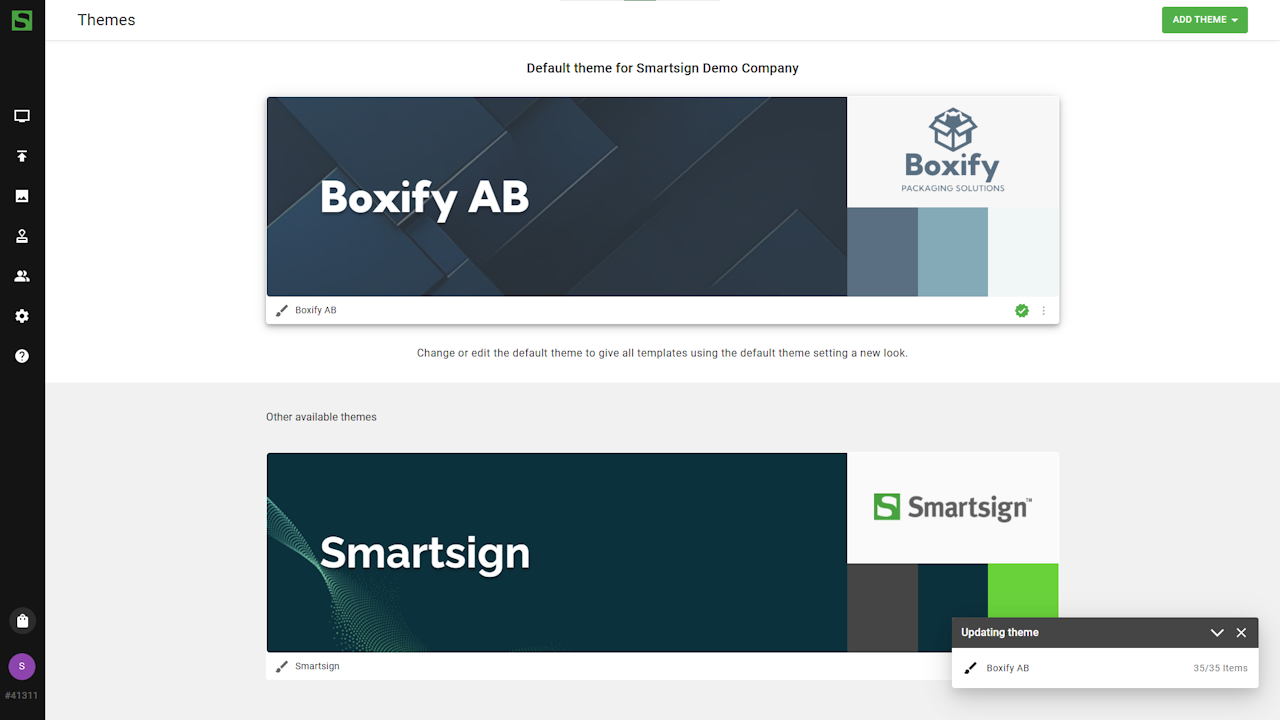
When the update has started, the Updating theme panel in the bottom right hand corner shows how many items have been updated.
-
New theme is now the default theme on the site.
Edit a theme
Go to Templates -> Themes and open the theme. Change its settings and click Save. Used by shows how many templates and smart media items use the theme. If the theme is in use, a confirmation shows the estimated time first, and the items are then updated in the background as when you apply a theme.
Other theme actions
- Add theme -> Import adds a theme from a ZIP file.
- The options menu of a theme has Export, which downloads the theme as a ZIP file, for example to use it on another site, and Duplicate, Rename and Delete.
- You can't delete the default theme, or a theme that templates use. Give those templates another theme first.