FAQ
How do I configure portrait mode
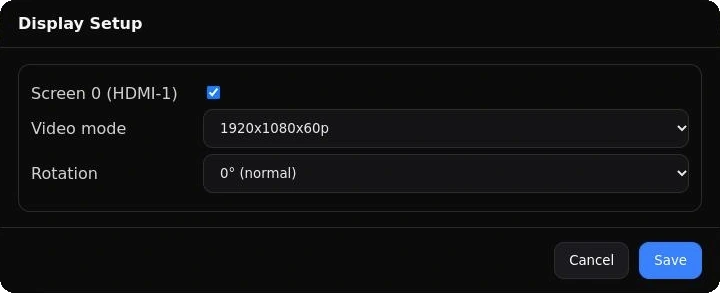
Once Smartsign is installed on your BrightSign device, you can connect a USB
keyboard and press CTRL + SHIFT + S to open a setup dialog.
With it, you can manually change both rotation and resolution for the device
outputs. Keep in mind the limitations for portrait video.
What browser does my BrightSign device have?
| BrightSignOS | Model year | Web engine | Version |
|---|---|---|---|
| 8 - 9.0 | 2024 | Chromium | 87 |
| 9.1 | 2021-2023 | Chromium | 120 |
Firmware upgrade
- Power down your device.
- Go the the Software Downloads page, select your device model (the OS is dependent on the device model), and download the .zip file.
- Unzipping the .zip file will result in a .bsfw file. Copy the .bsfw file to the root directory of a microSD card. This must be the only file in that directory with a .bsfw extension.
- Insert the microSD card into the device.
- Power on the device. The device will automatically upgrade itself (blinking power led). When complete, remove the file from the microSD card, and reboot with the new OS version.
Known limitations
Portrait video
Most BrightSign devices can only play 4k video in landscape and the same limitation applies to FHD video when playing on a 4k screen. To play in portrait, the device output must be set to 1920x1080.
XT5, XD5, LS5, HS5, HD5
Can only output FHD video in portrait (1080x1920 at 60p).
XC5
XC5 can output portrait video at 4K and at HD (1080x1920 at 60p).
Input/Output
The current release only supports the first HDMI output and no HDMI input. GPIO is not supported.