Google Drive Sync
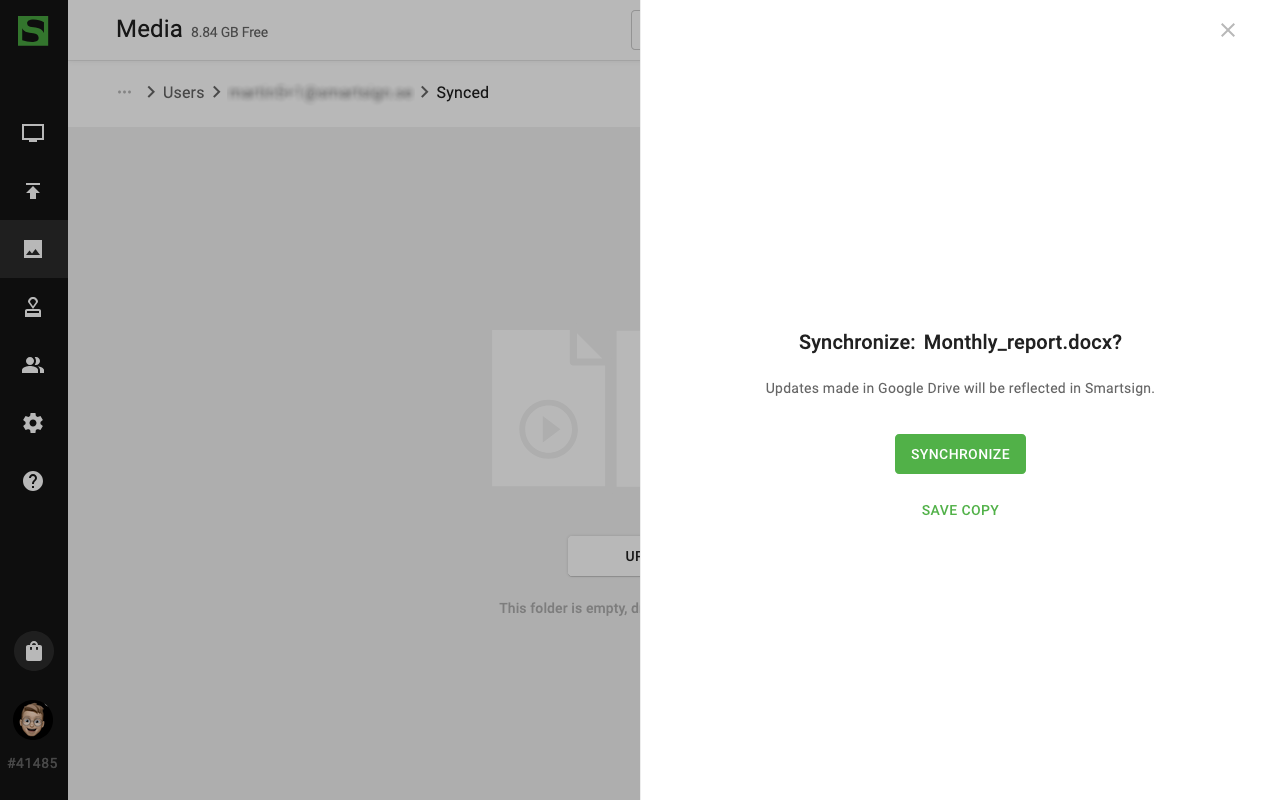
We've updated the Google Drive functions to give you control over whether a file stays linked to Google Drive or is stored as an independent copy in Smartsign, so the user can update content directly in google drive. The update includes:
- A prompt when adding a file from Google Drive to choose between enabling sync or adding a copy.
- A "Sync" entry in the file's properties when sync is enabled, showing the sync type (currently Google Drive).
- Disabled name editing (and other non-editable synced attributes) in media details while sync is active.
- An optional "Sync" column in the media library list view, showing the sync type for quick visibility.
- A visible unlink icon in the sync info section that removes synchronization and converts the file to regular media.
- The files are synced with a one hour interval.
This improves transparency and control over how imported files are managed, helping you decide whether updates in Google Drive should automatically carry over to Smartsign or remain independent. The feature is available when adding files from Google Drive to the media library; the "Sync" list column is optional and can be enabled in the list view column settings. If a file is unlinked it will no longer update from Google Drive-re-enabling sync requires re-adding the file from Google Drive.